Apply Symbology From Layer (Data Management Tools)
Summary
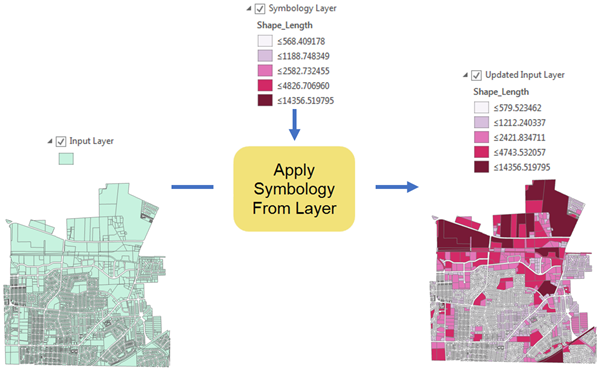
Applies the symbology from a specified layer or layer file to the input. It can be applied to feature, raster, network analysis, TIN, and geostatistical layers.
Illustration
Usage
The symbology layer must match the data type of the input layer. For example, a feature layer cannot be applied to a raster layer and vice versa.
The symbology can only be applied to features of the same geometry. For example, point symbology cannot be applied to a polygon layer.
In addition to symbology, the tool will transfer time field, 3D elevation and offset, label class, and HTML pop-up properties.
If the input is a feature class or dataset path, this tool will create and return a new layer with the result of the tool applied.
You can maintain or update the symbology ranges using the Update Symbology Ranges by Data parameter. Default symbology methods are dynamic. For example, the five-class Natural Breaks classification method from the symbology layer is applied to the input layer, and the range values are updated to reflect the
Shape_Areavalues of the input layer. The Maintain ranges option will use the same values as the symbology layer. The Update ranges option will use the five-class Natural Breaks classification method from the input layer'sShape_Areafield.The following methods are dynamic:
Unique values symbology to a feature
The unique values are updated to reflect the input layer's values.
If you do not want the unique values classification to be updated, choose the <all other values> default symbol in the symbology layer.
Graduated color symbology to a feature
The range values are updated to the values of the input layer.
If you do not want the range output to be updated, choose manual classification.
Classified value rendering to a raster
The range values are updated to reflect the values of the input layer.
If you do not want the range output to be updated, choose manual classification.
Setting the Update Symbology Ranges by Data parameter to Maintain ranges will copy the labels from the Symbology Layer value to the Input Layer value. If the parameter is set to Update ranges, the labels will be recomputed.
The symbology persists only for the duration of the layer. A layer can be retained by saving the ArcGIS Pro session or by saving the layer to a layer file using the Save Layer To File tool.
To see the symbology created in a script tool, the tool must include the layer as a derived output parameter. Similarly, the Updated Input Layer parameter value must be added as a derived model parameter model tool to see the symbology changes.
Parameters
| Label | Explanation | Data type |
|---|---|---|
|
Input Layer |
The layer to which the symbology will be applied. |
Feature Layer; Raster Layer; Layer |
|
Symbology Layer |
The layer containing the symbology that will be applied to the input layer. Both |
Layer |
|
Symbology Fields (Optional) |
The fields from the input layer that match the symbology fields used in the symbology layer. Value table columns:
|
Value Table |
|
Update Symbology Ranges by Data (Optional) |
Specifies whether symbology ranges will be updated.
|
String |
Derived output
| Label | Explanation | Data type |
|---|---|---|
|
Updated Input Layer |
The updated input layer. |
Layer |
Environments
Auto Commit, Current Workspace
Licensing information
- Basic: Yes
- Standard: Yes
- Advanced: Yes