ArcGISProject
Summary
The ArcGISProject object provides access to ArcGIS Pro project methods and properties. A reference to this object is essential for most Python map automation workflows.
Discussion
The ArcGISProject object is usually one of the first object references created in a map automation script because it is the main entry point to access most other objects in an ArcGIS Pro project. A project is referenced using the ArcGISProject function. Its properties allow you to get or set project settings such as defaultGeodatabase, defaultToolbox, documentVersion, filePath, and others. Its methods allow you to manage project items such as updateFolderConnections, updateDatabases, createMap, and createLayout, and copy or delete some project items using the copyItem or deleteItem methods, respectively.
Once you have a reference to an ArcGISProject object, you can access other objects using a number of list functions. For example, you can access a Map object using the listMaps method or a Layout object and a Report object using the listLayouts and listReports methods, respectively.
The following diagram illustrates, along the left side, the use of list functions for navigating and referencing the objects in a project. The diagram is only an example and does not display a complete set of objects and list methods.
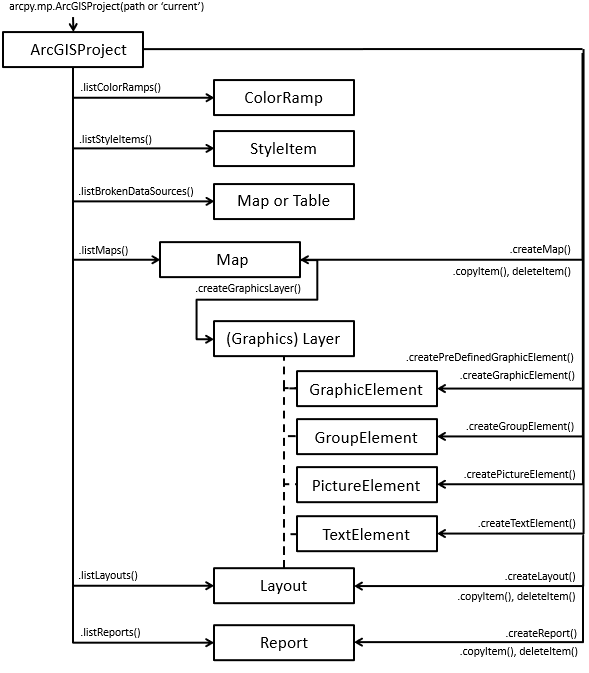
The diagram above, along the right side, also illustrates many of the create functions. For example, you can use createMap to create a Map object, createLayout to create a Layout object, or createReport to create a Report object.
Note:
The createGraphicElement, createGroupElement, createPictureElement, and createTextElement methods are also available on the ArcGISProject object because they allow you to create the elements in either a Layout object or a graphics layer in a Map object. The Layout object has additional methods to create elements that are specific to layouts. For example, createMapFrame.
Tip:
When creating elements in a graphics layer in a map, graphic layers are limited to a set number of features and overall size. See Work with graphics layers for more information.
There are a few methods and properties that only work with scripts that are run in the application such as scripts run in the Python window, a notebook, or those associated with a script tool. These are activeMap and activeView properties and the closeViews() method. The activeMap property will return the Map object associated with either an active map view or the active map frame on an active layout view. If these conditions are not met, NoneType will be returned. The activeView property will return either a MapView object if a map view is active or a Layout object if a layout view is active. If no views are active, both properties will return None. These properties will always return None when a script is run outside the application, because views are only relevant when the application is open. The MapView object returned from the activeView property is the only way to change the extent associated with a map view. There are multiple functions available on the MapView class that allow you to change the extent, such as camera, panToExtent, ZoomToAllLayers, and ZoomToBookmarks. The closeViews function is useful for closing specific view types in the application. To give focus to a specific view, close all views and use the openView method on the Layout, Map, or Report class.
The updateConnectionProperties method is useful for replacing data sources in a project. Data sources can be replaced on the ArcGISProject, Map, Layer, or Table object. See the Updating and fixing data sources help topic for more detailed information and code samples.
Note:
Projects can be referenced multiple times, but only the first reference can be saved directly because the other references will be opened as read-only. The ArcGISProject object has an isReadOnly property that can be used to determine a project's read state before calling a method such as saveACopy instead of save.
Properties
| Name | Explanation | Data type |
|---|---|---|
|
activeMap (Read only) |
Returns the Note:This property is designed to be run from within the application using a script tool, the Python window, or a Notebook. If a script is run outside of the application, a |
Map |
|
activeView (Read only) |
Returns a Note:This property is designed to be run from within the application using a script tool or the Python window, or a Notebook. If a script is run outside of the application, a |
Object |
|
databases (Read only) |
Returns a list of Python dictionaries, each representing the properties for individual databases in a project. To modify the databases, see the |
List |
|
dateSaved (Read only) |
Returns a Python |
DateTime |
|
defaultGeodatabase (Read and Write) |
The project's default geodatabase location. The string must include the geodatabase's full path and file name. Note:This property can be locked by systems administrators through Application settings. |
String |
|
defaultToolbox (Read and Write) |
The project's default toolbox location. The string must include the toolbox's full path and file name. Note:This property can be locked by systems administrators through Application settings. |
String |
|
documentVersion (Read only) |
Returns the version of the project document based on when it was last saved. Running |
String |
|
filePath (Read only) |
Returns a string value that reports the fully qualified project path and file name. |
String |
|
folderConnections (Read only) |
Returns a list of Python dictionaries, each representing the properties for individual folder connections in a project. To modify folder connections, see the |
List |
|
homeFolder (Read and Write) |
The project's home folder location. The string must include the full path to the desired location. Note:This property can be locked by systems administrators through Application settings. |
String |
|
isReadOnly (Read only) |
Returns True if a project has already been opened in another instance of the application or referenced by another script. Knowing the current state allows you to determine whether you can |
Boolean |
|
metadata (Read and Write) |
Get or set the project's |
Metadata |
|
styles (Read only) |
Returns a list of styles present in the project. The values in the list represent strings that are either a system style keyword such as Note:The Favorites style is not returned from the |
List |
|
toolboxes (Read only) |
Returns a list of Python dictionaries, each representing the properties for individual toolboxes in a project. To modify the toolboxes, see the |
List |
Methods
closeViews({view_type}, {wildcard})
Close view panes that are currently open in ArcGIS Pro.
Sometimes it is useful to clean up numerous open views in the application before opening a specific view to see the resulting view with better focus. The method is limited to closing only view panes associated with the following project items: layout, map, report or a table. This method will also close table views associated with a "MAP".
You can filter project items by using the wildcard parameter. For example, the following script will close all map views named 'Landuse'.
aprx = arcpy.mp.ArcGISProject("CURRENT")
aprx.closeViews(view_type="MAPS", wildcard="Landuse")
Note:
This method is designed to be executed from within the application using a script tool, Notebook, or the Python window. It will have no effect if executed outside of the application.
| Name | Explanation | Data type |
|---|---|---|
|
view_type (Optional) |
A constant that determines the type of views to be closed in the application.
The default value is MAPS_AND_LAYOUTS. |
String |
|
wildcard (Optional) |
A wildcard is based on the project item name and is not case sensitive. A combination of asterisks (*) and characters can be used to help limit the resulting list. The default value is None. |
String |
copyItem(project_item, {new_name})
Creates a copy of an existing layout, map, or report project item.
This method is appropriate if you want to modify a copy of an existing project item without making changes to the original item. You can copy a layout, a map, or a report project item.
| Name | Explanation | Data type |
|---|---|---|
|
project_item |
An object reference that represents a supported project item to be copied. |
Object |
|
new_name (Optional) |
An optional string that represents the name of the new project item. If a name is not provided, the default |
String |
Return value
| Data type | Explanation |
|---|---|
|
Object |
If a variable reference is specified, the returned object will represent either a layout, map, or report project item. |
createGraphicElement(container, geometry, {style_item}, {name}, {lock_aspect_ratio})
The createGraphicElement method creates a GraphicElement in the specified container.
This method is located on the ArcGISProject object because the container property allows you to create graphic elements in either a Layout object, a graphics layer in a Map object, or a GroupElement object in a layout or graphics layer.
If the element is created using a point geometry, the point location will represent the anchor position and there will be a default size. Later you can resize the element using the elementWidth and elementHeight properties. The createPredefinedGraphicElement method is very similar but it allows you to create common, predefined shapes.
Refer to the GraphicElement class help topic for more information and code samples.
| Name | Explanation | Data type |
|---|---|---|
|
container |
A reference to a |
Object |
|
geometry |
The appropriate |
Object |
|
style_item (Optional) |
An optional reference to a |
String |
|
name (Optional) |
An optional string that represents the name of the new |
String |
|
lock_aspect_ratio (Optional) |
An optional The default value is True. |
Boolean |
Return value
| Data type | Explanation |
|---|---|
|
GraphicElement |
If a variable is provided, it will reference the newly returned |
createGroupElement(container, element_list[element_list,...], {name})
The createGroupElement method creates a GroupElement in the specified container.
This method is located on the ArcGISProject object because the container property allows you to create graphic elements in either a Layout object, a graphics layer in a Map object, or a GroupElement object in a layout or graphics layer.
You can not create a new, empty group element. Rather, you need to have existing elements to embed within the group element. If the container is a layout or graphics layer, the group will be created at the root level. If the container references an existing group element, a child group element will be created. The first element in the list will be the first element in the group, the next element in the list will appear below the first element in the contents pane, and so on.
Refer to the GroupElement class help topic for more information and code samples.
| Name | Explanation | Data type |
|---|---|---|
|
container |
A reference to a |
Object |
|
element_list[element_list,...] |
A list of elements that will be placed in the newly created group. Note:You can not create an empty group element, there must be existing elements to place in the group. |
List |
|
name (Optional) |
An optional string that represents the name of the new |
String |
Return value
| Data type | Explanation |
|---|---|
|
GroupElement |
If a variable is provided, it will reference the newly returned |
createLayout(page_width, page_height, page_units, {name})
The createLayout method creates a Layout that will automatically get added to the Catalog pane.
This method returns a reference to a new Layout object. If you want to see the layout and activate it in a view, call the openView method on the Layout. The next steps will be to populate it with new layout elements using different constructor methods on the Layout class or the ArcGISProject class.
| Name | Explanation | Data type |
|---|---|---|
|
page_width |
A double that specifies the width of a layout and is based on the |
Double |
|
page_height |
A double that specifies the height of a layout and is based on the |
Double |
|
page_units |
One of the following page units must be provided to describe the
|
String |
|
name (Optional) |
A string that represents the name of the new layout. If a name is not provided, the default |
String |
Return value
| Data type | Explanation |
|---|---|
|
Layout |
If a variable reference is optionally provided, it will represent a reference to the new |
createMap({name}, {map_type})
This method creates a map that will automatically get added to the Catalog pane.
This method returns a reference to a new map class. If the script is run within the application, the basemap specified in the project settings will get applied. If the script is run stand-alone, the Topographic basemap will automatically get added.
| Name | Explanation | Data type |
|---|---|---|
|
name (Optional) |
A string that represents the name of the new map. If a name is not provided, the default |
String |
|
map_type (Optional) |
The type of map to be created and are defined by the keywords below.
The default value is Map. |
String |
Return value
| Data type | Explanation |
|---|---|
|
Map |
If a variable reference is specified, it will represent one of the supported |
createPictureElement(container, geometry, path, {name}, {lock_aspect_ratio})
The createPictureElement method creates a PictureElement in the specified container.
This method is located on the ArcGISProject object because the container property allows you to create graphic elements in either a Layout object, a graphics layer in a Map object, or a GroupElement object in a layout or graphics layer.
If the element is created using a point geometry, the point location will represent the anchor position and will be added at full size based on its number of pixels. Later you can resize the element using the elementWidth and elementHeight properties. If the picture is created with a non-rectangular polygon shape, the minimum envelope that encompasses all coordinates will be used instead.
Refer to the PictureElement class help topic for more information and code samples.
| Name | Explanation | Data type |
|---|---|---|
|
container |
A reference to a |
Object |
|
geometry |
The appropriate |
Object |
|
path |
A string that represents the full path and file name of the location of the picture. |
String |
|
name (Optional) |
An optional string that represents the name of the new |
String |
|
lock_aspect_ratio (Optional) |
A Boolean that controls how the picture is inserted into the envelope. If set to False, the image will be stretched to fill the entire area of the envelope. The default value is True. |
Boolean |
Return value
| Data type | Explanation |
|---|---|
|
PictureElement |
If a variable is provided, it will reference the newly returned |
createPredefinedGraphicElement(container, geometry, shape_type, {style_item}, {name}, {lock_aspect_ratio})
The createPredefinedGraphicElement method creates a GraphicElement in the specified container.
This method is located on the ArcGISProject object because the container property allows you to create graphic elements in either a Layout object, a graphics layer in a Map object, or a GroupElement object in a layout or graphics layer.
If the element is created using a point geometry, the point location will represent the anchor position and there will be a default size. Later you can resize the element using the elementWidth and elementHeight properties. The createGraphicElement method is very similar but it allows you to create custom shapes.
Refer to the GraphicElement class help topic for more information and code samples.
| Name | Explanation | Data type |
|---|---|---|
|
container |
A reference to a |
Object |
|
geometry |
The appropriate |
Object |
|
shape_type |
A string constant that represents the predefined shape that will be created. The following is a list of valid values:
|
String |
|
style_item (Optional) |
An optional reference to a |
String |
|
name (Optional) |
An optional string that represents the name of the new |
String |
|
lock_aspect_ratio (Optional) |
An optional The default value is True. |
Boolean |
Return value
| Data type | Explanation |
|---|---|
|
GraphicElement |
If a variable is provided, it will reference the newly returned |
createReport(page_info, data_source, {fields[fields,...]}, {statistics[statistics,...]}, {name}, {template}, {styling})
The createReport method creates a report that is automatically added to the Catalog pane.
This method returns a reference to a new Report object. To access the report and activate it in a view, call the openView method on the Report object.
| Name | Explanation | Data type |
|---|---|---|
|
page_info |
A dictionary that specifies the page width, height, units, and margins for the new report. The page width and height are based on the
The page margins restrict editable space for the report. An 8.5 inch by 11 inch report, for example, with The margin key values are defined as follows:
|
Dictionary |
|
data_source |
A |
Object |
|
fields[fields,...] (Optional) |
A list of field dictionaries that include the following keys:
The
|
Dictionary |
|
statistics[statistics,...] (Optional) |
A list of statistic dictionaries that include field name and statistic type. If a value is specified, the
The acceptable
|
Dictionary |
|
name (Optional) |
A string that represents the name of the new report. If no name is provided, the default |
String |
|
template (Optional) |
A string that represents a default template for the new report. The acceptable values are defined as follows:
The default value is ATTR_LIST. |
String |
|
styling (Optional) |
A string that represents a default styling for the new report. The acceptable values are defined as follows:
The default value is BLACK_AND_WHITE. |
String |
Return value
| Data type | Explanation |
|---|---|
|
Report |
If a variable reference is provided, it will represent a reference to the new |
createTextElement(container, geometry, text_type, text, {text_size}, {font_family_name}, {font_style_name}, {style_item}, {name}, {lock_aspect_ratio})
The createTextElement method creates a TextElement object in the specified container.
This method is located on the ArcGISProject object because the container property allows you to create group elements in a Layout object, a graphics layer in a Map object, or a GroupElement object in a layout or graphics layer.
If the text element is using a point geometry, the point location will represent the anchor position and there will be a default size. You can resize the element using the elementWidth and elementHeight properties.
See the TextElement help topic for more information and code samples.
| Name | Explanation | Data type |
|---|---|---|
|
container |
A |
Object |
|
geometry |
The appropriate |
Object |
|
text_type |
Specifies the type of text that will be created. The following is a list of valid values:
|
String |
|
text |
The text string associated with the element. |
String |
|
text_size (Optional) |
The size of the text in points. |
Double |
|
font_family_name (Optional) |
The text symbol font associated with the element. Note:The value that appears in the Font name drop-down list on the ribbon does not always match the |
String |
|
font_style_name (Optional) |
The font style name. Depending on the font, the style may include regular, bold, italic, any combination of these, or an extended list. Note:The value that appears in the Font style drop-down list on the ribbon does not always match the |
String |
|
style_item (Optional) |
A |
String |
|
name (Optional) |
The new |
String |
|
lock_aspect_ratio (Optional) |
Specifies whether the element can be resized. For example, if the value is The default value is False. |
Boolean |
Return value
| Data type | Explanation |
|---|---|
|
TextElement |
If a variable is provided, it will reference the newly returned |
deleteItem(project_item)
Deletes a layout, map, or report project item.
The item is permanently deleted from the project. Deleting an item may have an impact on other items. For example, if you delete a map that is used in a layout, the MapFrame that references the map will also lose the reference to the map and the map property will be set to None.
| Name | Explanation | Data type |
|---|---|---|
|
project_item |
An object that represents a supported project item to be deleted. |
Object |
importDocument(document_path, {include_layout}, {reuse_existing_maps}, {log_files})
Imports map (.mxd), globe (.3dd), and scene (.sxd) documents into an ArcGIS Pro project. It can also be used to import the contents of map files (.mapx), layout files (.pagx), and report files (.rptx).
This method imports one document at a time. To import multiple documents, run the method once for each document. A map document (.mxd) always has a layout. While migrating map documents, if you do not want to import the layout, set include_layout=False.
| Name | Explanation | Data type |
|---|---|---|
|
document_path |
A string that includes the system path and name of a document ( |
String |
|
include_layout (Optional) |
A Boolean parameter indicating whether the layout from a map document ( The default value is True. |
Boolean |
|
reuse_existing_maps (Optional) |
A Boolean parameter to prevent the creation of duplicate maps in the project. If The default value is False. |
Boolean |
|
log_files (Optional) |
A Boolean parameter that controls if log files are written to the The default value is True. |
Boolean |
Return value
| Data type | Explanation |
|---|---|
|
Object |
The type of object returned is based on the file being imported. When importing a map document ( |
listBasemaps({wildcard}, {basemap_type})
The listBasemaps method references basemaps available in a project.
The listBasemaps method returns a list object even if only one basemap is returned so use an index number to return a String instead. The output from listBasemaps can then be used in the addBasemap method on the Map class.
| Name | Explanation | Data type |
|---|---|---|
|
wildcard (Optional) |
A wildcard is based on the label as it appears in the basemap gallery in the application and is not case sensitive. A combination of asterisks (*) and characters can be used to help limit the resulting list. The default value is None. |
String |
|
basemap_type (Optional) |
An additional filter can be used to ensure the correct basemap type is returned because basemaps could have the same name in each type of gallery. The following types are supported:
The default value is 2D. |
String |
Return value
| Data type | Explanation |
|---|---|
|
List |
Returns a Python list of String objects. |
The following script adds a basemap to a map.
p = arcpy.mp.ArcGISProject('current')
bm = p.listBasemaps('National Geographic*')[0]
m = p.listMaps('Yosemite National Park')[0]
m.addBasemap(bm)
listBrokenDataSources()
Returns a Python list of Layer and/or Table objects that have broken connections to their original source data for all maps in a project.
The listBrokenDataSources method always returns a Python list object even if only one broken layer or table is returned.
Return value
| Data type | Explanation |
|---|---|
|
List |
listColorRamps({wildcard})
The listColorRamps method references color ramps available in a project.
It is possible to have multiple color ramps in a project with the same name. It is important that you author your project with color ramp names that can be easily searched using a unique name. An index number can be used to return a specific color ramp. For example, the following line will return the first color ramp object in the list: cr = aprx.listColorRamps("Black*")[0].
| Name | Explanation | Data type |
|---|---|---|
|
wildcard (Optional) |
A wildcard is based on the color ramp name as it appears in the application. A combination of asterisks (*) and characters can be used to help limit the resulting list. The default value is None. |
String |
Return value
| Data type | Explanation |
|---|---|
|
List |
Returns a list of ColorRamp objects. |
listLayouts({wildcard})
Returns a Python list of Layout objects in an ArcGIS project (.aprx).
| Name | Explanation | Data type |
|---|---|---|
|
wildcard (Optional) |
A wildcard is based on the layout name and is not case sensitive. A combination of asterisks (*) and characters can be used to help limit the resulting list. The default value is None. |
String |
Return value
| Data type | Explanation |
|---|---|
|
List |
A Python list of Layout objects in an ArcGIS project. |
listMaps({wildcard})
Returns a Python list of Map objects in an ArcGIS project (.aprx).
| Name | Explanation | Data type |
|---|---|---|
|
wildcard (Optional) |
A wildcard is based on the map name and is not case sensitive. A combination of asterisks (*) and characters can be used to help limit the resulting list. The default value is None. |
String |
Return value
| Data type | Explanation |
|---|---|
|
List |
A Python list of Map objects in an ArcGIS project. |
listReports({wildcard})
Returns a Python list of Report objects in an ArcGIS project (.aprx).
| Name | Explanation | Data type |
|---|---|---|
|
wildcard (Optional) |
A wildcard is based on the report name and is not case sensitive. A combination of asterisks (*) and characters can be used to help limit the resulting list. The default value is None. |
String |
Return value
| Data type | Explanation |
|---|---|
|
List |
A Python list of Report objects in an ArcGIS project. |
listStyleItems(style, {style_class}, {wildcard}, {key})
The listStyleItems method references system, personal, and custom styles available in a project.
It is possible to have multiple style items in a project with the same name. If that is the case, then in addition to the wildcard parameter, you can also use properties like category and tags to validate that you have the style item you want. See the code example in the StyleItem class help topic.
| Name | Explanation | Data type |
|---|---|---|
|
style |
A string that represents either a system style name such as ArcGIS 2D, a personal style such as Favorites, or a custom Note:Styles must exist in the project before they can be referenced using The default value is None. |
String |
|
style_class (Optional) |
A string that represents the class of the style items as they appear in the Catalog View window.
The default value is None. |
String |
|
wildcard (Optional) |
A wildcard based search on the style item name as it appears in the application. A combination of asterisks (*) and characters can be used to filter the resulting list. The default value is None. |
String |
|
key (Optional) |
A wildcard based search on the style item key value as it appears in the application. A combination of asterisks (*) and characters can be used to filter the resulting list. The default value is None. |
String |
Return value
| Data type | Explanation |
|---|---|
|
List |
Returns a list of Tip:It is a best practice to reference system style items by |
save()
Saves changes to an ArcGISProject (.aprx).
Saves changes to an ArcGISProject (.aprx). The project is saved and the project variable continues to reference the original ArcGISProject object.
saveACopy(file_name)
Saves an ArcGISProject (.aprx) to a new file path or name.
The method creates a new output project file, but the project variable continues to reference the original ArcGISProject object. It does not duplicate all the content within a project folder.
| Name | Explanation | Data type |
|---|---|---|
|
file_name |
A string used to save an |
String |
updateConnectionProperties(current_connection_info, new_connection_info, {auto_update_joins_and_relates}, {validate}, {ignore_case})
The updateConnectionProperties method replaces connection properties using a dictionary or a path to a workspace.
For more detailed discussion, parameter information, scenarios, and code samples, see Updating and fixing data sources.
| Name | Explanation | Data type |
|---|---|---|
|
current_connection_info |
A string that represents the workspace path or a Python dictionary that contains connection properties to the source you want to update. If an empty string or |
String |
|
new_connection_info |
A string that represents the workspace path or a Python dictionary that contains connection properties with the new source information. |
String |
|
auto_update_joins_and_relates (Optional) |
If set to The default value is True. |
Boolean |
|
validate (Optional) |
If set to The default value is True. |
Boolean |
|
ignore_case (Optional) |
Determines whether searches will be case sensitive. By default, queries are case sensitive. To perform queries that are not case sensitive, set The default value is False. |
Boolean |
updateDatabases(databases[databases,...], {validate})
The updateDatabases method replaces project databases using a list of dictionaries that describe each database.
To update a project's databases, you must set the entire list of databases at once. You cannot add, remove, or update a single database at a time. You can either build a new list from scratch or you can modify the list returned by the databases property and push the entire list back to the project using the updateDatabases method.
| Name | Explanation | Data type |
|---|---|---|
|
databases[databases,...] |
A list of Python dictionaries that each contain properties to an individual database. The dictionary keys are defined below.
|
List |
|
validate (Optional) |
If set to The default value is True. |
Boolean |
Return value
| Data type | Explanation |
|---|---|
|
List |
A list of invalid databases. |
updateFolderConnections(folder_connections[folder_connections,...], {validate})
The updateFolderConnections method replaces project folder connections using a list of dictionaries that describe each connection.
To update a project's folder connections, you must set the entire list of databases at once. You cannot add, remove, or update a single folder connection at a time. You can either build a new list from scratch or you can modify the list returned by the folderConnections property and push the entire list back to the project using the updateFolderConnections method.
| Name | Explanation | Data type |
|---|---|---|
|
folder_connections[folder_connections,...] |
A list of Python dictionaries that each contain connection properties to an individual folder. The dictionary keys are defined below.
|
List |
|
validate (Optional) |
If set to The default value is True. |
Boolean |
Return value
| Data type | Explanation |
|---|---|
|
List |
A list of folders that do not have valid connections. |
updateStyles(styles[styles,...])
The updateStyles method updates project styles using a list of strings.
To update a project's styles, you must set the entire list of styles at once. You cannot add, remove, or update a single style at a time. You can either build a new list from scratch or you can modify the list returned by the styles property and set the entire list back to the project using the updateStyles method. The Favorites style should not be included in the styles parameter when using the updateStyles method. The Favorites style is always available in a project, as it is linked to your user account. It is not associated with a project and cannot be managed with the updateStyles method. For additional information and code example, refer to the StyleItem class help topic.
| Name | Explanation | Data type |
|---|---|---|
|
styles[styles,...] |
A list of strings that are either a system style keyword such as |
List |
Return value
| Data type | Explanation |
|---|---|
|
List |
A list of styles that could not be added. Check for spelling or file paths errors. |
The following script appends a system style and a custom style to the current list of styles displayed in the Catalog pane.
p = arcpy.mp.ArcGISProject('current')
s = p.styles
s.append('Pushpins')
s.append(r'C:\Projects\YosemiteNP\Yosemite.stylx')
p.updateStyles(s)
updateToolboxes(toolboxes[toolboxes,...], {validate})
The updateToolboxes method replaces project toolboxes using a list of dictionaries.
To update a project's toolboxes, you must set the entire list of toolboxes at once. You cannot add, remove, or update a toolbox one at a time. You can either build a new list from scratch or you can modify the list returned by the toolboxes property and push the entire list back to the project using the updateToolboxes method.
| Name | Explanation | Data type |
|---|---|---|
|
toolboxes[toolboxes,...] |
A list of Python dictionaries that each contain toolbox information. The dictionary keys are defined below.
|
List |
|
validate (Optional) |
Specifies whether all toolboxes will be added to the project. If set to The default value is True. |
Boolean |
Return value
| Data type | Explanation |
|---|---|
|
List |
A list of toolboxes that do not have valid connections. |
Code sample
The following script demonstrates how to import documents into an existing ArcGIS Pro template project. It also sets up some of the default project settings and saves the result to a new project file.
import arcpy
#Reference a blank, template project on disk
p = arcpy.mp.ArcGISProject(r"C:\Projects\blank.aprx")

#Import documents set up default GDB and toolbox
p.importDocument(r"C:\Projects\YosemiteNP\Documents\Yosemite.mxd")
p.importDocument(r"C:\Projects\YosemiteNP\Documents\Yosemite_3DViews.3dd")

#Set up default GDB and toolbox
p.defaultGeodatabase = r"C:\Projects\YosemiteNP\Data_Vector\YosemiteData.gdb"
p.defaultToolbox = r"C:\Projects\YosemiteNP\Analysis\AnalysisTools.tbx"

#Save out to a new, different project
p.saveACopy(r"C:\Projects\YosemiteNP\Yosemite.aprx")
The following script prints the names of objects in a project . It uses the keyword CURRENT, so it should be run from the Python window. The script prints the name of each map followed by its list of layers. Then it prints the name of each layout along with page size information.
p = arcpy.mp.ArcGISProject('CURRENT')

#Project information
print(f'Project: {p.filePath}')
print(f' Version: {p.documentVersion}')
print(f' Last saved: {p.dateSaved}')

#Loop through each map
print('Maps and Layers:')
for m in p.listMaps():
    print(' Map: ' + m.name)
    for lyr in m.listLayers():
        print('  Layer: ' + lyr.name)

#Loop through each layout
print('Layouts:')
for lyt in p.listLayouts():
    print(f' Name: {lyt.name}')
    print(f'  W/H: {lyt.pageWidth} x {lyt.pageHeight}')
    print(f'  Units: {lyt.pageUnits}')
The following script uses the keyword CURRENT, so it should be run from the Python window. The script copies an existing map, adds a new layer to it, sets the map's default camera property that controls the extent of newly opened views, exports the map view to PDF, and removes the newly created map from the project.
p = arcpy.mp.ArcGISProject('CURRENT')

#Create a copy of an existing map
existingMap = p.listMaps('Yosemite National Park')[0]
rangerMap = p.copyItem(existingMap, new_name='Ranger Stations')

#Add ranger stations layer file
lyrx = arcpy.mp.LayerFile(r'C:\Projects\YosemiteNP\LayerFiles\Ranger Stations.lyrx')
rangerMap.addLayer(lyrx)

#Close any current layout or map views
p.closeViews('MAPS_AND_LAYOUTS')

#Set the default map camera to the extent of the park boundary before opening the new view
#default camera only affects newly opened views
lyr = rangerMap.listLayers('*Park Boundary')[1]
rangerMap.defaultCamera.setExtent(arcpy.Describe(lyr).extent)
rangerMap.openView()

#export the newly opened active view to PDF, then delete the new map
mv = p.activeView
mv.exportToPDF(r'C:\Temp\RangerStations.pdf', width=700, height=500, resolution=96)

#Optionally delete the temporary map when the export is complete
p.deleteItem(rangerMap)
The following script iterates though all file geodatabase layers in a project and adds each unique workspace path to the Folders project item folder.
import arcpy, os
p = arcpy.mp.ArcGISProject(r'C:\Projects\YosemiteNP\Yosemite.aprx')

#Check project read-state before continuing
if p.isReadOnly:
  print('WARNING: project is already opened. Exiting.')
  exit

folderList = [p.homeFolder]
for m in p.listMaps():
  for l in m.listLayers():
    if not l.isWebLayer:
      if not l.isBasemapLayer:
        if l.supports('DATASOURCE'):
          dirPath = os.path.dirname(l.dataSource)
          #Parce out GDB folders
          pathParts = dirPath.split(os.sep)
          for part in pathParts:
            if part.endswith(".gdb"):
              gdbName = part
              dirPath = dirPath.split("\\"+gdbName, 1)[0]
          #Add unique path to list
          if dirPath not in folderList:
            folderList.append(dirPath)
folderList.sort()
for f in folderList:
    print(f)
print(f'Total Unique Folders: {len(folderList)}')

#Add each folder connection from FolderList, there MUST be one default folder.

fcList = []
for folder in folderList:
  if folder == r'C:\Projects\YosemiteNP':
    defName2 = r'Default Folder'
    fcDict = {'connectionString':folder, 'alias':defName2, 'isHomeFolder':True}

  else:
    fcDict = {'connectionString':folder, 'alias':'', 'isHomeFolder':False}

  fcList.append(fcDict)

bfc = p.updateFolderConnections(fcList, validate=False)
print(f'Broken folder connections: {len(bfc)}')

p.saveACopy(r'C:\Projects\YosemiteNP\Yosemite_Output.aprx')
The following script appends new file geodatabases to the Databases project item folder providing quick access to the data from the project.
import arcpy, os
path = r'C:\Projects\YosemiteNP'

p = arcpy.mp.ArcGISProject(os.path.join(path, 'Yosemite.aprx'))
#Check project read-state before continuing
if p.isReadOnly:
  print('WARNING: project is already opened. Exiting.')
  exit

db = p.databases

#Append new fGDBs in addition to the already existing default database
db.append({'databasePath' : os.path.join(path, r'Data_Geology\Geology.gdb'),
           'isDefaultDatabase': False})
db.append({'databasePath' : os.path.join(path, r'Data_Elev\Elevation.gdb'),
           'isDefaultDatabase': False})
db.append({'databasePath': os.path.join(path, r'\Data_LandCover\LandCover.gdb'),
           'isDefaultDatabase': False})

p.updateDatabases(db, True)
p.saveACopy(os.path.join(path, 'Yosemite_newGDBs.aprx'))
The following script creates a layout in a project and creates predefined graphic elements using a referenced system style. A function is used to create the envelope for each graphic rectangle added to the layout.
def MakeRec_LL(llx, lly, w, h):
    xyRecList = [[llx, lly], [llx, lly+h], [llx+w,lly+h], [llx+w,lly], [llx,lly]]
    xyRecList = [[1,1],[1, 2], [2.75, 2], [2.75, 1], [1, 1]]
    array = arcpy.Array([arcpy.Point(*coords) for coords in xyRecList])
    rec = arcpy.Polygon(array)
    return rec

p = arcpy.mp.ArcGISProject('CURRENT')
lyt = p.createLayout(6, 3, 'INCH', 'New Layout with Rectangles')

#Construct a pre-defined rectangle graphic element using a system style item
# and a rectangle function that takes x/y min/max and a width/height
# using the lower left corner as a start location

polyStyle = p.listStyleItems('ArcGIS 2D', 'Polygon', 'Orchard')[0]

p.createPredefinedGraphicElement(lyt, MakeRec_LL(1, 1, 1.75, 1), 'RECTANGLE',
                                 polyStyle, 'ArcPy_Rectangle_Env',
                                 lock_aspect_ratio=False)

#Construct the same element above using a point location
rec = p.createPredefinedGraphicElement(lyt, arcpy.Point(3, 1), 'RECTANGLE',
                                       polyStyle, 'ArcPy_Rectangle_Pt',
                                       lock_aspect_ratio=False)
rec.elementWidth = 1.75
rec.elementHeight = 1

lyt.openView()
The following script creates a map with a graphics layer. Next, it adds two pictures to a new group layer within the graphics layer. A function is used to create the envelope for each picture and they are offset by 3000000 map units.
def MakeRec_UL(ulx, uly, w, h):
    xyRecList = [[ulx, uly], [ulx+w, uly], [ulx+w,uly-h], [ulx,uly-h], [ulx,uly]]
    array = arcpy.Array([arcpy.Point(*coords) for coords in xyRecList])
    rec = arcpy.Polygon(array)
    return rec

p = arcpy.mp.ArcGISProject('current')
m = p.createMap('New Map', 'Map') #WGS 1984 Web Mercator (auxiliary sphere)
gl = m.createGraphicsLayer('New Graphics Layer')

###Replace with pictures of YOUR favorite pets!
picPath1 = r'C:\Projects\Fenway.jpg'
picPath2 = r'C:\Projects\Chowdah.png'

x = -13000000; y = 5000000; w = 1000000; h = 1500000

pic1 = p.createPictureElement(gl, MakeRec_UL(x, y, w, h), picPath1, 'Fenway')
pic2 = p.createPictureElement(gl, MakeRec_UL(x+3000000, y, w, h), picPath2, 'Chowdah')
m.openView()

newGroup = p.createGroupElement(gl, [pic1, pic2], 'Favorite Pets')
The following script creates a report with grouping from a map layer.
p = arcpy.mp.ArcGISProject('current')

#Find the report data source
m = p.listMaps('New York')[0]
ds = m.listLayers('Bus Stops')[0]

#Set page info
pi = {'width': 8.5, 'height': 11, 'units': 'INCH', 'margins': 'NORMAL'}

#Define the fields
f = [{'fieldName' : 'Borough', 'sortOrder' : 'ASC', 'groupField' : True},
        {'fieldName' : 'StopID', 'sortOrder' :  'ASC', 'groupField' : False},
        {'fieldName' : 'NumofLines', 'sortOder' : 'None', 'groupField' : False},
        {'fieldName' : 'Capacity', 'sortOrder' : 'None', 'groupField' : False}]

#Define the statistics
s = [{'fieldName' : 'NumofLines', 'statistic' : 'MEAN'},
        {'fieldName' : 'Capacity', 'statistic' : 'MAX'}]

#Create report
r = p.createReport(
    page_info = pi,
    data_source = ds,
    fields = f,
    statistics = s,
    name = 'createReport Example')

#Open new report view
r.openView()