Create a beacon placement plan
Available for an ArcGIS organization licensed with the ArcGIS IPS extension.
Creating beacon features is required for Bluetooth survey-less indoor positioning system (IPS) deployments and is recommended for survey-based IPS deployments to assist with accuracy. Accurately mapping and maintaining information about your Bluetooth beacon infrastructure helps streamline troubleshooting workflows and monitor the performance of your beacon deployment.
Beacons can be mapped using the IPS_Beacons feature class from the ArcGIS IPS Information Model. To create a beacon placement plan, you can follow either of the following approaches:
Use the Generate Beacon Placement Plan tool.
Follow a manual workflow.
Create a beacon placement plan using the Generate Beacon Placement Plan tool
The Generate Beacon Placement Plan tool automatically generates an optimized beacon plan by creating point features in the target IPS beacons feature class based on the provided levels, walls, and IPS area. To generate a beacon placement plan using the tool, complete the following steps:
Start ArcGIS Pro.
Open the map that you created for IPS, or create a map.
On the ribbon, click the Analysis tab and click Tools.
The Geoprocessing pane appears.
In the Geoprocessing pane, click the Toolboxes tab.
Expand Indoor Positioning Tools and click Generate Beacon Placement Plan.
The Generate Beacon Placement Plan tool opens in the Geoprocessing pane.
Click the Target IPS Beacons Features drop-down arrow, or click Browse
 , and choose the target IPS beacons feature class where you want to create the plan in.
Click the Level Features drop-down arrow, or click Browse
, and choose the levels feature class.The feature class corresponds to the Levels feature class in the Indoors model and represents the extent of individual floors in the facilities. If you are not an ArcGIS Indoors user, you can create the Levels feature class with the Create IPS Data Model tool.
Click the IPS Area Features drop-down arrow, or click Browse
, and choose a polygon feature class that represents the areas where you want to enable ArcGIS IPS.Click the Wall Features drop-down arrow, or click Browse
, and choose the Wall feature class.Adjust the RSSI at 1 meter (3.2 feet) parameter value according to your beacon configuration.
Click Run.
Create a beacon placement plan manually
If you prefer more control over beacon placement or need to customize the plan, you can create a beacon placement plan manually.
The number of Bluetooth signals and the strength of those signals play a key role in achieving reliable positioning. Positioning accuracy becomes unreliable with less than 4 signals, while improvements to accuracy beyond 20 signals are minimal. Optimal performance is typically achieved with 10 signals per positioning point.
The following guidelines are recommended for an optimal balance of signal coverage and strength:
Note:
These guidelines are intended for typical office environments, with beacons configured to transmit at a power level of approximately -81 dBm. If you are working with a different environment or beacon configuration, contact Esri Professional Services for detailed guidance.
Beacon spacing—Place the beacons between 10 and 15 meters (30 to 50 feet) apart to ensure sufficient signal overlap and avoid oversaturation.
Corridor layout—In corridors, position the beacons in a zigzag pattern along the path. This layout helps distribute the signals more evenly, reducing dead zones and ensuring consistent coverage throughout the corridor.
Open area layout—For open areas, place the beacons around the perimeter of the room. If the room is wider than 30 meters (100 feet), install additional beacons in the central part of the room arranged in a regular grid layout as much as the environment allows. This layout helps maintain consistent coverage across the space and minimizes dead zones. Coverage can be verified with a generic beacon-scanning application or, if available, the app provided by the beacon vendor.
Walls and signal overlap—If the facility has lightweight walls, such as those made of drywall, glass, or wood, be mindful of beacon placement on either side. Beacons placed too close to each other on opposite sides of these walls can cause excessive signal overlap, potentially exceeding the recommended maximum of 20 signals at a single point.
Wall snapping—Use the snapping tool in ArcGIS Pro to precisely align beacon features with wall boundaries. This ensures that beacons are correctly positioned along the edges of walls and not mistakenly placed inside wall polygons. Proper alignment is crucial for the signal propagation algorithm to function as expected.
To create a beacon placement plan, complete the following steps:
Start ArcGIS Pro.
Open the map that you created for IPS, or create a map.
Add the IPS_Beacons feature class to the map.
Add the Walls feature class of the facility to the map.
Optionally, configure the map and layers as floor aware.
Note:
This is recommended for multifloor environments as it allows you to use the floor filter to visualize and modify data by floor.
On the Edit tab in the Features group, click Create
 .
.The Create Features pane appears and lists the feature templates defined for the active map.
In the Create Features pane, click the IPS_Beacons feature template.
The IPS_Beacons template expands, showing the tool palette.
On the IPS_Beacons template, click Open the active template pane
 .
.The tool palette and feature attribute table for the IPS_Beacons template appear.
In the Active Template pane, set the
LEVEL_IDfield value to the level where the beacons are being planned.In the Create Features pane, click Point
 to create a point feature.
Create beacon features on wall boundaries according to the planned guidelines.
The creation of beacon features on wall boundaries ensures that the GIS implementation follows real-world deployment of beacons on the walls. Do not create or place beacon features inside wall polygons. If required, use snapping to ensure accurate beacon placement.
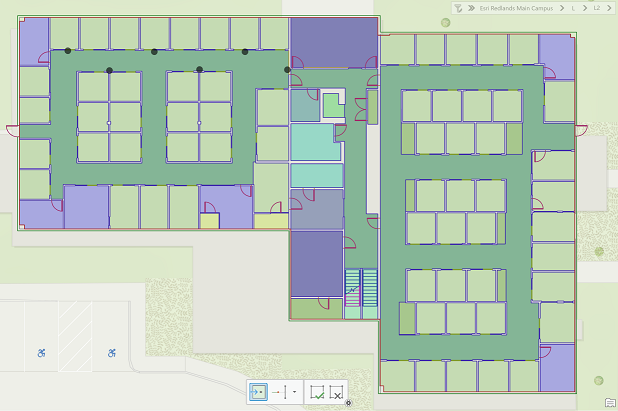
Click Save in the Manage Edits group to save the edits.
Use the floor filter to select the next level where you want to plan beacon placement, and repeat steps 3 through 10 to create its beacon placement plan.