Extract floor plan features from PDFs
 Available with the ArcGIS Indoors Pro or ArcGIS Indoors Maps extension.
You can create polyline and text point features from PDFs of floor plans and use them to generate features in an Indoors workspace using tools in the Indoors toolbox. This can be helpful for creating an indoor GIS for spaces where CAD or BIM data is unavailable. A PDF can have vector data, raster data, or both. PDFs with vector data, such as a PDF exported from CAD, store floor plan information in scalable graphics. PDFs with raster data store floor plan information in images.
Importing PDF data to an Indoors workspace involves the following high-level steps:
Optionally, georeference the PDF.
Extract features from the PDF using the Extract Floor Plan Features From PDF tool.
Inspect the output features and edit as necessary to ensure that they reflect building floor plans to an acceptable level of detail and accuracy.
Use the Import Features To Indoor Dataset tool to create Unit, Level, Facility, and optionally Detail features in an Indoors workspace based on the extracted features.
Inspect the output features and edit as necessary.
Each step is described in the sections below.
Georeference PDF data
You can georeference the PDF before generating features by adding individual PDF pages to a map in ArcGIS Pro and using control points to move, scale, and rotate them to the correct location. When georeferencing PDFs, you must georeference each page individually.
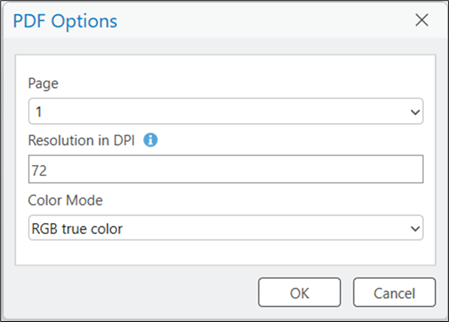
When you add a PDF to a map, you can choose a page, resolution in DPI, and color mode in the PDF Options dialog box.
Note:
Before georeferencing, ensure that the PDF was added to the map with the default value for the Resolution in DPI setting. This setting affects how the PDF is displayed on the map and georeferencing with an adjusted resolution in DPI may lead to incorrectly placed results when using the Extract Floor Plan Features From PDF tool.
If you don't georeference PDFs before running the Extract Floor Plan Features From PDF tool, you can use the Transform tool to move, scale, and rotate the polyline features before running the Import Features To Indoor Dataset tool.
Note:
Georeferencing to a projected coordinate system is recommended. If georeferencing to a geographic coordinate system, features may not transform successfully, leading to incorrectly located data.
Extract polyline features from PDF data
The Extract Floor Plan Features From PDF tool extracts polyline features from the PDF, excluding elements it identifies as text. The output polylines from this tool can be refined with editing tools and used to create features in an Indoors workspace with data using the Import Features To Indoor Dataset tool for use in floor-aware maps and scenes.
Keep the following in mind when using the Extract Floor Plan Features From PDF tool:
If the input PDF has multiple pages, use the Page Number parameter to choose which page to extract features for. If no page is set, the tool will extract features for page 1.
Use the Extent parameter to extract lines for a specific facility or area within a facility, and reduce artifacts caused by ancillary PDF information, such as legends or tables of architectural information.
If a PDF’s linework is vector based, the tool extracts the vector information directly. This may lead to an output with a large amount of features. The tool also writes fields such as
Stroke Color,Fill Color, andPDF Layerto the output polylines, populating them with information from the vector layers if it is available in the input PDF.If a PDF’s linework is raster based, the tool extracts polylines based on line pixel width. For lines with a width less than 10 pixels, the centerlines of the pixels are used. For lines with a width greater than 10 pixels, the outlines of the pixels are used.
If a PDF contains both vector and raster information, only vector linework is extracted.
The tool creates the following fields in the output polyline layer:
| Attribute | Description |
|---|---|
| PDF_NAME | The file name of the input .pdf. |
| PDF_PAGE | The Page Number parameter value. |
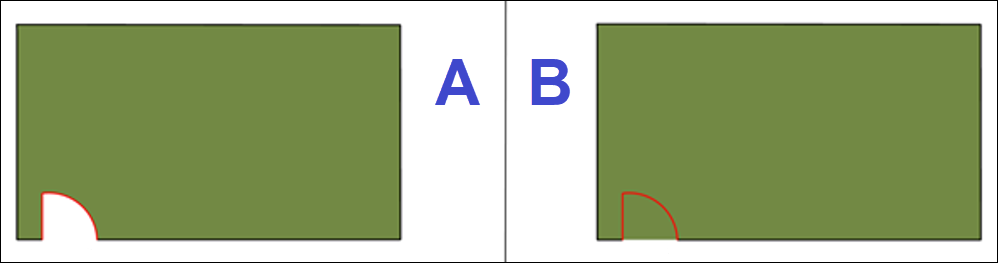
| USE_TYPE | The tool identifies door features and populates the USE_TYPE field for them. These features can be used to close doors when creating unit features using the Import Features To Indoor Dataset tool. Details features created by the Import Features To Indoor Dataset tool inherit the USE_TYPE field value of the source features. |
| STROKE_COLOR, STROKE_WIDTH, and PDF_LAYER | These fields are created and populated with information from the vector layers if it is available in the input PDF. If the input PDF is raster based, these fields are not populated. |
Extract text point features from PDF data
The Extract Floor Plan Features From PDF tool also supports extracting text from the PDF. Extracted text is written to point features that contain the text in the attribute table. Points are placed at the center of detected text. The output points from this tool can be used to populate attributes for Units data in an Indoors workspace using the Import Features To Indoor Dataset tool, enabling advanced symbology and labeling of units for use in floor-aware maps and scenes.
For text stored as text objects in a vector based PDF, the text can be extracted directly from the PDF. For text not stored as text objects in the PDF, text is extracted using Optical Character Recognition (OCR) to detect text for extraction.
Keep the following in mind when using the Extract Floor Plan Features From PDF tool to extract text:
Text extraction and character recognition depends on the quality and content of the PDF. The tool may have difficulty extracting text from blurred, marked, or low-resolution PDFs.
Additional fields such as
Font Name,Font Size, andPDF Layerare created and populated with information if it is available in the input PDF.For text extracted using OCR, use the
Confidence Scorefield to evaluate OCR technology text detection and recognition confidence.
The tool creates text attribute fields in the optional output points:
| Attribute | Description |
|---|---|
| PDF_TEXT | The extracted text from the input .pdf. |
| FONT_NAME | The name of the font as recorded in the PDF data. This field is Null when the tool uses OCR to extract the text. |
| FONT_SIZE | The size of the font as recorded in the PDF data. This field is Null when the tool uses OCR to extract the text. |
| FONT_WEIGHT | The weight of the font as recorded in the PDF data. This field is Null when the tool uses OCR to extract the text. |
| IS_ITALIC | A value of 1 in the PDF metadata indicates italic font style. This field is Null when the tool uses OCR to extract the text. |
| STROKE_COLOR | The font's stroke (line) color as recorded in the PDF data. The value is a hexadecimal in the format #RRGGBBAA. This field is Null when the tool uses OCR to extract the text. |
| BBOX_WIDTH and BBOX_HEIGHT | During processing, the tool determines a bounding box around each piece of detected text. These dimensions can help differentiate raster text by size. The values are unitless relative measurements and should not be compared between different PDFs or pages. |
| SOURCE_TYPE | The source from which the tool extracted the PDF_TEXT strings. Possible values are: PDF_TEXT—The tool found and extracted string values stored as text in the PDF. PDF_COMMENT—The tool found and extracted string values stored as annotation in the PDF. OCR_TEXT—The tool used OCR extract recognizable characters from raster PDFs. OCR is only used for text unavailable from other sources listed above. |
| PDF_LAYER | For PDF exported from systems that use layers to organize elements, such as AutoCAD, this field is populated with the name of the drawing layer on which the text was detected. |
| CONFIDENCE_SCORE | For text extracted using OCR, this field contains a value from 0 to 1 indicating how confidently the tool recognized the text. |
Inspect the output
After extracting features, you can modify them as needed before using them to create features in an Indoors workspace. For example, you can modify or remove features extracted by the tool, such as text boxes, tables, and symbology that you don't need to bring into your indoor GIS.
Clean up polylines or modify vertices to close gaps in walls (for example, where text intersected a wall in the PDF), select and delete unwanted features, and move or reshape linework for accuracy and simplification. Cleanup of text points may also involve correcting incorrectly recognized text values. You can use tools in the Create Features and Modify Features panes to inspect and modify the features.
Additionally, inspect the features detected and attributed as doors in the USE_TYPE field and edit the attributes as needed. Doors can be closed to create unit boundaries in an Indoors workspace, and ensuring correct attribution at this step can prevent the need for more cleanup work later.
You can use the output data attribution fields to more easily visualize and understand your floor plan data. For example, if an input vector PDF uses various line thicknesses to represent different floor plan elements, you can symbolize the polylines based on the Stroke Width field to more easily differentiate parts of your data. For extracted text point features, you can label the points using the PDF_TEXT field to more easily review the text.
These fields can also be used to assist with feature cleanup. For example, if the input vector PDF has layer information, the PDF Layer field can be used to quickly select and remove unwanted features if those features shared a common layer.
Note:
The Extract Floor Plan Features From PDF tool creates features with a z-value of 0. When creating or modifying features with editing tools, ensure that the default z-value of new features is 0. The appropriate z-value for your building features can be set when running the Import Features To Indoor Dataset tool using the Elevation Of Level parameter.
Import polylines to an Indoors workspace
After generating polylines from PDF data and performing any required cleanup work, you can import polylines using the Import Features To Indoor Dataset tool to populate create units, levels, facilities, and details features in an Indoors workspace based on the polyline features. You can later create new features or modify existing ones using editing tools in ArcGIS Pro, Floor Plan Editor, or a preconfigured map template.
The tool supports importing one level at a time, and requires you to define information such as facility name, level name, vertical order, and level elevation to populate feature attributes and enable functionality with indoor GIS workflows.
Optionally, the tool can map text points to Units attributes. When you specify features in the Point Features for Unit Attribution parameter, you can define one or more rows in the Text Point Mapping parameter. For each row you can specify a source text field, a target Units field, an expression specifying which text point features to map, and a rule the tool should follow if the expression matches more than one text point in a given unit. For example, in the Extract Floor Plan Features From PDF tool output, there may be a point in each unit representing the room name, and another point in each unit representing the room’s use type.
Advanced options within the tool settings allow you to further control the behavior of how polygons are created. For example, the Minimum Unit Width and Minimum Unit Area parameters can be used to exclude small or narrow spaces when creating units (such as the spaces inside walls).
Polyline details created by the Import Features To Indoor Dataset tool inherit the USE_TYPE field value of the source features. Properly closed and attributed doors are critical for generating an indoor routable network and are also useful for visualization.
If the input PDF contains vector information, the additional fields can provide greater control when importing polylines with the Import Features To Indoor Dataset tool. For example, a PDF created from a CAD file may contain records for I-WALL, A-COLS, and A-FURN. If you do not want columns and furniture information written to the Indoors workspace, set a definition query to select only the features with I-WALL in the PDF Layer field in the input polylines. This way, the Import Features To Indoor Dataset tool creates features in the Indoors workspace based only on the selection.
Populate attributes in the Indoors workspace
After importing the features to an Indoors workspace, you can populate additional attributes in the indoor dataset.
The Import Features To Indoor Dataset tool populates attributes needed to establish hierarchical relationships between features in the Facilities, Levels, Units, and Details layers, as well as the attributes needed to support floor awareness in a map. You can populate additional attributes used for symbology, labeling, or additional indoor GIS functionality.
The following is a list of example use cases for attributes:
Map symbology—The
USE_TYPEfield in the Units layer is used to support unique symbology for offices, corridors, and other traversable spaces to make them easily identifiable on an indoor map.Labeling and search—The
NAMEfield in the Units layer is used to support displaying room names and searching capabilities in the Indoors web and mobile apps.Indoor navigation—The
USE_TYPEfield in the Units and Details layers is used to support identification of traversable spaces and barriers when generating pathways and floor transitions for an indoor routable network.