Find Subnetworks pane
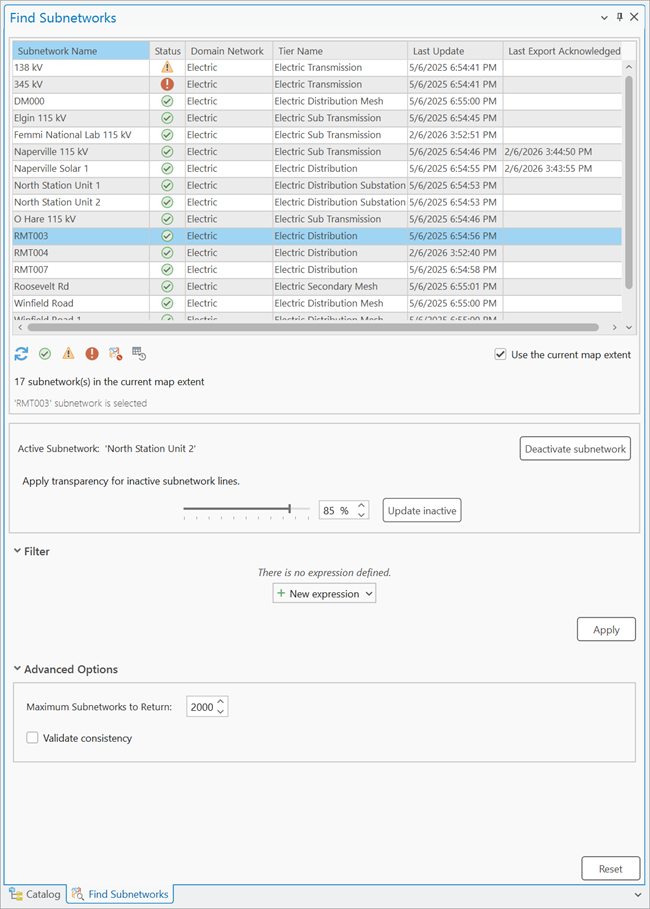
The Find Subnetworks pane allows you to locate and interact with subnetworks in your utility network. You can use the current extent to display subnetworks with geometry in the SubnetLine feature class, or return subnetworks from the Subnetworks table to perform various operations.
For example, you can perform subnetwork traces and update subnetworks using the context menu in the pane. You can also select the subnetwork controllers for a subnetwork, or activate a specific subnetwork so that it visually stands out in the map view. This can be helpful for clarity while editing, as it helps you distinguish paths in dense areas. It can also be used to draw focus to the subnetwork of interest in large-scale maps.
By default, the Find Subnetworks pane presents a list of all subnetworks with a record in the SubnetLine feature class which are present in the current extent of the map view. As you pan and zoom around the map, you can click the Refresh button  found below the grid to filter the subnetworks using the new extent, or uncheck the Use the current map extent check box to return subnetwork records from the Subnetworks table. Quick filters below the grid and expressions in the Filter section of the pane can be used to further filter the list of subnetworks returned from the Subnetworks table.
You can right-click a subnetwork in the grid view to access a context menu of available operations. When a subnetwork has a record in the SubnetLine feature class with geometry, you can use the navigation and selection controls in the grid's context menu to Flash, Zoom To, Pan To, Select, or Pop-up information about the SubnetLine feature for the selected subnetwork. The grid view also presents information about a subnetwork such as the subnetwork status, the tier to which it belongs, when the last update subnetwork operation was run, and the last time the subnetwork was exported with acknowledgement.
In the grid view, the Status column indicates whether the subnetwork is clean, dirty or invalid.
A green check icon
 indicates that the subnetwork is clean.
A yellow warning icon
 indicates that the subnetwork is dirty. This means that changes have been made to the subnetwork since the last time it was updated.
A red warning icon
 indicates that the subnetwork is invalid. This is displayed when either a subnetwork error is created or a validate consistency failure is encountered during the update operation.
Learn more about how to interact with subnetworks using the Find Subnetworks pane
Caution:
Activating or tracing dirty or invalid subnetworks may yield unexpected results. For example, if an edit event disconnects a section of the subnetwork, the subnetwork name remains on the disconnected features until the subnetwork is updated. In this case, the disconnected features would remain highlighted and appear as part of the active subnetwork.
A subnetwork will not appear in the Find Subnetworks pane when the Use the current map extent checkbox is checked if the subnetwork does not have geometry in the SubnetLine feature class.
To determine why a subnetwork does not have geometry or appear in the pane, do the following:
Check the
Last Updatecolumn in the grid view of the pane, or theLast Updated Subnetworkattribute in the Subnetworks table. If the value is empty, or NULL respectively, this means that your subnetwork has never been updated. You can confirm by verifying that there is no geometry associated with the subnetwork in theSubnetLinefeature class. Update the subnetwork from the Find Subnetworks pane or run the Update Subnetwork tool to update the subnetwork of interest.Confirm that the subnetwork definition for the tier has valid lines specified for the Aggregated Lines for SubnetLine Feature Class parameter to aggregate and create the SubnetLine geometry.
Check the
Is Connectedattribute of the feature or features directly connected to the subnetwork controller or controllers defining the subnetwork of interest.
To determine whether the feature in question has connectivity to the correct subnetwork controller or controllers, check the Subnetwork Name attribute. If Unknown is present, it may indicate that there is no connectivity to the subnetwork controller or controllers, or that the subnetwork was not updated after the network feature was created. Update the subnetwork from the Find Subnetworks pane or Update Subnetwork geoprocessing tool to apply the name of the subnetwork to your feature. If Unknown is still present after you run the tool, confirm that the features are connected either through geometric coincidence or an association to the subnetwork controller and that the network feature is traversable from the subnetwork controller.
For example, if the connected feature is not listed as a valid feature or object in the tier's subnetwork definition, it will not be updated with the subnetwork's name. To check connectivity, run a Connected trace. Once you've confirmed the features have connectivity, check for traversability by running a Subnetwork trace.
An active subnetwork is composed of features with the active subnetwork's name in their Subnetwork Name attribute. This includes features that participate in multiple subnetworks with concatenated subnetwork names separated by two colons, for example, subnetwork1::subnetwork2.