Interact with subnetworks
The Find Subnetworks pane allows you to locate and interact with subnetworks in your utility network. You can use the current extent to display subnetworks with geometry in the SubnetLine feature class, or return subnetworks from the Subnetworks table to perform various operations.
From the grid view listing subnetworks, you can perform subnetwork traces and update subnetworks using the context menu. You can also select the subnetwork controllers for a subnetwork, or activate a specific subnetwork to visually stand out in the map view. Activating a subnetwork applies a transparency to the other subnetwork features in the map so that the selected subnetwork visually stands out. This can be helpful for clarity while editing, as it helps you distinguish paths in dense areas. It can also be used to draw focus to the subnetwork of interest in large-scale maps.
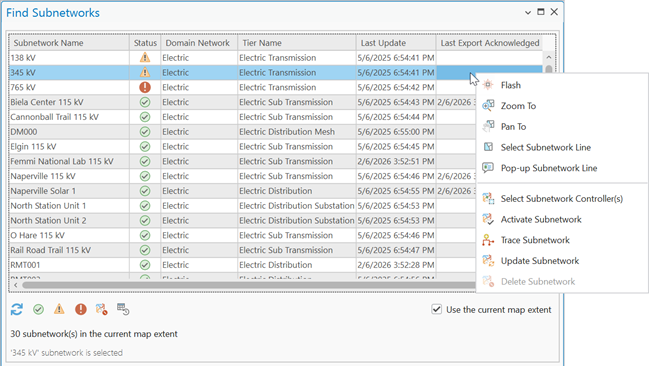
The right-click context menu displayed in the grid view of the Find Subnetworks pane can also be used to explore the subnetwork in the map view and perform subnetwork management tasks. These tasks include the following:
Flash

Zoom To

Pan To

Select Subnetwork Line

Pop-up Subnetwork Line


Note:
The trace and update subnetwork operations do not use the geoprocessing framework when run from the Find Subnetworks pane.
To learn more, see Find Subnetworks pane.
Requirements
Subnetworks must be present in the network to use the Find Subnetworks pane. To perform subnetwork management tasks available through the context menu for a subnetwork, review the requirements for each operation.
For subnetworks to appear in the Find Subnetworks pane, they must be referenced in either the SubnetLine feature class or Subnetworks table. By default, the Find Subnetworks pane presents a list of all subnetworks present in the current extent of the map view with a record in the SubnetLine feature class. As you pan and zoom around the map, you can click the Refresh button  found below the grid to filter the subnetworks using the new extent, or uncheck the Use the current map extent check box to return subnetwork records from the Subnetworks table. Quick filters below the grid and expressions in the Filter section of the pane can be used to further filter the list of subnetworks.
When a subnetwork has a record in the SubnetLine feature class with geometry, you can use the navigation and selection controls in the grid's context menu to Flash, Zoom To, Pan To, Select, or Pop-up information about the SubnetLine feature for the selected subnetwork.
Filter and display subnetworks in the grid
The Find Subnetworks pane provides access to the subnetworks in your utility network with important information such as the subnetwork status, the tier it belongs to, when the last update subnetwork operation was run, and the last time the subnetwork was exported with acknowledgement. The subnetworks listed in the grid view can also be filtered using various methods.
The primary method used to filter subnetworks in the grid is through use of the Use current map extent checkbox. By default, the Use the current map extent check box is checked. This displays the subnetworks from the SubnetLine feature class which are in the current map extent. You can use the Refresh button  under the grid to refresh the list of subnetworks returned for the current extent after panning or zooming around the map.
When the Use the current map extent check box is unchecked, subnetworks are returned from the Subnetworks table. This provides access to subnetworks which do not have record in the SubnetLine feature class and enables additional filtering capabilities which depends upon controller information found in the Subnetworks table.
By default, the grid view lists the first 2000 subnetworks returned from the SubnetLine feature class or Subnetworks table. This value can be modified in the Advanced Options section of the pane using the Maximum Subnetworks to Return parameter.
Quick filter options
Quick filters are available under the grid view to enable easy filtering of subnetworks from the Subnetworks table which match certain criteria. These built-in filters can be expanded on using the expression builder in the Filters section of the pane.
The quick filter options provided in the pane include the following:
Display clean subnetworks

Display dirty subnetworks

Display invalid subnetworks

Display subnetworks with a logically deleted controller

Display subnetworks which have never been updated

Select subnetwork controllers
You can select the subnetwork controllers associated with a subnetwork using the Select Subnetwork Controllers context menu option. This does not perform a subnetwork controllers trace but instead selects the valid (active, non-deleted) controllers associated with a selected network from the Subnetworks table. To select the subnetwork controllers for a subnetwork, complete the following steps:
Click the Utility Network tab.
In the Subnetwork group, click Find
 .
.The Find Subnetworks pane appears.
Filter the subnetworks in the grid.
Right-click a subnetwork from the list to display the context menu. Click Select Subnetwork Controllers
 .
.
The controller or controllers for the selected subnetwork are returned as a selection. If no valid subnetwork controllers are found, an error is returned in the pane.
Activate a subnetwork and apply a transparency
Activating a subnetwork in the Find Subnetworks pane applies a transparency to all other subnetworks which makes it easier to identify and work with features associated with specific subnetworks. To activate a subnetwork in the Find Subnetworks pane, complete the following steps:
Click the Utility Network tab.
In the Subnetwork group, click Find
.The Find Subnetworks pane appears.
Filter the subnetworks in the grid.
Right-click a subnetwork from the list to display the context menu. Click Activate Subnetwork
 .
.The selected subnetwork is set as the Active Subnetwork in the pane and a default 70% transparency is applied to features from inactive subnetworks in the map.
Optionally, use the slider below Apply transparency for inactive subnetwork lines to change the transparency.
This determines the amount of transparency applied to features from inactive subnetworks.
- Click Update inactive to apply the change.
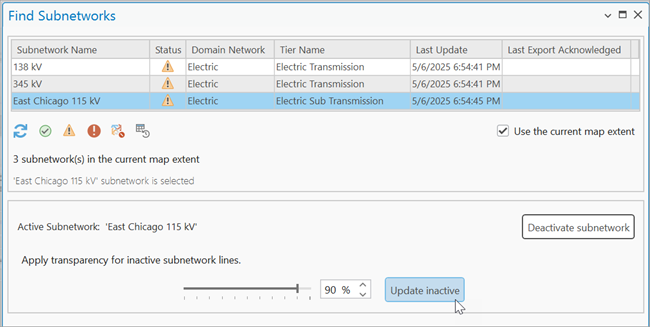
To remove the transparency and active subnetwork, click Deactivate subnetwork. Alternatively, you can click the Reset button at the bottom of the pane. Clicking reset removes the active subnetwork and the transparency, unselects the subnetwork, and resets any filters applied in the pane.
Trace a subnetwork in the pane
You can perform a subnetwork trace from the Find Subnetworks pane to return features which participate in a selected subnetwork. To perform a subnetwork trace in the Find Subnetworks pane, complete the following steps:
Click the Utility Network tab.
In the Subnetwork group, click Find
.The Find Subnetworks pane appears.
Filter the subnetworks in the grid.
Right-click a subnetwork from the list to display the context menu. Click Trace Subnetwork
 .
.
By default, the trace is performed with the Validate Consistency parameter disabled. This allows you to visualize and inspect the features returned by a trace to perform other operations in scenarios where errors or existing dirty areas are present; however, this can lead to unexpected trace results in some cases. You can enable the Validate Consistency parameter for the pane in the Advanced Options section of the pane.
A subnetwork trace is performed and the trace results are displayed as a selection in the map.
Note:
Subnetwork traces run from the Find Subnetworks pane use the subnetwork trace configuration of the tier's subnetwork definition and ignore any starting points or feature barriers present on the map. Use the Trace tool or run a named trace configuration from the Named Configurations tab on the Trace pane to configure a subnetwork trace that honors trace locations placed on the map.
Update a subnetwork in the pane
To update a subnetwork in the Find Subnetworks pane, complete the following steps:
Click the Utility Network tab.
In the Subnetwork group, click Find
.The Find Subnetworks pane appears.
Filter the subnetworks in the grid.
Right-click a dirty subnetwork from the list to display the context menu. Click Update Subnetwork.
If the Update Subnetwork option is disabled, ensure that the subnetwork status is dirty and that there is not an active edit session. Clean subnetworks cannot be updated.
If the subnetwork status is invalid, address the errors, validate the network topology to make the subnetwork dirty, and save your edits to enable update.
An update subnetwork operation is run for the selected subnetwork.
Delete a subnetwork in the pane
There are cases in which the terminal on a device or junction object no longer needs to be set as a subnetwork controller. You can remove this assignment in the Modify Subnetwork Controller pane or through Python scripting.
When all controllers associated with a subnetwork have been removed and logically deleted, the subnetwork can be physically deleted from the utility network using the Export Subnetwork tool, or the Delete Subnetwork context menu option. The Delete Subnetwork option performs an export subnetwork operation with acknowledgement to remove all deleted controllers from the Subnetworks table. The option to delete a subnetwork is only available for clean subnetworks on which all subnetwork controllers have been logically deleted (Is deleted = true). When working with an enterprise geodatabase you must be connected with the default version.
To delete a subnetwork in the Find Subnetworks pane, complete the following steps:
Click the Utility Network tab.
In the Subnetwork group, click Find
.The Find Subnetworks pane appears.
Filter the subnetworks in the grid.
Note:
A quick filter option is available to display only subnetworks with a logically deleted controller
; however, only subnetworks without any active subnetwork controllers can be physically deleted from the utility network using the Delete Subnetwork option.Right-click a clean subnetwork from the list to display the context menu. Click Delete Subnetwork.
An export subnetwork operation is run with Set export acknowledged as true and the subnetwork is deleted from the utility network.