Calculate Density (GeoAnalytics Server Tools)
Summary
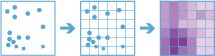
Calculates a magnitude-per-unit area from point features that fall within a neighborhood around each cell.
Legacy:
The ArcGIS GeoAnalytics Server extension is being deprecated in ArcGIS Enterprise. The final release of GeoAnalytics Server was included with ArcGIS Enterprise 11.3. This geoprocessing tool is available through ArcGIS Enterprise 11.3 and earlier versions.
Illustration
Usage
The Calculate Density tool requires a single input of point features.
Density can be calculated using one or more count fields. A count field is a numerical field that specifies the number of incidents at each location. Features such as cities or highways can use a count field when calculating the density of population or lanes of traffic, respectively. If you specify a count field, the density will be calculated for the count field in addition to the density of points.
Input points are aggregated into bins for analysis. You must specify the bin size to aggregate data into. By default, output results will be in square kilometers.
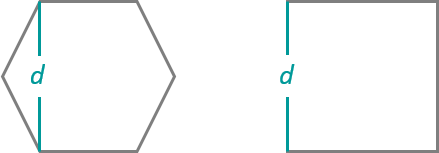
Input points are aggregated into bins of a specified size and shape (hexagon or square). If you are aggregating into hexagons, the bin size d is the height of each hexagon, and the width of the resulting hexagon will be two times the height divided by the square root of three. If you are aggregating into squares, the bin size d is the height of the square, which is equal to the width.
You must specify a neighborhood size that is greater than the bin size. The neighborhood size will be used to find input features within the same neighborhood as the feature (bin) of interest.
Larger neighborhood size values produce a more generalized density output. Smaller values produce an output that shows more detail.
Only points that fall within a neighborhood will be considered when calculating the density. If no points fall within the neighborhood of a particular cell, that cell will not be assigned a value.
There are two weighting options to calculate density: The Uniform option sums all the values within the neighborhood and divides them by the area. The Kernel option weights values in the neighborhood by distance from the feature of interest and applies a kernel function to fit a smooth tapered surface to each point.
Only areas within the neighborhood of a bin containing points will be returned.
If the area unit scale factor units are small relative to the distance between the points, the output values may also be very small. To obtain larger values, use the area unit scale factor for larger units (for example, use Square Kilometers rather than Square Meters).
Calculate Density requires that the area layer be in a projected coordinate system. If the data is not projected and you do not set a projected coordinate system, analysis will be completed in World Cylindrical Equal Area (WKID 54034).
The density values will always be floating point.
Calculate Density allows you to analyze using time stepping. Each time step is analyzed independent of features outside the time step. To use time stepping, the input data must be time enabled and represent an instant in time. When time stepping is applied, output features will be time intervals represented by fields.
When input features are analyzed using time steps, each time step is analyzed independent of features outside the time step.
The Time Step Reference parameter can be a date and time value or solely a date value; it cannot be solely a time value.
The following fields are included in the output features:
Field name
Description
densityThe density of the given polygon. This is returned in the specified unit scale factor.
density_<fieldname>The density weighted by the given field. This is only returned when one or more fields are specified.
start_datetimeWhen time stepping is specified, output polygons will have a time interval. This field represents the start time.
end_datetimeWhen time stepping is specified, output polygons will have a time interval. This field represents the end time.
You can improve the performance of the Calculate Density tool by doing one or more of the following:
Set the extent environment so you only analyze data of interest.
Larger bins will perform better than smaller bins. If you are unsure about which size to use, start with a larger bin to prototype.
Similar to bins, larger time steps will perform better than smaller time steps.
Decrease the ratio of the neighborhood size to the bin size. A neighborhood size that is 3 times the size of the bin will perform better than one that is 10 times the bin size.
Use data that is local to where the analysis is being run.
This geoprocessing tool is powered by ArcGIS GeoAnalytics Server. Analysis is completed on GeoAnalytics Server, and results are stored in your content in ArcGIS Enterprise.
When running GeoAnalytics Server tools, the analysis is completed on GeoAnalytics Server. For optimal performance, make data available to GeoAnalytics Server through feature layers hosted on your ArcGIS Enterprise portal or through big data file shares. Data that is not local to GeoAnalytics Server will be moved to GeoAnalytics Server before analysis begins. This means that it will take longer to run a tool and, in some cases, moving the data from ArcGIS Pro to GeoAnalytics Server may fail. The threshold for failure depends on your network speeds, as well as the size and complexity of the data. It is recommended that you always share your data or create a big data file share.
Learn more about sharing data to your portal
Learn more about creating a big data file share through Server Manager
Similar analysis can also be completed using the following:
Aggregate Points in the GeoAnalytics Desktop toolbox or GeoAnalytics Server toolbox
Point Density tool in the Spatial Analyst toolbox
Kernel Density tool in the Spatial Analyst toolbox
Calculate Density tool in the Standard Feature Analysis toolbox
Parameters
| Label | Explanation | Data type |
|---|---|---|
|
Input layer |
The points that will be used to calculate the density. |
Feature Set |
|
Output Name |
The name of the output feature service. |
String |
|
Bin Type |
Specifies the bin shape that will be used in the analysis.
|
String |
|
Bin Size |
The size of the bins that will be used to aggregate input features. When generating bins for squares, the number and units specified determine the height and length of the square. For hexagons, the number and units specified determine the distance between parallel sides. |
Linear Unit |
|
Weight |
Specifies the weighting that will be applied to the density function.
|
String |
|
Neighborhood Size |
The search radius that will be applied to density calculations. |
Linear Unit |
|
Fields (Optional) |
One or more fields denoting population values for each feature. The population field is the count or quantity to be spread across the landscape to create a continuous surface. Values in the population field must be numeric. By default, the density of the count of input points will always be calculated. |
Field |
|
Area Unit Scale Factor (Optional) |
Specifies the areal units that will be used for the output density values. The default unit is based on the units of the output spatial reference.
|
String |
|
Time Step Interval (Optional) |
A value that specifies the duration of the time step. This parameter is only available if the input points are time enabled and represent an instant in time. Time stepping can only be applied if time is enabled on the input. |
Time Unit |
|
Time Step Repeat (Optional) |
A value that specifies how often the time-step interval occurs. This parameter is only available if the input points are time enabled and represent an instant in time. |
Time Unit |
|
Time Step Reference (Optional) |
A date that specifies the reference time with which to align the time steps. The default is January 1, 1970, at 12:00 a.m. This parameter is only available if the input points are time enabled and represent an instant in time. |
Date |
|
Data Store (Optional) |
Specifies the ArcGIS Data Store where the output will be stored. All results stored in a spatiotemporal big data store will be stored in WGS84. Results stored in a relational data store will maintain their coordinate system.
|
String |
Derived output
| Label | Explanation | Data type |
|---|---|---|
|
Output Feature Class |
The magnitude-per-unit area from point features that fall within a neighborhood around each cell. |
Feature Set |
Environments
Output Coordinate System, Extent, Current Workspace
Special cases
- Output Coordinate System
-
The coordinate system that will be used for analysis. Analysis will be completed in the input coordinate system unless specified by this parameter. For GeoAnalytics Tools, final results will be stored in the spatiotemporal data store in WGS84.
Licensing information
- Basic: Requires ArcGIS GeoAnalytics Server
- Standard: Requires ArcGIS GeoAnalytics Server
- Advanced: Requires ArcGIS GeoAnalytics Server