ArcGIS Enterprise Builder 安装后配置
ArcGIS Enterprise Builder 完成软件安装后,随即将打开浏览器并显示 ArcGIS Enterprise 配置向导。 您可以使用配置向导来部署 ArcGIS Enterprise,或关闭浏览器并使用 configurebasedeployment 命令行实用程序完成您的基础部署。
如果您未使用 ArcGIS Enterprise Builder 安装该软件,请参阅安装 ArcGIS Enterprise Builder 以了解详细步骤,然后继续执行操作。
注:
ArcGIS Enterprise 配置需要在安装了基础部署的计算机上启用 HTTPS。 在完成配置步骤之前,您必须创建域证书并启用 HTTPS。
注:
ArcGIS Enterprise 配置需要在安装了基础部署的计算机上启用 HTTPS。 在完成配置步骤之前,您必须创建域证书并启用 HTTPS。
使用配置向导
使用 ArcGIS Enterprise Builder 安装软件后,通过配置向导执行以下步骤来完成基础部署:
如果尚未打开,请浏览至配置向导的 URL (
https://mymachine.myexample.com:6443/arcgis/enterprise)。 您也可以在计算机中搜索 ArcGIS Enterprise 配置向导,然后使用快捷方式将其启动。在随即出现的登录页面上,您的浏览器会显示安全警告。 首次访问安全向导时显示此警告是正常现象,您可以忽略此警告继续操作(具体处理方式因浏览器而异)。 登录页面将显示配置向导将执行的创建部署的步骤列表。 单击开始。
在提供许可面板中,浏览至门户的许可文件 (
.json)。 此文件从 My Esri 中获得,其中包含门户的用户类型和应用程序包许可信息。 单击下一步。在创建管理员账户面板中,为初始管理员的账户指定凭据。 从下拉菜单中选择用户类型许可,该列表列出了与许可文件中包含的初始管理员账户兼容的用户类型。 该账户将用于首次登录 ArcGIS Enterprise 部署和初始化管理任务(例如,创建其他账户)。 此账户适用于服务器和门户组件。 单击下一步。
在设置内容目录面板中,指定内容目录的位置,以便存储日志和配置文件。 单击下一步。
您的部署将不断更新,因此请指定一个可用空间至少为 10 GB 的目录位置。
默认位置为
/home/linux/arcgis。默认位置为
c:\arcgis。注:
您将在您指定的根内容目录外部创建其他系统目录。
在 Web Adaptor URL 面板中,输入将通过部署的门户和服务器组件配置的 Web Adaptor 的 URL (
https://webadaptorhost.example.com/webadaptorname)。 必须已安装这些 Web Adaptor 并将其放置在运行 ArcGIS Enterprise Builder 的计算机上,以便在安装后的配置步骤中对其进行引用。 有关安装 Web Adaptor 的完整说明,请参阅 Web Adaptor 安装指南。 为方便起见,下面提供了安装 Web Adaptor 的步骤简短摘要。运行 Web Adaptor 安装程序。
将
arcgis.war文件从新安装的 Web Adaptor 的安装位置部署至 Java Web 应用程序服务器。 您必须为 ArcGIS Server 和 Portal for ArcGIS 分别部署一个 WAR 文件。 例如,如果使用 Tomcat,则将 WAR 文件放入./webapps文件夹作为server.war和portal.war。复制到 webapps 文件夹中的 WAR 文件的名称将是 webapp 的名称及可从中访问的相应 URL 路径。 例如,
server.war的路径将为https://webadaptorhost.example.com/server。 可以通过https://webadaptorhost.example.com/portal访问 portal.war 文件。 有关服务器特定部署的详细信息,请参阅 Java 应用程序服务器。注:
在应用程序服务器上部署 ArcGIS Web Adaptor 时,Web Adaptor 配置将写入用户主目录。 确保已为用户分配了主目录,且用户具有该目录的读写权限,然后继续操作。
在配置摘要面板中,验证初始管理员账户详细信息、用户类型许可和内容目录位置,然后单击完成。
配置开始后,您将看见配置步骤集旁显示一个进度指示器,完成时将显示一个绿色复选标记。
注:
在执行配置向导的步骤 3(创建 GIS Server 站点)的过程中,如果您收到指示 ArcGIS Server 站点创建失败的错误消息,请参考 /home/linux/arcgis/server/usr 文件夹中的日志以获取详细信息。
注:
在执行配置向导的步骤 3(创建 GIS Server 站点)的过程中,如果您收到指示 ArcGIS Server 站点创建失败的错误消息,请参考 C:\<ArcGIS Server installation directory>\ArcGIS\Server\usr\logs 文件夹中的日志以获取详细信息。
对组件进行完全配置后,将显示 ArcGIS Enterprise 状态页面,指示已成功配置部署。
使用命令行实用程序
使用 ArcGIS Enterprise Builder 安装软件后,可以使用命令行实用程序完成基础部署的配置。 要运行命令行实用程序,您必须以管理员的身份运行该实用程序。
如果使用实用程序配置 ArcGIS Enterprise,可以选择以两种方式来指定参数和值:
直接在命令行中指定参数 -
<location of utility>\configurebasedeployment -fn <first name> -ln <last name> -u <user name> -p <password> -e <email> -qi <question> -qa <answer> -ws <server web adaptor> -wp <portal web adaptor> -d <directory> -lf <license file> -ut <user type ID>直接在命令行中指定参数 -
<location of utility>\configurebasedeployment -fn <first name> -ln <last name> -u <user name> -p <password> -e <email> -qi <question> -qa <answer> -d <directory> -lf <license file> -ut <user type ID>从属性文件指定参数 -
<location of utility>\configurebasedeployment -f <properties file>
configurebasedeployment 命令行实用程序位于 <ArcGIS Server installation directory>/tools/configurebasedeployment。 默认情况下,该位置为 /home/linux/arcgis/server/tools/configurebasedeployment。
configurebasedeployment 命令行实用程序位于 <ArcGIS Server installation directory>\tools\configurebasedeployment。
注:
默认情况下,该位置为 C:\Program Files\ArcGIS\Server\tools\configurebasedeployment。
将在命令行实用程序中使用以下参数:
-fn- 您的名字。-ln- 您的姓氏。-u- 具有 ArcGIS Enterprise 管理权限的账户的用户名。 通常,您将使用主站点管理员账户来创建站点。-p - 您为用户名参数指定的账户的密码。 通常,您将使用主站点管理员账户来创建门户。
-e- 具有 ArcGIS Enterprise 管理权限的账户的电子邮件地址。-qi- 用于指定您要使用的问题的索引号。 此问题可用于找回忘记的密码。 每个问题与一个索引号配对。 例如,下表指定了索引号,后跟其相应的问题:1 - 您出生于哪个城市?
2 - 您高中学校的吉祥物是什么?
3 - 您母亲的婚前姓氏是什么?
4 - 您的第一辆车的品牌是什么?
5 - 您就读于哪所高中?
6 - 您最好的朋友的姓氏是什么?
7 - 您最年幼的兄弟姐妹的中间名是什么?
8 - 您从小长大的街道叫什么?
9 - 您最喜欢的虚拟角色叫什么?
10 - 您最喜欢的宠物叫什么?
11 - 您最喜欢哪家饭店?
12 - 您最喜欢的书的书名是什么?
13 - 您梦想的工作是什么?
14 - 您第一次约会的地点在哪里?
-qa- 这是您针对qi参数选择的密码提示问题的答案。-ws- 这是用于配置服务器的 Web Adaptor URL。- 示例:
https://webadaptorhost.example.com/<webadaptorname>
- 示例:
-wp- 这是用于配置门户的 Web Adaptor URL。- 示例:
https://webadaptorhost.example.com/<webadaptorname>
- 示例:
-d- 用于存储数据和配置文件的内容目录的绝对路径和名称。-lf- 门户许可文件的路径。-ut- 初始管理员的用户类型 ID。 设置此参数属于可选操作。 用户类型 ID 值是末尾追加了UT的用户类型名称。 标准用户类型的用户类型 ID 值的示例包括:viewerUT、editorUT、fieldworkerUT、creatorUT、GISProfessionalBasicUT、GISProfessionalStdUT和GISProfessionalAdvUT。注:
要为
-ut参数生成组织可用的兼容用户类型列表,请运行 listadministratorusertypes 实用程序。 如果未指定用户类型 ID,且门户许可文件包含单个兼容的用户类型,则将分配该用户类型。 如果许可文件包含多个兼容的用户类型,则将分配临时用户类型,且初始管理员必须在登录后选择用户类型。-f-configurebasedeployment实用程序的属性文件。注:
默认情况下,
configurebasedeployment.properties文件位于/home/linux/arcgis/server/tools/configurebasedeployment。注:
默认情况下,
configurebasedeployment.properties文件位于/<ArcGIS Server installation directory>/tools/configurebasedeployment。-h- 显示此工具帮助消息并退出。
使用参数的示例
打开命令提示符。
在命令提示符中,将工作目录更改为
configurebasedeployment实用程序的位置。例如:
<ArcGIS Server installation directory>\tools\configurebasedeployment。在命令提示符内输入
configurebasedeployment命令、参数及其值。configurebasedeployment -fn jane -ln smith -u jsmith -p mIpassword -e jsmith@myemail.com -qi 1 -qa Redlands -ws https://jsmith.myemail.com/server -wp https://jsmith.myemail.com/portal -d home/linux/arcgis/usr -lf home/linux/arcgis/usr/MyFile.json -ut creatorUTconfigurebasedeployment -fn jane -ln smith -u jsmith -p mIpassword -e jsmith@myemail.com -qi 1 -qa Redlands -d c:\arcgis -lf c:\myLicenseFiles\MyFile.json -ut creatorUT
使用文件的示例
运行 configurebasedeployment 实用程序时,可以更改 configurebasedeployment.properties 文件的内容并指定文件,而非在命令提示符处输入参数和值。
浏览至
configurebasedeployment.properties文件的位置。 默认情况下,configurebasedeployment.properties文件安装于/home/linux/arcgis/server/tools/configurebasedeployment。在文本编辑器中打开
configurebasedeployment.properties文件并为每个参数提供值:用于配置基础部署的部署属性
# First name for initial administrator account
WEBGIS_ADMIN_FIRSTNAME =
# Last name for initial administrator account
WEBGIS_ADMIN_LASTNAME =
# Username for initial administrator account
# Can only have the numbers 0-9, the ASCII letters a-z, A-Z, and the dot character (.)
WEBGIS_ADMIN_USERNAME =
# Password for primary site administrator
# Can only have the numbers 0-9, the ASCII letters a-z, A-Z, and the dot character (.)
WEBGIS_ADMIN_PASSWORD =
# Initially, leave PORTAL_ADMIN_PASSWORD_ENCRYPTED set to false.
# When you run the tool the first time, the password will be
# encrypted and PORTAL_ADMIN_PASSWORD_ENCRYPTED will change to true.
WEBGIS_ADMIN_PASSWORD_ENCRYPTED = false
# Email address for initial administrator account
# for example, username@example.com
WEBGIS_ADMIN_EMAIL =
# This is the index of the secret questions to retrieve a forgotten password.
# The list of questions with their respective index numbers is as follows:
# 1, What city were you born in?
# 2, What was your high school mascot?
# 3, What is your mother's maiden name?
# 4, What was the make of your first car?
# 5, What high school did you go to?
# 6, What is the last name of your best friend?
# 7, What is the middle name of your youngest sibling?
# 8, What is the name of the street on which you grew up?
# 9, What is the name of your favorite fictional character?
# 10, What is the name of your favorite pet?
# 11, What is the name of your favorite restaurant?
# 12, What is the title of your favorite book?
# 13, What is your dream job?
# 14, Where did you go on your first date?
WEBGIS_ADMIN_SECURITY_QUESTION_INDEX =
# Answer to the secret question
# for example, \"My Answer\"
WEBGIS_ADMIN_SECURITY_QUESTION_ANSWER =
# AcGIS Enterprise content directory for storing data and configuration files.
# By default, the content directory will be created locally.
# e.g./<ArcGIS Enterprise Builder installation directory>/usr
WEBGIS_CONTENT_DIRECTORY =
# Specify the Portal Web Adaptor URL on Linux only.
# Example: https://webadaptorhost.example.com/<webadaptorname>
WEBGIS_PORTAL_WEBADAPTOR_URL =
# Specify the Server Web Adaptor URL on Linux only.
# Example: https://webadaptorhost.example.com/<webadaptorname>
WEBGIS_SERVER_WEBADAPTOR_URL =
# The path to the Portal license file
PORTAL_LICENSE_FILE =
# The ID of the user type for the Initial Administrator
PORTAL_USER_TYPE_ID =
浏览至
configurebasedeployment.properties文件的位置。 默认情况下,configurebasedeployment.properties文件安装于C:\Program Files\ArcGIS\Server\tools\configurebasedeployment。在文本编辑器中打开
configurebasedeployment.properties文件并为每个参数提供值:用于配置基础部署的部署属性
# First name for initial administrator account
WEBGIS_ADMIN_FIRSTNAME =
# Last name for initial administrator account
WEBGIS_ADMIN_LASTNAME =
# Username for initial administrator account
# Can only have the numbers 0-9, the ASCII letters a-z, A-Z, and the dot character (.)
WEBGIS_ADMIN_USERNAME =
# Password for primary site administrator
# Can only have the numbers 0-9, the ASCII letters a-z, A-Z, and the dot character (.)
WEBGIS_ADMIN_PASSWORD =
# Initially, leave PORTAL_ADMIN_PASSWORD_ENCRYPTED set to false.
# When you run the tool the first time, the password will be
# encrypted and PORTAL_ADMIN_PASSWORD_ENCRYPTED will change to true.
WEBGIS_ADMIN_PASSWORD_ENCRYPTED = false
# Email address for initial administrator account
# for example, username@example.com
WEBGIS_ADMIN_EMAIL =
# This is the index of the secret questions to retrieve a forgotten password.
# The list of questions with their respective index numbers is as follows:
# 1, What city were you born in?
# 2, What was your high school mascot?
# 3, What is your mother's maiden name?
# 4, What was the make of your first car?
# 5, What high school did you go to?
# 6, What is the last name of your best friend?
# 7, What is the middle name of your youngest sibling?
# 8, What is the name of the street on which you grew up?
# 9, What is the name of your favorite fictional character?
# 10, What is the name of your favorite pet?
# 11, What is the name of your favorite restaurant?
# 12, What is the title of your favorite book?
# 13, What is your dream job?
# 14, Where did you go on your first date?
WEBGIS_ADMIN_SECURITY_QUESTION_INDEX =
# Answer to the secret question
# for example, \"My Answer\"
WEBGIS_ADMIN_SECURITY_QUESTION_ANSWER =
# AcGIS Enterprise content directory for storing data and configuration files.
# By default, the content directory will be created locally.
# for example, C:\\arcgis, or \\\\<Absolute path to>\\<the builder arcgis>
WEBGIS_CONTENT_DIRECTORY =
# The path to the Portal license file
PORTAL_LICENSE_FILE =
# The ID of the user type for the Initial Administrator
PORTAL_USER_TYPE_ID =
注:
如果在
configurebasedeployment.properties文件中引用路径,则需要转义反斜线,例如C:\\arcgis或\\\\<Absolute path to>\\<ArcGIS Enterprise Builder>。保存
configurebasedeployment.properties文件。打开命令提示符。
在命令提示符中,将工作目录更改为
configurebasedeployment实用程序的位置。例如:
/home/linux/arcgis/server/tools/configurebasedeployment。例如:
<ArcGIS Server installation directory>\tools\configurebasedeployment。输入
configurebasedeployment命令并指定configurebasedeployment.properties文件。configurebasedeployment -f configurebasedeployment.properties
注:
一些参数需要多个单词答案,例如 -fn、-ln 或 -qa。 在这种情况下,请将参数放在引号中。
对于密码值,请避免使用特殊字符,例如 &、\ 等,这些字符对命令提示符具有特殊含义。
对组件进行完全配置后,您将看到一条消息,提示 ArcGIS Enterprise Builder 站点已成功创建。
使用 listadministratorusertypes 命令行实用程序来识别兼容的用户类型
要识别组织许可的用户类型 ID 列表(与管理员角色兼容),请运行位于 configurebasedeployment 实用程序所在位置的 listadministratorusertypes 命令行实用程序。 这将为 configurebasedeployment 工具中的 -ut 参数提供输入列表。 使用 -la 运行 listadministratorusertypes 工具并将门户许可文件作为输入。
组件已配置
完成 ArcGIS Enterprise 配置向导后,您将拥有以下各项:
具有相同初始管理员账户配置的门户和 ArcGIS Server 站点。
许可为 GIS Server 的 ArcGIS Server 站点。
已注册到 ArcGIS Server 站点的关系和对象存储。
针对门户的名为 portal 的 Web Adaptor。
针对 ArcGIS Server 站点的名为 server 的 Web Adaptor。 已启用通过 Web Adaptor 的 ArcGIS Server 站点管理访问权限。
注:
构建器将安装两个 Web Adaptor,其默认名称为 portal 和 server。 在安装过程中,如果已选择指定备用 Web Adaptor 名称,则将针对已配置的组件改用这些备用名称。
该 GIS Server 站点已联合并设置为托管服务器。
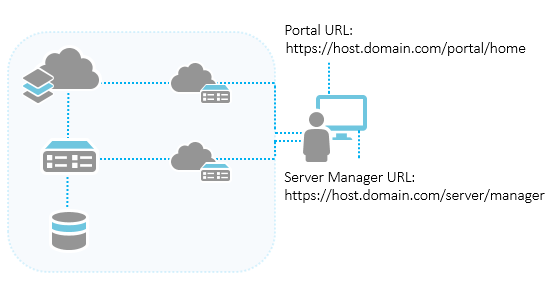
可使用配置摘要中提供的链接,开始自定义门户、添加成员和内容以及配置安全性。 此外,使用 Server Manager 可管理已发布的服务。 构建器完成后,要访问 ArcGIS Server Manager,请使用完整 URL,其格式为 https://gisserver.example.com:6443/arcgis/manager/。
提示:
建议您使用 serverScan.py 和 portalScan.py 脚本来检查新安装的 ArcGIS Enterprise 的安全性最佳做法。