Dissolve (Data Management Tools)
Summary
Aggregates features based on specified attributes.
An alternate tool is available for dissolve operations. See the Pairwise Dissolve tool documentation for details.
Illustration
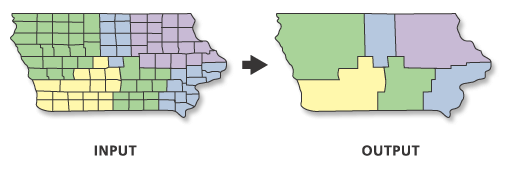
Usage
The attributes of the features that are aggregated by this tool can be summarized or described using a variety of statistics. The statistic used to summarize attributes is added to the output feature class as a single field with the naming standard of statistic type + underscore + input field name. For example, if the
SUMstatistics type is used on a field namedPOP, the output will include a field namedSUM_POP.Dissolve can create very large features in the output feature class, especially when there is a small number of unique values in the Dissolve Fields parameter or when dissolving all features into a single feature. Very large features may cause processing or display problems or poor performance when drawn on a map or when edited. Problems may also occur if the dissolve output created a feature at the maximum size on one machine and this output was moved to a machine with less available memory. To avoid these potential problems, use the Create multipart features parameter to create single-part features to split potentially larger multipart features into many smaller features. For extremely large features created by the Dissolve tool, the Dice tool can be used to split the large features to solve processing, display, or performance problems.
Null values are excluded from all statistical calculations. For example, the average of 10, 5, and a null is 7.5 ((10 + 5) / 2). The count returns the number of values included in the statistical calculation, which in this case is 2.
For better performance and scalability, this tool uses a tiling process to handle very large datasets. For details, see Tiled processing of large datasets.
The availability of physical memory may limit the amount (and complexity) of input features that can be processed and dissolved into a single output feature. This limitation may cause an error to occur, as the dissolve process may require more memory than is available. To prevent this, Dissolve may divide and process the input features using an adaptive tiling algorithm. To determine the features that have been tiled, run the Frequency tool on the result of this tool, specifying the same fields used in the dissolve process for the Frequency Fields parameter. Any record with a frequency value of 2 has been tiled. Tile boundaries are preserved in the output features to prevent the creation of features that are too large to be used by ArcGIS.
Caution:
Running Dissolve on the output of a previous dissolve process will rarely reduce the number of features in the output when the original processing divided and processed the inputs using adaptive tiling. The maximum size of any output feature is determined by the amount of available memory at run time; output containing tiles is an indicator that dissolving further with the available resources will cause an out-of-memory situation or result in a feature that is unusable. Additionally, running the Dissolve tool a second time on output that was created this way may result in slow performance for little to no gain and may cause an unexpected failure.
The Unsplit lines parameter only applies to line input. When the default is specified, lines are dissolved into a single feature; otherwise, only two lines that have a common endpoint (known as a pseudonode) are merged into one continuous line.
If the Input Features parameter value's geometry type is either point or multipoint and the Create multipart features parameter is checked, the output will be a multipoint feature class. Otherwise, if the Create multipart features parameter is unchecked, the output will be a point feature class.
Parameters
| Label | Explanation | Data type |
|---|---|---|
|
Input Features |
The features to be aggregated. |
Feature Layer |
|
Output Feature Class |
The feature class to be created that will contain the aggregated features. |
Feature Class |
|
Dissolve Fields (Optional) |
The field or fields on which features will be aggregated. If no fields are specified, the tool will dissolve all features together. |
Field |
|
Statistics Fields (Optional) |
Specifies the field or fields containing the attribute values that will be used to calculate the specified statistic. Multiple statistic and field combinations can be specified. Null values are excluded from all calculations. By default, the tool will not calculate any statistics. Numeric attribute fields can be summarized using any statistic. Text attribute fields can be summarized using minimum, maximum, count, first, last, unique, concatenate, and mode statistics. Value table columns:
|
Value Table |
|
Create multipart features (Optional) |
Specifies whether multipart features will be allowed in the output feature class.
|
Boolean |
|
Unsplit lines (Optional) |
Specifies how line features will be dissolved.
|
Boolean |
|
Concatenation Separator (Optional) |
A character or characters that will be used to concatenate values when the Concatenation option is used for the Statistics Fields parameter. By default, the tool will concatenate values without a separator. |
String |
Environments
Current Workspace, Scratch Workspace, Output Coordinate System, Geographic Transformations, Extent, XY Resolution, XY Tolerance, Output has M values, M Resolution, M Tolerance, Output has Z values, Default Output Z Value, Z Resolution, Z Tolerance, Maintain fully qualified field names, Output CONFIG Keyword, Auto Commit, Output XY Domain, Output M Domain, Output Z Domain, Transfer Geodatabase Field Properties
Licensing information
- Basic: Yes
- Standard: Yes
- Advanced: Yes