Return circuit information
Information about a circuit in a telecom domain network can be returned as a selection, aggregated geometry, or as a circuit definition with the option to include geometry for path connectivity to a .json file using the Trace tool with the Circuits result type option and the Circuit trace type.
Unlike other trace types, which depend solely on connectivity and traversability in the network, the circuit trace uses the network topology as well as the circuit management tables to identify the elements that comprise a circuit. This provides the unique ability to handle discontinuities between, or within, sections to return both physical and virtual circuits and sections even in cases where no physically connectivity exists due to gaps or virtual sections.
Requirements
To perform a circuit trace, the following requirements must be met:
One or more starting points must exist.
- When a value is provided for the Circuit Name parameter, any starting points are ignored
A single path must exist between a circuit's starting and stopping locations.
The network topology must be enabled.
When working with an enterprise geodatabase, the following are requirements:
The Input Utility Network parameter value must be from a utility network service.
This trace type requires ArcGIS Enterprise 12.1 or later.
Trace a circuit
To trace a circuit, complete the following steps:
Ensure that the utility network is available in an active map view, and click the Utility Network tab.
The Utility Network tab is activated.
On the Utility Network tab, in the Tools group, click the Trace down arrow to browse the trace gallery, and click Circuit.
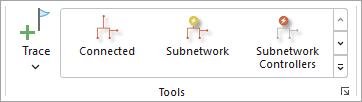
The Trace tool opens for the utility network in the active map using the Trace Type value of Circuit.
Optionally, in the Tools group, click the Trace command to open the Trace pane and set one or more starting points.
See Set starting points, stopping points, and barriers for more information.
For circuit traces, starting points are ignored when a value is specified for the Circuit Name parameter in the Trace tool.
Optionally, set one or more barriers to constrain the path.
For the Domain Network parameter, choose the telecom domain network that contains the circuits you want to trace.
Optionally, for the Circuit Name parameter, provide a circuit name to be traced.
When a value is provided for the Circuit Name parameter, the provided circuit's start location is used as the starting point for the trace, and the Starting Points parameter is ignored.
For the Max Hops parameter, specify the maximum number of hops between edges that are allowed in the path from the start location.
The default is 100; however, any updates made to the Max Hops parameter in the circuit properties for the telecom domain network will be updated in the tool for the trace configuration.
As an example, when using the default value of 100, no paths will be returned in a nonsectioned circuit, or within a section for a sectioned circuit that traverses more than 100 network junctions between the starting and stopping locations that define it.
Apply additional configuration parameters as needed.
If the circuit contains nonspatial junction and edge objects, the Include Containers parameter can be checked to enable visualization of physical circuits and circuit sections using the Selection result type. The Synthesize Geometries parameter can also be used with the Aggregated Geometry result type to synthesize geometries using the geometry of the edge objects' container, or synthesize between the start and stop locations of a circuit or circuit section to return an aggregated multipart line geometry for the circuit. Finally, the Circuits result type can be used to return the circuit definition to an output
.jsonfile. When used along with the Include geometry and Synthesize Geometries parameters, geometry for the path connectivity is also included. The output.jsonfile will contain the circuit definition following information for all traversed network features under circuits.Reference the Trace tool for a complete list of tool parameters, and see Configure a trace for additional information.
Click Run.
Circuits that are traversable between their starting and stopping locations and that meet the specified criteria are returned.