Extract data from a geodatabase
GIS datasets often contain much more data than you need. Using the Extract Data From Geodatabase geoprocessing tool, you can extract a subset of data from one geodatabase to another geodatabase or to an .xml file.
This tool provides similar functionality to copying data from one geodatabase to another and also supports the following:
Extracting the schema and data or schema only
Using definition queries or selected features to specify a subset of data to extract
Copying a subset of data by specifying the features whose geometry will be used to define the area to extract.
Copying a subset of data by setting the Extent environment
Extracting data to a different spatial reference
Extract data to a different spatial reference
To extract data to a different spatial reference, complete the following steps:
Use the Extract Data From Geodatabase geoprocessing tool to extract only the schema of the datasets to the new spatial reference specified in the Output Coordinate System setting under Environments.
Once the schema is extracted to the geodatabase in the new spatial reference, run the Extract Data From Geodatabase tool again and use the Reuse Schema parameter's Reuse option to extract the data to the new spatial reference.
Note:
The Output Coordinate System setting under Environments is ignored when the Output Type parameter is set to XML file.
Dataset types to extract
The dataset types that you can extract using the Extract Data From Geodatabase tool include the following:
Tables (nonspatial)
Note:
For information about feature class and table name lengths and other size limits, see a table summarizing feature class and table name rules and limitations in Define feature class properties.
The following geodatabase behaviors are supported and will persist on the data after the supported dataset types are extracted using the Extract Data From Geodatabase tool:
Determine data to extract
Prior to using the Extract Data From Geodatabase tool, you must determine the necessary data to extract from one geodatabase to another geodatabase or to an .xml file.
Note:
Metadata for the data you extract is copied when using the Extract Data From Geodatabase geoprocessing tool.
Extract all data
The Extract Data From Geodatabase tool allows you to extract all the data in the layers that you include in the Datasets to Extract parameter.
Note:
For nonspatial tables, only the table schema is extracted by default. To extract table rows, do one of the following:
To extract all rows for a single table, create a definition query. In the query builder, set
1=1as the SQL query.To extract a subset of rows for a single table, create a definition query and set the appropriate SQL expression to return only the required rows.
To extract all the rows for all tables, use the All records for tables option, which is in the Advanced Settings section of the Extract Data From Geodatabase geoprocessing tool.
Create a subset of data to extract
Sometimes, you may only want to extract a subset of the features in the dataset. There are multiple ways to specify the subsets of data to extract:
Use definition queries.
Use a selection set.
Specify an extent.
Use geometry features.
Use definition queries
Definition queries are written in SQL syntax and allow you to define a subset of features or rows to work with in a layer by filtering which ones are retrieved from the dataset. To extract a subset of features or rows, follow these steps to first create a definition query for a layer in ArcGIS Pro.
Definition queries are applied to the layers in the map and are not saved with the dataset in the geodatabase. If you are extracting a subset of data based on a definition query, apply the definition queries to your data first. Then use the Extract Data From Geodatabase tool along with one of the following options to add datasets containing a subset of data.
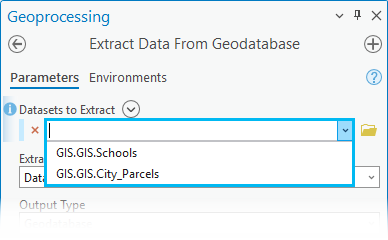
Drag the layer containing a definition query from the map Contents pane to the Datasets to Extract parameter.
Choose the layers from the drop-down menu in the Datasets to Extract parameter to add datasets containing a subset of data to be extracted.
Note:
Do not use the browse button for the Datasets to Extract parameter to add datasets with a definition query applied. If the browse button is used for this parameter to select datasets containing a subset of data instead of the drop-down menu, the definition queries applied to the datasets in the map will not be honored, and the default behavior will be applied.
Use a selection set
Selecting features allows you to highlight a subset of features on the map to use in subsequent exploration or analysis of the data. After you select features, you can extract the selection sets of individual feature classes and tables. Use the Datasets to Extract drop-down menu in the Extract Data From Geodatabase geoprocessing tool to ensure the selected datasets in the map are extracted.
Specify an extent
Use the Extent environment setting to define the spatial extent of the data to be extracted. This setting only processes and includes features that exist in the extent specified.
Note:
The extent you provide is assumed to be in the coordinate system of the input data, even if you set the Output Coordinate System environment setting to a different coordinate system. If the tool takes multiple input datasets, the first dataset added to the tool defines the coordinate system of the extent.
Use geometry features
When you run the Extract Data From Geodatabase geoprocessing tool, you can specify a layer that contains one or more features with the Extract Using Geometry Features parameter, and any data that intersects the geometry or aggregate geometries in the layer will be included in the extracted data.
Extract data from a geodatabase workflow
To use the Extract Data From Geodatabase tool to extract schema information and data from one geodatabase and transfer it to another geodatabase, complete the following steps:
To extract data from a geodatabase, open the Extract Data From Geodatabase geoprocessing tool using the Analysis tab and click Tools in the Geoprocessing group. You can also search for or browse to the Extract Data From Geodatabase tool in the Data Management Tools toolset in the General toolbox.
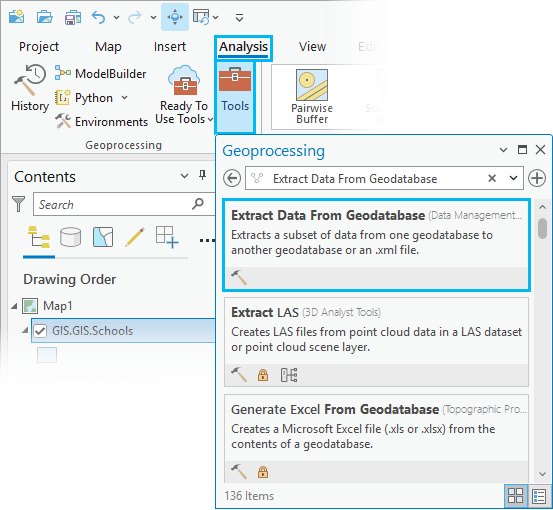
The Extract Data From Geodatabase geoprocessing tool dialog box appears with default settings.
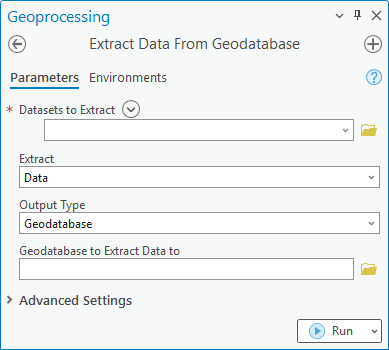
For the Datasets to Extract parameter, use the browse button
 to select one or more datasets containing the data that will be extracted.
Note:
At least one layer must exist in the map for the Add Many button
 to appear.
Use Add Many
next to Datasets to Extract to add multiple datasets simultaneously.If you are extracting a subset of data based on a definition query, apply the definition queries to your data first. Then, use the drop-down menu to add datasets containing a subset of data to be extracted. If the browse button is used to select datasets containing a subset of data instead of the drop-down menu, the definition queries will not be honored, and the default behavior will be applied.
If one of the datasets in the Datasets to Extract list was selected from the map and has selected records, the Extract Data From Geodatabase tool will process those selected records as a subset.
Optionally, select one of the following options from the Extract parameter drop-down menu:
Data—The schema and rows will be extracted. This is the default.
Note:
When the Extract parameter is set to Data, the Processing Extent options can be set under Environments and the Output Coordinate System value is ignored.
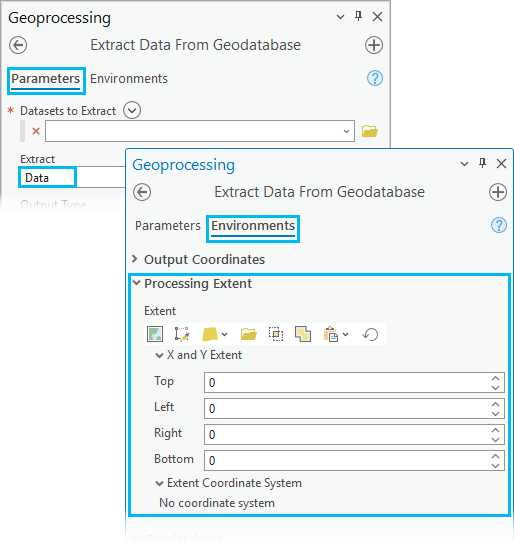
Schema only—Only the schema will be extracted.
Note:
When the Extract parameter is set to Schema only, you can set the Output Coordinate System value on the Environments tab and the Processing Extent setting is ignored.
However, changing the Output Coordinate System value is not supported if the Output Type parameter is set to XML file.
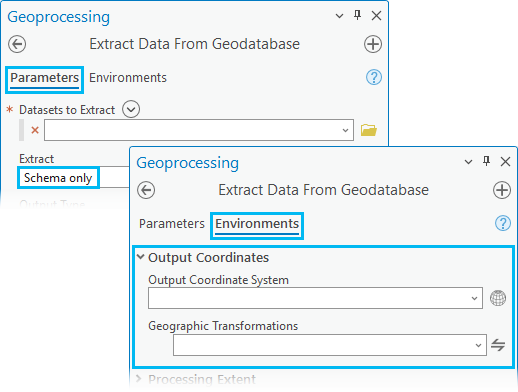
Optionally, select one of the following from the Output Type drop-down menu:
Geodatabase—The data will be extracted to an existing geodatabase. This is the default.

If you choose Geodatabase (the default setting), click the browse button
next to Geodatabase to Extract Data to and browse to the geodatabase where the data will be extracted to. This geodatabase can be a file, mobile, or enterprise geodatabase.Tip:
If you choose a database connection to an enterprise geodatabase, ensure that the database connection contains credentials for a user with privileges to create data in the database.
XML file—The data will be extracted to an XML workspace document.

If you choose XML file, click the browse button
next to XML File to Extract Data to, browse to the location, and provide a name for the .xmlfile that the data will be extracted to.Note:
When the Extract parameter is set to Schema only, changing the Output Coordinate System parameter is not supported when the Output Type parameter is set to XML file.
Tip:
You can later use the Import XML Workspace Document tool to input this output
.xmlfile into another geodatabase.New file geodatabase—Using the Geodatabase Location and Geodatabase Name parameters, specify the location and name of the new file geodatabase.

If you choose New file geodatabase, the Geodatabase Location and Geodatabase Name parameters become active. Click the browse button
next to Geodatabase Location and browse to the location where the new file geodatabase will be created. In the Geodatabase Name field, provide the name of the new file geodatabase that will be created for the extracted data.New mobile geodatabase—Using the Geodatabase Location and Geodatabase Name parameters, specify the location and name of the new mobile geodatabase.

If you choose New mobile geodatabase, the Geodatabase Location and Geodatabase Name parameters become active. Click the browse button
next to Geodatabase Location and browse to the location where the new mobile geodatabase will be created. In the Geodatabase Name field, provide the name of the new mobile geodatabase that will be created for the extracted data.
Click Advanced Settings to expand additional options to override the Extract Data From Geodatabase tool default options. If you are not changing the default options, skip to step 12 to run the tool.
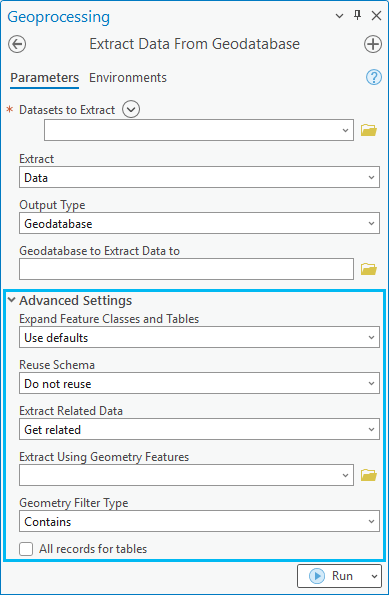
Optionally, choose one of the following options from the Expand Feature Classes and Tables drop-down menu to specify whether the expanded feature classes and tables—such as those in networks, topologies, or relationship classes—will be added.
Use defaults—The expanded feature classes and tables related to the feature classes and tables in the input datasets will be added. The default for feature classes is to extract all features intersecting the spatial filter. If no spatial filter has been provided, all features will be included. The default for tables is to extract the schema only. This is the default.
Add with schema only—The schema for the expanded feature classes and tables will be added.
All rows—All rows for expanded feature classes and tables will be added.
Do not add—No expanded feature classes or tables will be added.
Optionally, choose one of the following options from the Reuse Schema drop-down menu to specify whether the geodatabase containing the schema of the data to be extracted will be reused.
Reusing the schema reduces the amount of time required to extract the data.
Do not reuse—The schema will not be reused. This is the default.
Reuse—The schema will be reused.
Note:
The Reuse Schema parameter is only available if the Output Type parameter is set to Geodatabase.
Choose the Reuse option only if the output geodatabase contains the schema of your datasets and no data.
Optionally, choose one of the following options from the Extract Related Data drop-down menu to specify whether rows related to existing rows in the data will be extracted, for example, a feature (f1) is inside the geometry filter, and a related feature (f2) from another class is outside the filter.
If you choose to get related data, feature f2 is included in the extracted data in the example.
Do not get related—Related data will not be extracted.
Get related—Related data will be extracted. This is the default.
Optionally, click the browse button
next to the Extract Using Geometry Features parameter and browse to the features that will be used to define the area to extract.Optionally, choose one of the following options from the Geometry Filter Type drop-down menu to specify the spatial relationship between the Extract Using Geometry Features and Input Datasets parameter values and how that relationship will be filtered.
The spatial relationship is applied to data in an extent defined by the area of interest (AOI) specified in the Extract Using Geometry Features parameter.
Intersects—Features in the Input Datasets parameter value that intersect features in the Extract Using Geometry Features parameter value will be extracted.
Contains—Features in the Input Datasets parameter value contained by the selected feature in the Extract Using Geometry Features parameter value will be extracted.
Optionally, use the All records for tables check box to specify whether all records or only the schema will be extracted for tables without filters (such as selections or definition queries).
Tables with applied filters will be honored.
Checked—All records will be extracted to the geodatabase. This option will override the Expand Feature Classes and Tables parameter value.
Unchecked—Only the schema will be extracted to the geodatabase for tables. This is the default.
Click Run to extract data.
Note:
You can click the Run drop-down menu and select Schedule Run to run the tool later and, optionally, with recurrence.
Learn more about the Extract Data From Geodatabase tool