ProConcepts DDL
The DDL API is used to create and delete geodatabases and geodatabase schema objects.
Language:      C#
Subject:       Geodatabase DDL
Contributor:   ArcGIS Pro SDK Team <arcgisprosdk@esri.com>
Organization:  Esri, https://www.esri.com
Date:          04/20/2026
ArcGIS Pro:    3.7
Visual Studio: 2026
In this topic
- Introduction
- General Usage
- Tables and Feature Classes
- Domains
- Feature Datasets
- Annotation
- Dimension
- Subtypes
- Relationships
- Indexes
- Geodatabases
Introduction
The ArcGIS Pro SDK provides a limited set of geodatabase DDL (data definition language) functionality.
The following capabilities are available for the specified geodatabase types.
| Capability | File Geodatabase | Mobile Geodatabase | Enterprise Geodatabase | Memory Geodatabase |
|---|---|---|---|---|
| Tables (create, modify, rename, delete) | ✔ | ✔ | ✔ | ✔ |
| Feature classes (create, modify, rename, delete) | ✔ | ✔ | ✔ | ✔ |
| Feature datasets (create, changing contents, rename, delete) | ✔ | ✔ | ✔ | |
| Domains (create, modify, rename, delete) | ✔ | ✔ | ✔ | ✔ |
| Annotation feature classes (create, modify, rename, delete) | ✔ | ✔ | ✔ | |
| Dimension feature classes (create, modify, rename, delete) | ✔ | ✔ | ✔ | ✔ |
| Subtypes (create, modify, delete) | ✔ | ✔ | ✔ | ✔ |
| Relationship classes (create, modify, rename, delete) | ✔ | ✔ | ✔ | |
| Indexes (create, delete) | ✔ | ✔ | ✔ | |
| Geodatabases (create, delete) | ✔ | ✔ | ✔ |
DDL operations are not supported on other geodatabase or datastore types.
This API supports the most commonly used DDL operations. Additional DDL operations must be performed by using the geoprocessing API Geoprocessing API.
All of the classes described here can be found in the ArcGIS.Core.Data.DDL namespace.
For best results, remove the dataset from the Map or Table of Contents (TOC) before making any Data Definition Language (DDL) changes. After you finish the DDL operation, add the dataset back to the map. Do not perform DDL operations on a dataset while it is open in the map.
General Usage
As with most of the geodatabase API, the classes and methods detailed here are intended to be called on the Main CIM Thread (MCT) as described in ProConcepts-Geodatabase.
The DDL routines follow a common pattern. A Description class is used to specify the schema object to be created, modified, or deleted. For example, a TableDescription describes a table. One of the properties of a table description is a list of FieldDescription objects to specify the fields.
// Create a FieldDescription for the InspectionDate field
FieldDescription inspectionDateFieldDescription = new FieldDescription("InspectionDate", FieldType.Date)
{
  AliasName = "Inspection Date"
};
Generally, Description objects are either hand-created using a set of properties, or are created using an existing schema object.
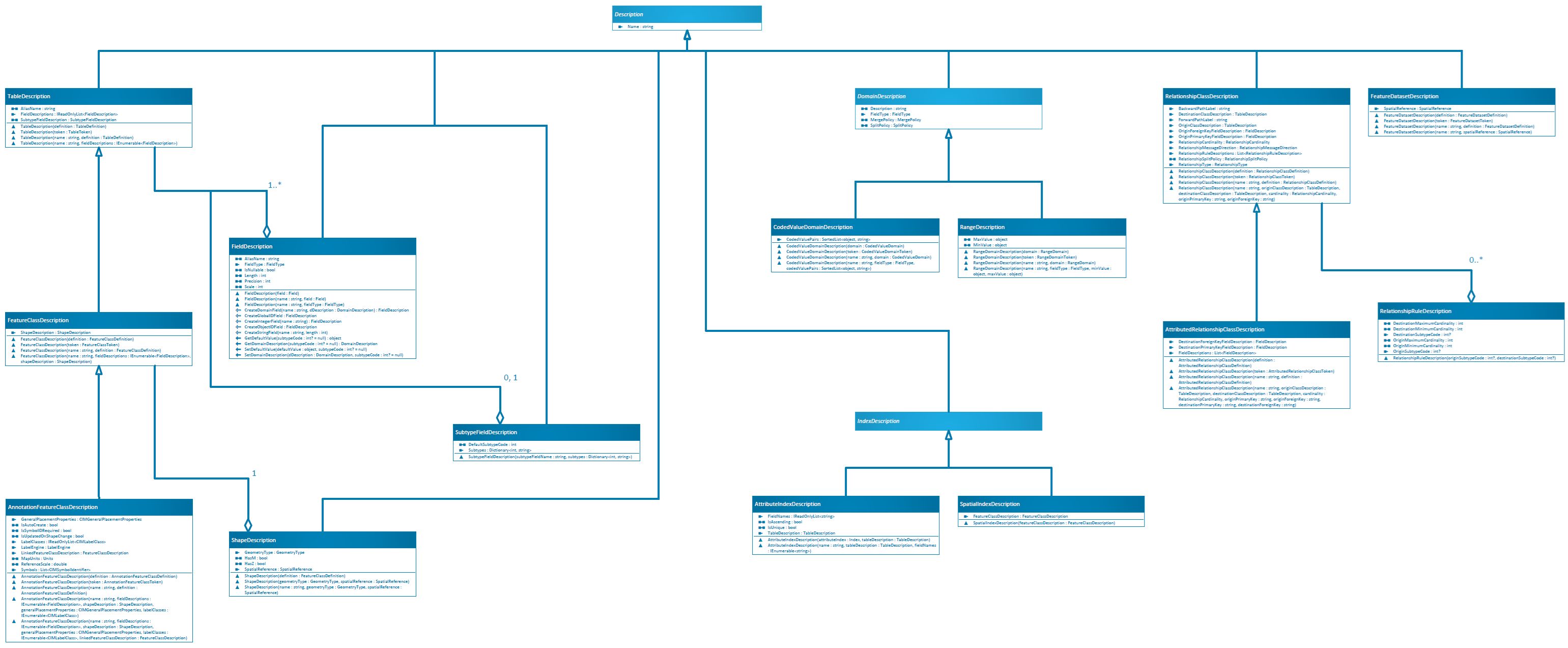
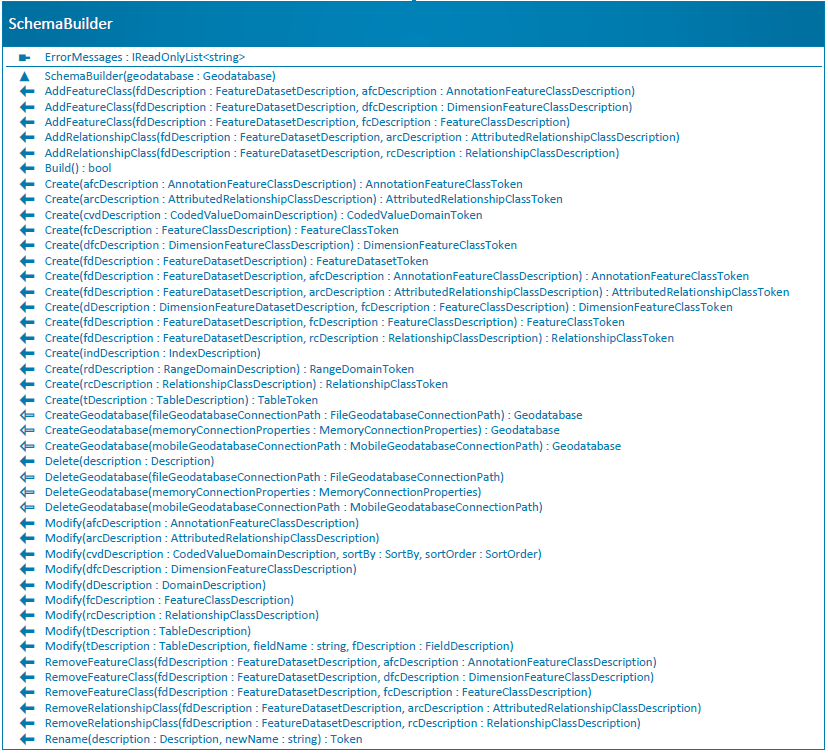
Schema modifications are made using a SchemaBuilder object, which is constructed with a Geodatabase. File, mobile, enterprise, and memory geodatabases support schema operations.
// Create a SchemaBuilder object
SchemaBuilder schemaBuilder = new SchemaBuilder(geodatabase);
DDL operations for creation are enqueued with the schema builder using a set of calls to Create methods.
// Add the creation of the table to our list of DDL tasks
schemaBuilder.Create(tableDescription);
The set of DDL operations is then executed with a call to Build. If the process fails, the ErrorMessages property can be queried to find out what went wrong.
// Execute the DDL
bool success = schemaBuilder.Build();
DDL routines can fail for the same reasons as the equivalent geoprocessing tool. For example, if a table has outstanding edits, you cannot delete it.
The Build operation is not guaranteed to be atomic. For example, consider a build operation that creates two tables. If the second table creation fails, the first table will still be created. It is the caller's responsibility to check the ErrorMessages property and perform any required cleanup in the event of a failure. In the example above, if the second table creation fails, the caller may wish to delete the first table in a subsequent DDL operation.
The same SchemaBuilder object can be used for multiple sets of DDL operations, each executed by a call to Build. If Build is called multiple times, only messages from the most recent call can be retrieved from the ErrorMessages property.
Tokens
Each Create method returns a Token object. These tokens are used when you need to specify dependencies between DDL operations. For example, the Create(FeatureDatasetDescription) routine returns a FeatureDatasetToken. A developer could then create one or more feature classes by using Create(FeatureDatasetDescription, FeatureClassDescription). The FeatureDatasetDescription would be created from the FeatureDatasetToken. In this way, a single call to SchemaBuilder.Build could create two tables and a relationship class between them. See the Feature Datasets section below for a code example of this scenario.
Tables and Feature Classes
Creating Tables and Feature Classes
The Pro SDK can be used to create tables and feature classes. To begin, create a series of FieldDescription objects.
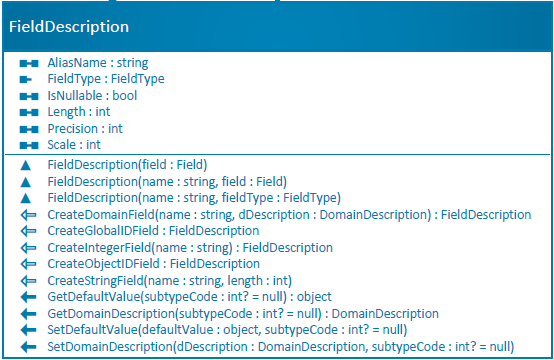
Each of these represents the definition of a field to be created in the new table. You can create a FieldDescription from an existing Field or by setting properties individually. Static helper routines are provided for creating common field types. Some examples are shown below:
// Create a FieldDescription for the InspectionDate field
FieldDescription inspectionDateFieldDescription = new FieldDescription("InspectionDate", FieldType.Date)
{
  AliasName = "Inspection Date"
};

// This static helper routine creates a FieldDescription for a Domain field (from a pre-existing domain)
FieldDescription inspectionResultsFieldDescription = FieldDescription.CreateDomainField("InspectionResults", new CodedValueDomainDescription(inspectionResultsDomain));
inspectionResultsFieldDescription.AliasName = "Inspection Results";
After creating the desired set of FieldDescription objects, the next step is to create a TableDescription object representing the definition of the table itself.
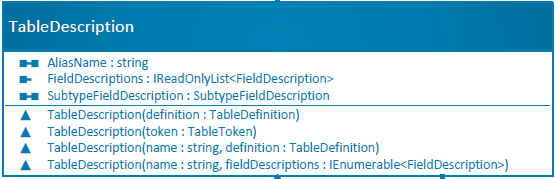
The TableDescription is passed to SchemaBuilder.Create and then SchemaBuilder.Build is used to actually create the table.
// Assemble a list of all of our field descriptions
List<FieldDescription> fieldDescriptions = new List<FieldDescription>()
  { globalIDFieldDescription, objectIDFieldDescription, inspectionDateFieldDescription, inspectionResultsFieldDescription, inspectionNotesFieldDescription };

// Create a TableDescription object to describe the table to create
TableDescription tableDescription = new TableDescription("PoleInspection", fieldDescriptions);

// Create a SchemaBuilder object
SchemaBuilder schemaBuilder = new SchemaBuilder(geodatabase);

// Add the creation of PoleInspection to our list of DDL tasks
schemaBuilder.Create(tableDescription);

// Execute the DDL
bool success = schemaBuilder.Build();
Although shown above, an ObjectID field is automatically added if one is not passed in.
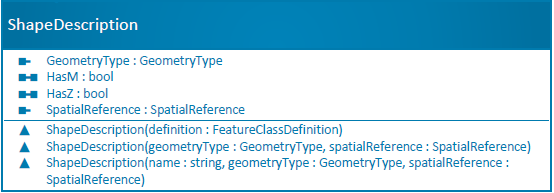
Creating a feature class follows many of the same principles as creating a table. One addition is that you must create a ShapeDescription object to represent the definition of the shape field.
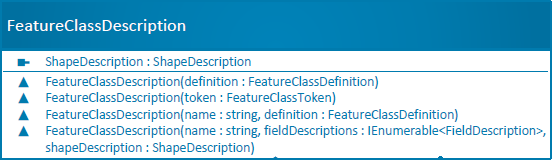
ShapeDescription objects can be created from a set of properties or by using the FeatureClassDefinition of an existing feature class. Set HasM and HasZ to true if you want to use a vertical coordinate system with Z values for height or depth, or if you need M values (measure) along a line.
// Create a ShapeDescription object
ShapeDescription shapeDescription = new ShapeDescription(GeometryType.Point, spatialReference);

// Alternatively, ShapeDescriptions can be created from another feature class.  In this case, the new feature class will inherit the same shape properties of the existing class
ShapeDescription alternativeShapeDescription = new ShapeDescription(existingFeatureClass.GetDefinition());
The final step is to create a FeatureClassDescription and build the feature class using the same pattern described above.
// Create a FeatureClassDescription object to describe the feature class to create
FeatureClassDescription featureClassDescription = new FeatureClassDescription("Cities", fieldDescriptions, shapeDescription);

// Create a SchemaBuilder object
SchemaBuilder schemaBuilder = new SchemaBuilder(geodatabase);

// Add the creation of the Cities feature class to our list of DDL tasks
schemaBuilder.Create(featureClassDescription);

// Execute the DDL
bool success = schemaBuilder.Build();
Modifying and Renaming Tables and Feature Classes
The DDL APIs can be used to modify an existing table or feature class.
First, create a new Description object that matches the new definition of the table. The Name property should match the name of an existing table. Then call the Modify method on the SchemaBuilder class. The example below shows how to add two fields to an existing feature class.
// Add the following fields to the 'Parcels' feature class
//   Tax_Code
//   Parcel_Address

// The feature class to modify
string featureClassName = "Parcels";

FeatureClassDefinition originalFeatureClassDefinition = geodatabase.GetDefinition<FeatureClassDefinition>(featureClassName);
FeatureClassDescription originalFeatureClassDescription = new FeatureClassDescription(originalFeatureClassDefinition);

// The two new fields to add to the 'Parcels' feature class
FieldDescription taxCodeDescription = FieldDescription.CreateIntegerField("Tax_Code");
FieldDescription addressDescription = FieldDescription.CreateStringField("Parcel_Address", 150);

// Add the new fields to the FieldDescription list
List<FieldDescription> modifiedFieldDescriptions = new List<FieldDescription>(originalFeatureClassDescription.FieldDescriptions);
modifiedFieldDescriptions.Add(taxCodeDescription);
modifiedFieldDescriptions.Add(addressDescription);

// Create a new FeatureClassDescription with additional fields
FeatureClassDescription modifiedFeatureClassDescription = new FeatureClassDescription(originalFeatureClassDescription.Name, modifiedFieldDescriptions, originalFeatureClassDescription.ShapeDescription);

SchemaBuilder schemaBuilder = new SchemaBuilder(geodatabase);

// Update the 'Parcels' feature class with the newly added fields
schemaBuilder.Modify(modifiedFeatureClassDescription);
bool modifyStatus = schemaBuilder.Build();

if (!modifyStatus)
{
  IReadOnlyList<string> errors = schemaBuilder.ErrorMessages;
}
To rename a table or feature class, create a Description object that matches the table you want to rename. Then call the Rename method on the SchemaBuilder class, as shown below:
// Renaming a table from 'Original_Table' to 'Renamed_Table'

string tableToBeRenamed = "Original_Table";
string tableRenameAs = "Renamed_Table";

TableDefinition tableDefinition = geodatabase.GetDefinition<TableDefinition>(tableToBeRenamed);

SchemaBuilder schemaBuilder = new SchemaBuilder(geodatabase);

// Table rename
schemaBuilder.Rename(new TableDescription(tableDefinition), tableRenameAs);
schemaBuilder.Build();
Adding or Removing Fields
The SchemaBuilder.Modify method is also used to add or remove fields in a dataset. The following example shows how to add fields to an existing table.
// Get table description from original table definition
TableDescription tableDescription = new TableDescription(parcelTableDefinition);

// Fields to include in the modified table
List<FieldDescription> fieldDescriptions = new List<FieldDescription> (tableDescription.FieldDescriptions);

// Field to be added - 'FloodRiskScale'
fieldDescriptions.Add(FieldDescription.CreateIntegerField("FloodRiskScale"));

// Modified table description
TableDescription modifiedTableDescription = new TableDescription(tableDescription.Name, fieldDescriptions);

// Update table with newly added fields
schemaBuilder.Modify(modifiedTableDescription);

// Execute DDL
schemaBuilder.Build();
The example below shows how to remove fields from a table.
// Get table description from original table definition
TableDescription tableDescription = new TableDescription(parcelTableDefinition);

// Fields to be retained in the modified table
FieldDescription taxFieldToBeRetained = new FieldDescription(parcelTableDefinition.GetFields().First(f => f.Name.Equals("TaxCode")));
List<FieldDescription> fieldsToBeRetained = new List<FieldDescription> { taxFieldToBeRetained };

// Modified table description
TableDescription modifiedTableDescription = new TableDescription(tableDescription.Name, fieldsToBeRetained);

// Remove all fields except the ones retained in the list
schemaBuilder.Modify(modifiedTableDescription);

// Execute DDL
schemaBuilder.Build();
Modifying Existing Fields
Field properties such as name, alias, length, and the type of some existing fields in tables or feature classes can be modified by using the SchemaBuilder.Modify(TableDescription, String, FieldDescription) method. The following table summarizes the allowed property changes by geodatabase type.
| Properties | File Geodatabase | Mobile Geodatabase | Enterprise Geodatabase | Memory Geodatabase |
|---|---|---|---|---|
| Field Name | ✔ | ✔ | ✔ | |
| Field Type (Table must be empty) | ✔ | ✔ | ||
| Field Length (Must be String data type) | ✔ | ✔ | ✔ | |
| IsNullable (Table must be empty) | ✔ | ✔ | ||
| Precision or Scale |
The following fields do not allow changes to the name, data type, or length:
- Object ID and Global ID
- Shape, Shape area, and Shape length
- Subtype field
- Relationship class primary and foreign key fields
- Editor tracking fields
- Fields used in attribute rules
- Non-editable fields
- Other required fields
The maximum alias length is 255 characters, and memory geodatabases do not allow empty strings as aliases.
The following example shows how to modify the 'Parcel_Address' field in the Parcels feature class.
Field parcelAddress = featureClassDefinition.GetFields().FirstOrDefault(f => f.Name.Contains("Parcel_Address"));

// Update field's alias name and length
FieldDescription newParcelFieldDescription = new FieldDescription(parcelAddress)
{
  AliasName = "Physical Property Address",
  Length = 250
};

// Update the default value
newParcelFieldDescription.SetDefaultValue("123 Main St");

schemaBuilder.Modify(new TableDescription(featureClassDefinition), parcelAddress.Name, newParcelFieldDescription);
schemaBuilder.Build();
Deleting Tables and Feature Classes
Tables and feature classes can be deleted by using the DDL APIs. To do this, create a Description and pass it to the SchemaBuilder.Delete method. TableDescription and FeatureClassDescription objects can be constructed easily by passing in the definition of an existing table or feature class.
// Create a TableDescription object
TableDescription tableDescription = new TableDescription(table.GetDefinition());

// Create a SchemaBuilder object
SchemaBuilder schemaBuilder = new SchemaBuilder(geodatabase);

// Add the deletion of the table to our list of DDL tasks
schemaBuilder.Delete(tableDescription);

// Execute the DDL
bool success = schemaBuilder.Build();
Domains
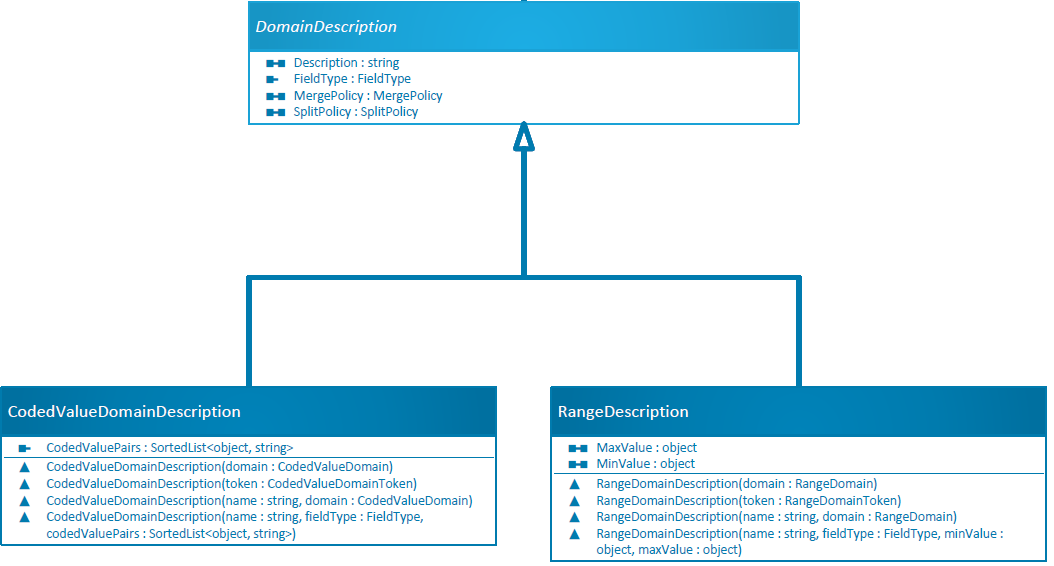
Both coded value domains and range domains can be created with the DDL APIs in the Pro SDK.
Creating Domains
The same pattern used for other DDL operations applies here: create a Description object and pass it to the SchemaBuilder.Create method. This example shows how to create a coded value domain for water pipe types.
CodedValueDomainDescription codedValueDomainDescription = new CodedValueDomainDescription("WaterPipeTypes", FieldType.String,
  new SortedList<object, string> { { "Copper", "C_1" }, { "Steel", "S_2" } })
{
  SplitPolicy = SplitPolicy.Duplicate,
  MergePolicy = MergePolicy.DefaultValue
};

SchemaBuilder schemaBuilder = new SchemaBuilder(geodatabase);

// Create a coded value domain
CodedValueDomainToken codedValueDomainToken = schemaBuilder.Create(codedValueDomainDescription);
schemaBuilder.Build();
Modifying and Renaming Domains
The SchemaBuilder class can modify both coded value and range domains. First, create a modified description object and then pass it to the SchemaBuilder.Modify method to update the domain description and add or remove domain values, as described below.
// Updating description and value of a coded value domain

CodedValueDomain codedValueDomain = geodatabase.GetDomains().First(f => f.GetName().Equals("WaterPipeTypes")) as CodedValueDomain;
CodedValueDomainDescription codedValueDomainDescription = new CodedValueDomainDescription(codedValueDomain);

// Update the domain description
codedValueDomainDescription.Description = "Water Pipe Distribution Types";

// Add a new code/value pair
codedValueDomainDescription.CodedValuePairs.Add("A", "Aluminum");

schemaBuilder.Modify(codedValueDomainDescription);
schemaBuilder.Build();
To rename domains, use SchemaBuilder.Rename:
// Renaming range domain from 'WaterMainPipe' to 'WaterDistributionPipe'
RangeDomain rangeDomain = geodatabase.GetDomains().First(f => f.GetName().Equals("WaterMainPipe")) as RangeDomain;

// Assign the new name
schemaBuilder.Rename(new RangeDomainDescription(rangeDomain), "WaterDistributionPipe");
schemaBuilder.Build();
Likewise, domains can be deleted by using SchemaBuilder.Delete, passing in a CodedValueDomainDescription or RangeDomainDescription. Domains cannot be deleted if they are in use by fields in the geodatabase.
// Deleting 'WaterPipeTypes' domain

CodedValueDomain codedValueDomain = geodatabase.GetDomains().First(f => f.GetName().Equals("WaterPipeTypes")) as CodedValueDomain;
CodedValueDomainDescription codedValueDomainDescription = new CodedValueDomainDescription(codedValueDomain);

schemaBuilder.Delete(codedValueDomainDescription);
schemaBuilder.Build();
Feature Datasets
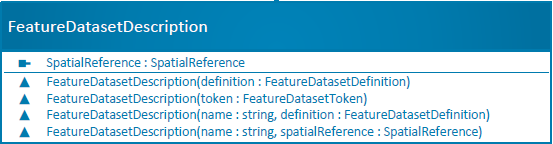
Feature datasets can be created and deleted by using the same pattern as other DDL operations.
// Create a feature dataset named 'Parcel_Information'

SchemaBuilder schemaBuilder = new SchemaBuilder(geodatabase);

// Create a FeatureDataset named 'Parcel Information'
FeatureDatasetDescription featureDatasetDescription = new FeatureDatasetDescription("Parcel_Information", SpatialReferences.WGS84);
schemaBuilder.Create(featureDatasetDescription);

// Build status
bool buildStatus = schemaBuilder.Build();

// Build errors
if (!buildStatus)
{
  IReadOnlyList<string> errors = schemaBuilder.ErrorMessages;
}
You can also create a feature class directly inside a feature dataset. This example shows how to create a feature dataset and then create a feature class within that feature dataset by using a Token, as described above.
// Create a FeatureDataset named 'Parcel_Information' and a FeatureClass named 'Parcels' in one operation

string featureDatasetName = "Parcel_Information";
string featureClassName = "Parcels";

SchemaBuilder schemaBuilder = new SchemaBuilder(geodatabase);

// Create a FeatureDataset token
FeatureDatasetDescription featureDatasetDescription = new FeatureDatasetDescription(featureDatasetName, SpatialReferences.WGS84);
FeatureDatasetToken featureDatasetToken = schemaBuilder.Create(featureDatasetDescription);

// Create a FeatureClass description
FeatureClassDescription featureClassDescription = new FeatureClassDescription(featureClassName,
  new List<FieldDescription>()
  {
    new FieldDescription("Id", FieldType.Integer),
    new FieldDescription("Address", FieldType.String)
  },
  new ShapeDescription(GeometryType.Point, SpatialReferences.WGS84));

// Create a FeatureClass inside a FeatureDataset
FeatureClassToken featureClassToken = schemaBuilder.Create(new FeatureDatasetDescription(featureDatasetToken), featureClassDescription);

// Build status
bool buildStatus = schemaBuilder.Build();

// Build errors
if (!buildStatus)
{
  IReadOnlyList<string> errors = schemaBuilder.ErrorMessages;
}
Existing feature classes can be added and removed from a feature dataset using AddFeatureClass and RemoveFeatureClass respectively.
Finally, feature datasets can be renamed using SchemaBuilder.Rename.
Annotation
Creating Annotation Feature Classes
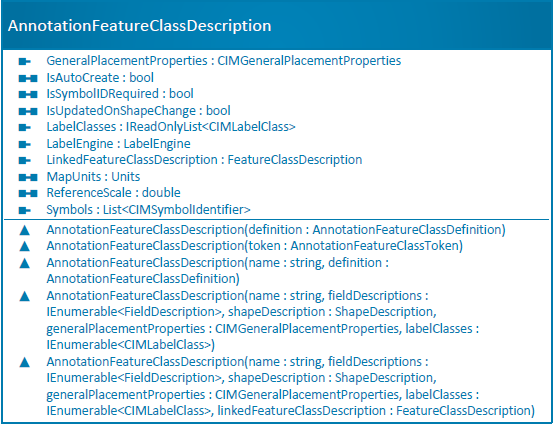
The DDL API also supports creating annotation feature classes. Similar to creating tables and feature classes, creating an annotation feature class begins with a list of FieldDescription objects and a ShapeDescription object.
// Create fields
FieldDescription pipeGlobalID = FieldDescription.CreateGlobalIDField();
FieldDescription name = FieldDescription.CreateStringField("PipeName", 255);

// Create a list of all field descriptions
List<FieldDescription> fieldDescriptions = new List<FieldDescription> { pipeGlobalID, name };

// Create a ShapeDescription object
ShapeDescription shapeDescription = new ShapeDescription(GeometryType.Polygon, spatialReference);
After that, create a general placement properties object for the appropriate label engine.
This example shows how a CIMMaplexGeneralPlacementProperties object can be used:
CIMMaplexGeneralPlacementProperties maplexGeneralPlacementProperties =  new CIMMaplexGeneralPlacementProperties
  {
    AllowBorderOverlap = true,
    PlacementQuality = MaplexQualityType.High,
    DrawUnplacedLabels = true,
    InvertedLabelTolerance = 1.0,
    RotateLabelWithDisplay = true,
    UnplacedLabelColor = new CIMRGBColor { R = 0, G = 255, B = 0, Alpha = 0.5f }
  };
This example shows how a CIMStandardGeneralPlacementProperties object can be used:
CIMStandardGeneralPlacementProperties standardGeneralPlacementProperties =  new CIMStandardGeneralPlacementProperties
  {
    DrawUnplacedLabels = true,
    InvertedLabelTolerance = 3.0,
    RotateLabelWithDisplay = true,
    UnplacedLabelColor = new CIMRGBColor { R = 255, G = 0, B = 0, Alpha = 0.5f }
  };
Next, create a set of annotation label classes that describe how text labels should be created. This example shows how to create a label object that uses green Tahoma text:
CIMLabelClass greenLabelClass = new CIMLabelClass
{
Name = "Green",
ExpressionTitle = "Expression-Green",
ExpressionEngine = LabelExpressionEngine.Arcade,
Expression = "$feature.OBJECTID",
ID = 1,
Priority = 0,
Visibility = true,
TextSymbol = new CIMSymbolReference
{
  Symbol = new CIMTextSymbol()
  {
	Angle = 45,
	FontType = FontType.Type1,
	FontFamilyName = "Tahoma",
	FontEffects = FontEffects.Normal,
	HaloSize = 2.0,

	Symbol = new CIMPolygonSymbol
	{
	  SymbolLayers = new CIMSymbolLayer[]
	  {
		new CIMSolidFill
		{
		  Color = CIMColor.CreateRGBColor(0, 255, 0)
		}
	  },
	  UseRealWorldSymbolSizes = true
	}
  },
  MaxScale = 0,
  MinScale = 0,
  SymbolName = "TextSymbol-Green"
},
StandardLabelPlacementProperties = new CIMStandardLabelPlacementProperties
{
  AllowOverlappingLabels = true,
  LineOffset = 1.0
},
MaplexLabelPlacementProperties = new CIMMaplexLabelPlacementProperties
{
  AlignLabelToLineDirection = true,
  AvoidPolygonHoles = true
}
};
Create additional CIMLabelClass objects as needed, and add them to a list (This snippet shows a longer example).
// Create a list of CIM label classes
List<CIMLabelClass> labelClasses = new List<CIMLabelClass> { greenLabelClass, blueLabelClass };
Finally, create an AnnotationFeatureClassDescription and build the annotation feature class by using the same DDL create operation pattern described above:
// Create an annotation feature class description object to describe the annotation feature class to create
AnnotationFeatureClassDescription annotationFeatureClassDescription = new AnnotationFeatureClassDescription("WaterPipeAnnotation", fieldDescriptions, shapeDescription, maplexGeneralPlacementProperties, labelClasses)
{
  IsAutoCreate = true,
  IsSymbolIDRequired = false,
  IsUpdatedOnShapeChange = true
};

// Create a SchemaBuilder object
SchemaBuilder schemaBuilder = new SchemaBuilder(geodatabase);

// Add the creation of the Cities annotation feature class to the list of DDL tasks
schemaBuilder.Create(annotationFeatureClassDescription);

// Execute the DDL
schemaBuilder.Build();
To create a feature-linked annotation feature class, the FeatureClassDescription of the linked feature class should be passed during AnnotationFeatureClassDescription creation.
// Create fields for linked feature class
FieldDescription waterPipeGlobalID = FieldDescription.CreateGlobalIDField();
FieldDescription pipeName = FieldDescription.CreateStringField("PipeName", 255);

// Create a list of water pipe field descriptions
List<FieldDescription> pipeFieldDescriptions = new List<FieldDescription> { waterPipeGlobalID, pipeName };

// Create a linked feature class description
FeatureClassDescription linkedFeatureClassDescription = new FeatureClassDescription("WaterPipe", pipeFieldDescriptions,
new ShapeDescription(GeometryType.Polygon, spatialReference));

// Add the creation of the linked feature class to the list of DDL tasks
FeatureClassToken linkedFeatureClassToken = schemaBuilder.Create(linkedFeatureClassDescription);

// Create a feature-linked annotation feature class description object
AnnotationFeatureClassDescription annotationFeatureClassDescription =new AnnotationFeatureClassDescription(annotationFeatureClassName,
fieldDescriptions, shapeDescription,  maplexGeneralPlacementProperties, labelClasses, new FeatureClassDescription(linkedFeatureClassToken))
{
  IsAutoCreate = true,
  IsSymbolIDRequired = false,
  IsUpdatedOnShapeChange = true
};
Modifying and Renaming Annotation Feature Classes
The SchemaBuilder.Modify method modifies an annotation feature class by following a pattern similar to the one used for feature classes. The following example illustrates how to add labels and symbols to an annotation feature class.
// Modifying annotation feature class' labels and symbols

// Get original annotation feature class description
AnnotationFeatureClassDescription annotationFeatureClassDescription = new AnnotationFeatureClassDescription(annotationFeatureClassDefinition);

// Get original label classes
IReadOnlyList<CIMLabelClass> labelClasses = annotationFeatureClassDescription.LabelClasses;

List<CIMLabelClass> modifiedLabelClasses = new List<CIMLabelClass>(labelClasses);

// Add a new label class
modifiedLabelClasses.Add(new CIMLabelClass()
{
	Name = "RedSymbol",
	TextSymbol = new CIMSymbolReference
	{
	  Symbol = new CIMTextSymbol()
	  {
		Angle = 45,
		FontType = FontType.Type1,
		FontFamilyName = "Arial",
		FontEffects = FontEffects.Normal,
		HaloSize = 2.0,

		Symbol = new CIMPolygonSymbol { SymbolLayers = new CIMSymbolLayer[]
		{ new CIMSolidFill { Color = CIMColor.CreateRGBColor(255, 0, 0) } }, UseRealWorldSymbolSizes = true }
	  },
	  MaxScale = 0,
	  MinScale = 0,
	  SymbolName = "TextSymbol-RED"
	},
});

// Add a  new symbol
annotationFeatureClassDescription.Symbols.Add(new CIMSymbolIdentifier()
{
	ID = 1001,
	Name = "ID_10001",
	Symbol = new CIMTextSymbol()
		{
		  Angle = 43,
		  FontEffects = FontEffects.Subscript,
		  FontType = FontType.TTOpenType,
		  FontStyleName = "Regular",
		  FontFamilyName = "Tahoma",
		  TextCase = TextCase.Allcaps
		}
});

// Create modified description object
AnnotationFeatureClassDescription modifiedAnnotationFeatureClassDescription = new AnnotationFeatureClassDescription(annotationFeatureClassDescription.Name,
	annotationFeatureClassDescription.FieldDescriptions, annotationFeatureClassDescription.ShapeDescription,
	annotationFeatureClassDescription.GeneralPlacementProperties, modifiedLabelClasses);

// Enqueue DDL modification
schemaBuilder.Modify(modifiedAnnotationFeatureClassDescription);

// Execute DDL operations
schemaBuilder.Build();
Following the feature class rename pattern above, an annotation feature class can be renamed by using SchemaBuilder.Rename.
Deleting Annotation Feature Classes
Like tables and feature classes, annotation feature classes can be deleted by using the same DDL delete operation pattern. First, create an AnnotationFeatureClassDescription object and then call SchemaBuilder.Delete:
// Create a SchemaBuilder object
SchemaBuilder schemaBuilder = new SchemaBuilder(geodatabase);

// Create an AnnotationFeatureDescription object
AnnotationFeatureClassDescription annotationFeatureClassDescription = new AnnotationFeatureClassDescription(annotationFeatureClass.GetDefinition());

//Add the deletion of annotation feature class to the list of DDL tasks
schemaBuilder.Delete(annotationFeatureClassDescription);

// Execute the DDL
schemaBuilder.Build();
Dimension
Creating Dimension Feature Classes
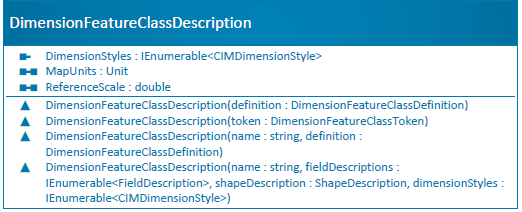
The DDL API also supports creating dimension feature classes. To create a dimension feature class, start with a list of FieldDescription objects and a ShapeDescription object, just as you would when creating tables and feature classes.
// Create attribute fields for the dimension feature class
FieldDescription nameFieldDescription = new FieldDescription("Name", FieldType.String);
FieldDescription distanceFieldDescription = new FieldDescription("DistanceMeasure", FieldType.Double);
FieldDescription measurementDateFieldDescription = new FieldDescription("MeasurementDate", FieldType.Date);

// Create a list of field descriptions
List<FieldDescription> fieldDescriptions = new List<FieldDescription> { nameFieldDescription, distanceFieldDescription, measurementDateFieldDescription };
Create a polygon shape description.
// Create a ShapeDescription object
ShapeDescription shapeDescription = new ShapeDescription(GeometryType.Polygon, SpatialReferences.WGS84);
Next, you need to create a list of CIMDimensionStyle objects, which define the appearance of the dimensions.
CIMColor color = CIMColor.CreateRGBColor(10, 20, 30);
CIMPointSymbol beginMarkerSymbol = GetMarkerSymbol(color);
CIMPointSymbol endMarkerSymbol = GetMarkerSymbol(color);
CIMLineSymbol dimensionLineSymbol = GetLineSymbol(color, 0.5);
CIMLineSymbol extensionLineSymbol = GetLineSymbol(color, 0.5);
CIMTextSymbol textSymbol = GetDefaultTextSymbol(10);
textSymbol.Symbol = GetPolygonSymbol(color, color, 0);
textSymbol.HorizontalAlignment = HorizontalAlignment.Center;

CIMDimensionStyle cimDimensionStyle = new CIMDimensionStyle()
{
	Name = "Style 1",
 	ID = 1 ,
	Align = true,
	DisplayUnits = null,
	DisplayPrecision = 0,

	BeginMarkerSymbol = beginMarkerSymbol,
	EndMarkerSymbol = endMarkerSymbol,
	MarkerOption = DimensionPartOptions.Both,
	MarkerFit = DimensionMarkerFit.Text,

	DimensionLineSymbol = dimensionLineSymbol,
	DimensionLineOption = DimensionPartOptions.Both,
	DrawLineOnFit = false,
	ExtendLineOnFit = true,

	BaselineHeight = 0.0,
	ExtensionLineSymbol = extensionLineSymbol,
	ExtensionLineOption = DimensionPartOptions.Both,
	ExtensionLineOvershot = 0.0,
	ExtensionLineOffset = 0.0,

	Expression = "",
	ExpressionParserName = "Arcade",

	TextSymbol = textSymbol,
	TextOption = DimensionTextOption.Only,
	TextFit = DimensionTextFit.MoveBegin,
};

List<CIMDimensionStyle> cimDimensionStyles = [cimDimensionStyle];

private CIMFill DefaultFill(CIMColor color)
{
  return new CIMSolidFill()
  {
	Enable = true,
	Name = "Fill_" + Guid.NewGuid().ToString(),
	ColorLocked = false,
	Color = color
  };
}

private CIMStroke DefaultStroke(CIMColor color, double width = 1)
{
  return new CIMSolidStroke()
  {
	Color = color,
	Name = "Stroke_" + Guid.NewGuid().ToString(),
	CapStyle = LineCapStyle.Round,
	JoinStyle = LineJoinStyle.Round,
	CloseCaps3D = false,
	LineStyle3D = Simple3DLineStyle.Strip,
	MiterLimit = 4,
	Width = width,

	ColorLocked = false,
	Enable = true,
  };
}

private CIMPolygonSymbol GetPolygonSymbol(CIMColor fillColor, CIMColor outlineColor, double outlineWidth)
{
  if ((outlineColor == null) || (outlineWidth <= 0))
	return new CIMPolygonSymbol() { SymbolLayers = new CIMSymbolLayer[1] { DefaultFill(fillColor) } };
  return new CIMPolygonSymbol() { SymbolLayers = new CIMSymbolLayer[2] { DefaultStroke(outlineColor, outlineWidth), DefaultFill(fillColor) } };
}

private CIMLineSymbol GetLineSymbol(CIMColor color, double width)
{
  var stroke = DefaultStroke(color, width);

  return new CIMLineSymbol() { SymbolLayers = new CIMSymbolLayer[1] { stroke } };
}

private Polygon CreateArrowGeometry()
{
  double x = 2.39;
  double y = 1.20;
  double xMod = 0.3;

  var pt1 = new Coordinate2D() { X = -x + xMod, Y = -y };
  var pt2 = new Coordinate2D() { X = x + xMod, Y = 0 };
  var pt3 = new Coordinate2D() { X = -x + xMod, Y = y };
  var coords = new List<Coordinate2D>() { pt1, pt2, pt3 };

  var polygon = PolygonBuilderEx.CreatePolygon(coords);
  return polygon;
}

private CIMPointSymbol GetMarkerSymbol(CIMColor color)
{
  CIMMarkerGraphic graphic = new CIMMarkerGraphic()
  {
	Geometry = CreateArrowGeometry(),
	Symbol = new CIMPolygonSymbol()
	{
	  SymbolLayers = new CIMSymbolLayer[1]
	  {
	new CIMSolidFill()
	{
	  Enable = true,
	  Color = color,
	}
	  },
	  UseRealWorldSymbolSizes = false
	}
  };

  CIMSymbolLayer symbolLayer = new CIMVectorMarker()
  {
	Enable = true,
	Size = 12,
	Frame = new EnvelopeBuilderEx() { XMin = -5, YMin = -3, XMax = 5, YMax = 3 }.ToGeometry() as Envelope,
	MarkerGraphics = new CIMMarkerGraphic[1] { graphic },
	ScaleSymbolsProportionally = true,
	RespectFrame = true
  };

  return new CIMPointSymbol()
  {
	SymbolLayers = new CIMSymbolLayer[1] { symbolLayer },
	HaloSize = 1,
	ScaleX = 1,
	AngleAlignment = AngleAlignment.Map,
  };
}

private CIMTextSymbol GetDefaultTextSymbol(double height)
{
  return new CIMTextSymbol()
  {
	DrawGlyphsAsGeometry = false,
	DrawSoftHyphen = false,
	ExtrapolateBaselines = true,
	FlipAngle = 0.0,
	IndentAfter = 0.0,
	IndentBefore = 0.0,
	IndentFirstLine = 0.0,
	Kerning = true,
	LetterSpacing = 0.0,
	LetterWidth = 100.0,
	Ligatures = true,
	LineGap = 0.0,
	LineGapType = LineGapType.ExtraLeading,
	Underline = false,
	Strikethrough = false,
	OffsetX = 0.0,
	OffsetY = 0.0,
	FontFamilyName = "Tahoma",
	FontStyleName = "Regular",
	WordSpacing = 100.0,
	Height = height
  };
}
Finally, create a DimensionFeatureClassDescription and use the same DDL create operation pattern described earlier to build the dimension feature class.
DimensionFeatureClassDescription dimensionFeatureClassDescription = new DimensionFeatureClassDescription("LinesInfo", fieldDescriptions,
shapeDescription, cimDimensionStyles);

DimensionFeatureClassToken dimensionFeatureClassToken = schemaBuilder.Create(dimensionFeatureClassDescription);
bool status = schemaBuilder.Build();
IReadOnlyList<string> errors = schemaBuilder.ErrorMessages;
Modifying and Renaming Dimension Feature Classes
The SchemaBuilder.Modify method modifies a dimension feature class by following a pattern similar to the one used for feature classes.
// Update dimension alias name
DimensionFeatureClassDescription updateAliasDimensionDescription = new DimensionFeatureClassDescription(initialDimensionFeatureClassDefinition)
{
  AliasName = $"DimensionAlias"
};
schemaBuilder.Modify(updateAliasDimensionDescription);
bool buildStatus = schemaBuilder.Build();
Similarly, the SchemaBuilder.Rename method renames a dimension feature class.
Deleting Dimension Feature Classes
Like tables and feature classes, dimension feature classes can be deleted by using the same DDL delete operation pattern. First, create a DimensionFeatureClassDescription object and then call SchemaBuilder.Delete:
// Create a SchemaBuilder object
SchemaBuilder schemaBuilder = new SchemaBuilder(geodatabase);

// Create a DimensionFeatureClassDescription object
DimensionFeatureClassDescription dimensionFeatureClassDescription  = new DimensionFeatureClassDescription(dimensionFeatureClass.GetDefinition());

//Add the deletion of the dimension feature class to the list of DDL tasks
schemaBuilder.Delete(dimensionFeatureClassDescription);

// Execute the DDL
schemaBuilder.Build();
Subtypes
The Pro SDK DDL APIs support creating subtypes in a dataset. Subtypes are used to categorize data. They are a subset of features in a feature class or objects in a table that share the same attributes.

Enabling Subtype Support
To enable subtype support in a table or feature class, set the SubtypeFieldDescription property on the TableDescription or FeatureClassDescription and pass it to the schema builder method.
The SubtypeFieldDescription class defines the subtype field name and the subtype code/value pairs. The snippets below show how to get started with subtypes.
First, create an integer field to hold subtypes.
// Create an integer field named "BuildingType."
FieldDescription buildingType = new FieldDescription("BuildingType", FieldType.Integer);

// Additional field to hold name (optional)
FieldDescription buildingName = new FieldDescription("Name", FieldType.String);
Next, create the subtype field description that defines the subtype field name and the subtypes for a dataset. You should use an existing numeric field type (integer or double) as the subtype field.
// Create 'BuildingType' as a subtype field with three subtypes - Business, Marketing, and Security
SubtypeFieldDescription buildingSubtypeDescription = new SubtypeFieldDescription(buildingType.Name, new Dictionary<int, string> { { 1, "Business" }, { 2, "Marketing" }, { 3, "Security" } })
Then, create the table or feature class description object, set the SubtypeFieldDescription property, and pass it to the SchemaBuilder.Create method.
// Creating a table with two fields
TableDescription tableDescription = new TableDescription("Building", new List<FieldDescription> { buildingName, buildingType });

// Set subtype field
tableDescription.SubtypeFieldDescription = subtypeFieldDescription;

// Enqueue table with subtype creation
schemaBuilder.Create(tableDescription);

// Execute the DDL
schemaBuilder.Build();
Modifying Subtypes
The DDL APIs also support modifying subtypes using SchemaBuilder.Modify. The subtype modification allows you to add or remove subtypes and alter the default subtype code.
TableDescription tableDescription = new TableDescription(tableDefinition);

// Remove the first subtype from the table
IReadOnlyList<Subtype> subtypes = tableDefinition.GetSubtypes();
tableDescription.SubtypeFieldDescription.Subtypes.Remove(subtypes.First().GetCode());

// Adding a new subtype, 'Utility', in the existing table
tableDescription.SubtypeFieldDescription.Subtypes.Add(4, "Utility");

// Assigning 'Utility' subtype as the default subtype
tableDescription.SubtypeFieldDescription.DefaultSubtypeCode = 4;

// Enqueue subtype modification
schemaBuilder.Modify(tableDescription);

schemaBuilder.Build();
Disabling Subtype Support
Disabling subtype support for a feature class or table removes all subtype values and eliminates the subtype designation from the previous subtype field.
To disable subtype support, you must set the SubtypeFieldDescription property of TableDescription or FeatureClassDescription to null and pass the modified description object to the SchemaBuilder.Modify method.
FeatureClassDescription featureClassDescription = new FeatureClassDescription(featureClassDefinition);

// Set subtype field to null to remove the subtype field designation
featureClassDescription.SubtypeFieldDescription = null;

schemaBuilder.Modify(featureClassDescription);
schemaBuilder.Build();
Relationships
Relationship classes create associations between fields or features in the origin and destination classes.
Creating Relationship Classes
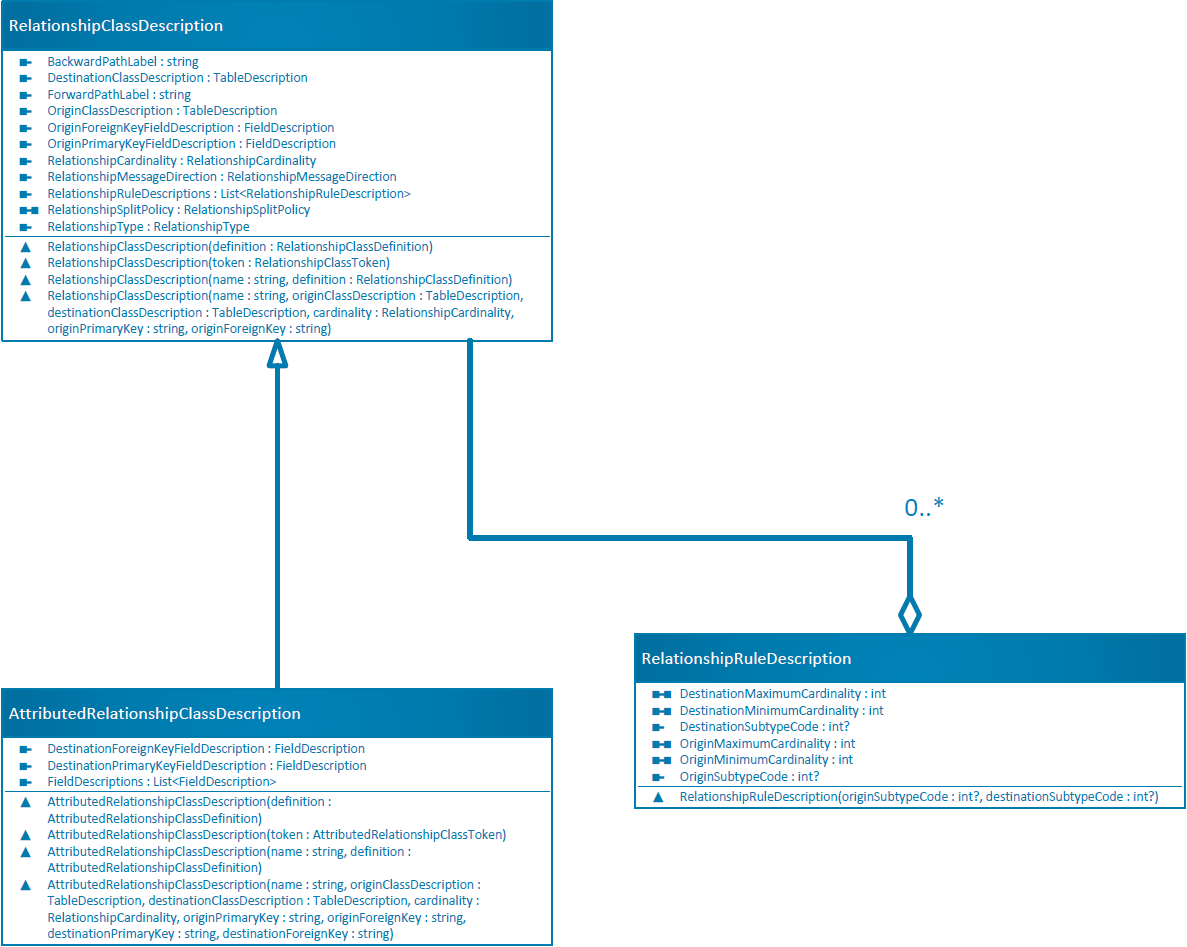
Creating a relationship class begins with an origin class and a destination class. In the DDL API, the RelationshipClassDescription class defines the relationship between classes.
Following a similar DDL creation pattern, a RelationshipClassDescription object is passed to the SchemaBuilder.Create method, and then SchemaBuilder.Build is used to create the relationship class. The following example illustrates how to create a relationship class between a 'Building' feature class and a 'BuildingType' table.
// Creating the 'BuildingType' table with two fields - BuildingType and BuildingTypeDescription
FieldDescription buildingType = FieldDescription.CreateIntegerField("BuildingType");
FieldDescription buildingTypeDescription = FieldDescription.CreateStringField("BuildingTypeDescription", 100);

TableDescription buildingTableDescription = new TableDescription("BuildingType", new List<FieldDescription>() { buildingType, buildingTypeDescription });

TableToken buildingTypeTableToken = schemaBuilder.Create(buildingTableDescription);

// Creating the 'Building' feature class with three fields - BuildingId, Address, and BuildingType
FieldDescription buildingId = FieldDescription.CreateIntegerField("BuildingId");
FieldDescription buildingAddress = FieldDescription.CreateStringField("Address", 100);
FieldDescription usageSubType = FieldDescription.CreateIntegerField("UsageSubtype");

FeatureClassDescription featureClassDescription = new FeatureClassDescription("Building", new List<FieldDescription> { buildingId, buildingAddress, buildingType, usageSubType},
new ShapeDescription(GeometryType.Polygon, SpatialReferences.WGS84));

// Adding two subtypes- Marketing and Utility
featureClassDescription.SubtypeFieldDescription = new SubtypeFieldDescription(usageSubType.Name, new Dictionary<int, string> {{1,"Marketing"},{2,"Utility"}});

FeatureClassToken buildingToken = schemaBuilder.Create(featureClassDescription);

// Creating a 1:M, composite relationship between the 'Building' feature class and 'BuildingType' table
RelationshipClassDescription relationshipClassDescription = new RelationshipClassDescription("BuildingToBuildingType", new FeatureClassDescription(buildingToken),
new TableDescription(buildingTypeTableToken), RelationshipCardinality.OneToMany, buildingType.Name, buildingType.Name)
{
  RelationshipType = RelationshipType.Composite
};
A set of relationship rules can be added to a relationship class to refine the cardinality and relationship combinations. The RelationshipRuleDescription class defines a relationship rule. If a subtype exists in the dataset, the relationship rule description constructor takes the subtype code of the origin or destination class; otherwise, it should be null.
// Adding a relationship rule for the building usage subtype ( Marketing)
relationshipClassDescription.RelationshipRuleDescriptions.Add(new RelationshipRuleDescription(1, null));
Finally, call the schema builder's create and build methods to enqueue and execute the DDL operations, respectively.
schemaBuilder.Create(relationshipClassDescription);
schemaBuilder.Build();
Many-to-many (M:M) relationship classes require the relationship class to have its own table in the database. Therefore, you should use
AttributedRelationshipClassDescriptionto create a many-to-many relationship.
Creating Attributed Relationship Classes
Creating an attributed relationship class follows many of the same principles as creating a relationship class. The critical difference is that you must provide the destination primary key and destination foreign key.
The AttributedRelationshipClassDescription is used to create an attributed relationship class, as shown below.
// Creating the 'BuildingType' table with two fields - BuildingType and BuildingTypeDescription
FieldDescription buildingType = FieldDescription.CreateIntegerField("BuildingType");
FieldDescription buildingTypeDescription = FieldDescription.CreateStringField("BuildingTypeDescription", 100);

TableDescription buildingTableDescription = new TableDescription("BuildingType", new List<FieldDescription>() { buildingType, buildingTypeDescription });

TableToken buildingTypeTableToken = schemaBuilder.Create(buildingTableDescription);

// Creating the 'Building' feature class with three fields - BuildingId, Address, and BuildingType
FieldDescription buildingId = FieldDescription.CreateIntegerField("BuildingId");
FieldDescription buildingAddress = FieldDescription.CreateStringField("Address", 100);

FeatureClassDescription featureClassDescription = new FeatureClassDescription("Building", new List<FieldDescription> { buildingId, buildingAddress, buildingType }, new ShapeDescription(GeometryType.Polygon, SpatialReferences.WGS84));

FeatureClassToken buildingToken = schemaBuilder.Create(featureClassDescription);

// Creating M:M relationship between the 'Building' feature class and 'BuildingType' table
AttributedRelationshipClassDescription attributedRelationshipClassDescription =
new AttributedRelationshipClassDescription("BuildingToBuildingType", new FeatureClassDescription(buildingToken),
  new TableDescription(buildingTypeTableToken), RelationshipCardinality.ManyToMany, "OBJECTID", "BuildingID", "OBJECTID", "BuildingTypeID");

// Adding attribute field in the relationship table - 'OwnershipPercentage' field (optional)
attributedRelationshipClassDescription.FieldDescriptions.Add(FieldDescription.CreateIntegerField("OwnershipPercentage"));

schemaBuilder.Create(attributedRelationshipClassDescription);
schemaBuilder.Build();
An attributed relationship table can contain any user-defined attributes.
The relationship table must have fields that act as foreign keys to the origin and destination class. These foreign keys relate to the primary keys on the origin and destination classes.
Modifying Relationship Classes
Once a relationship class is created, it cannot be modified. However, you can add, delete, and refine its rules and update the split policy using SchemaBuilder.Modify.
For an attributed relationship class, you can add or remove attribute fields from the intermediate relationship table; see the code snippet below.
AttributedRelationshipClassDescription attributedRelationshipClassDescription = new AttributedRelationshipClassDescription(attributedRelationshipClassDefinition);

// Update relationship split policy
attributedRelationshipClassDescription.RelationshipSplitPolicy = RelationshipSplitPolicy.UseDefault;

// Add a field in the relationship table
attributedRelationshipClassDescription.FieldDescriptions.Add(FieldDescription.CreateIntegerField("RelationshipStatus"));

// Add relationship rules based on subtypes,if available assuming origin class has subtype with code 1
attributedRelationshipClassDescription.RelationshipRuleDescriptions.Add(new RelationshipRuleDescription(1, null));

schemaBuilder.Modify(attributedRelationshipClassDescription);
schemaBuilder.Build();
Deleting Relationship Classes
The SDK APIs can delete relationship classes by passing the relationship description object to the SchemaBuilder.Delete method, as shown below.
// Relationship description from existing dataset
RelationshipClassDescription relationshipClassDescription = new RelationshipClassDescription(relationshipClassDefinition);

schemaBuilder.Delete(relationshipClassDescription);
schemaBuilder.Build();
Similar to feature classes, relationship classes can also be moved into and out of a feature dataset by using SchemaBuilder.AddRelationshipClass and SchemaBuilder.RemoveRelationshipClass, respectively. See the following code snippet for details.
// Get existing feature dataset and relationship class
FeatureDatasetDescription featureDatasetDescription = new FeatureDatasetDescription(featureDatasetDefinition);

RelationshipClassDescription relationshipClassDescription = new RelationshipClassDescription(relationshipClassDefinition);

// Remove relationship class from the feature dataset
schemaBuilder.RemoveRelationshipClass(featureDatasetDescription, relationshipClassDescription);

// Add the relationship class to the feature dataset
//schemaBuilder.AddRelationshipClass(featureDatasetDescription, relationshipClassDescription);

schemaBuilder.Build();
Indexes
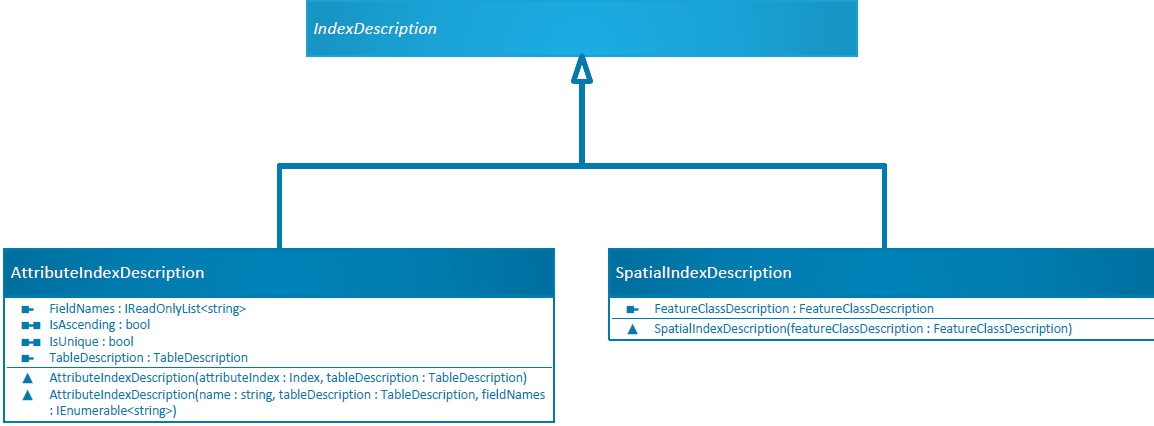
The DDL APIs also support creating and removing both spatial and attribute indexes. The AttributeIndexDescription and SpatialIndexDescription classes define attribute and spatial indexes, respectively. The index creation and deletion process follows patterns similar to other DDL operations.
Creating Attribute Indexes
To create an attribute index description object, the AttributeIndexDescription constructor takes the index name, the table dataset on which the index is to be built, and a set of table fields that participate in the index. The AttributeIndexDescription object is then passed to the SchemaBuilder.Create method, as illustrated below.
// Creating a table with index from scratch

// Table fields
FieldDescription nameFieldDescription = FieldDescription.CreateStringField("Name", 50);
FieldDescription addressFieldDescription = FieldDescription.CreateStringField("Address", 200);

// Creating a table, 'Buildings' with two fields
TableDescription tableDescription = new TableDescription("Buildings", new List<FieldDescription>() { nameFieldDescription, addressFieldDescription });

// Enqueue DDL operation to create a table
TableToken tableToken = schemaBuilder.Create(tableDescription);

// Create an attribute index named 'Idx' with two participating fields
AttributeIndexDescription attributeIndexDescription = new AttributeIndexDescription("Idx", new TableDescription(tableToken),
	new List<string> { nameFieldDescription.Name, addressFieldDescription.Name });

// Enqueue DDL operation to create attribute index
schemaBuilder.Create(attributeIndexDescription);

// Execute build indexes operation
bool isBuildSuccess = schemaBuilder.Build();
Creating Spatial Indexes
The SpatialIndexDescription constructor takes a feature class description to create a spatial index description object. Then you can call SchemaBuilder.Create and SchemaBuilder.Build to build the spatial index, as shown below.
// Creating the spatial index description object
SpatialIndexDescription spatialIndexDescription = new SpatialIndexDescription(new FeatureClassDescription(featureClassDefinition));

// Enqueue DDL operation for spatial index creation
schemaBuilder.Create(spatialIndexDescription);

// Execute build index DDL operation
bool isBuildSuccess = schemaBuilder.Build();
This operation will recalculate the spatial index if a dataset already has the spatial index.
Deleting Indexes
Following the DDL delete pattern, you can use SchemaBuilder.Delete to delete indexes.
#region Removing attribute index
// Find attribute index to be removed
Index indexToRemove = featureClassDefinition.GetIndexes().First(f => f.GetName().Equals("IndexNameToBeRemoved"));

// Index description of the index to be removed
AttributeIndexDescription indexDescriptionToRemove = new AttributeIndexDescription(indexToRemove, new TableDescription(featureClassDefinition));

// Enqueue DDL operation to remove attribute index
schemaBuilder.Delete(indexDescriptionToRemove);
#endregion

# region Removing spatial index
// Create spatial description
SpatialIndexDescription spatialIndexDescription = new SpatialIndexDescription(new FeatureClassDescription(featureClassDefinition));

// Enqueue DDL operation to remove the spatial index
schemaBuilder.Delete(spatialIndexDescription);
# endregion

// Execute delete indexes operation
bool isDeleteIndexSuccess = schemaBuilder.Build();
Geodatabases
File Geodatabases
Creating and deleting file geodatabases follows a slightly different pattern from other DDL operations. Static routines on the SchemaBuilder class called CreateGeodatabase and DeleteGeodatabase are used to create and delete file geodatabases. Both routines take a FileGeodatabaseConnectionPath as an argument.
If a file geodatabase is in use, it cannot be deleted. All geodatabase objects that refer to the file geodatabase, or to datasets or rows within it, must be disposed before deletion.
Mobile Geodatabases
Creating and deleting mobile geodatabases follows a pattern similar to file geodatabases. Static routines on the SchemaBuilder class called CreateGeodatabase and DeleteGeodatabase create and delete mobile geodatabases. Both routines take a MobileGeodatabaseConnectionPath as an argument.
Like a file geodatabase, a mobile geodatabase cannot be deleted if it is in use. All geodatabase objects that refer to the mobile geodatabase, or to datasets or rows within it, must be disposed before deletion.
Memory Geodatabases
ArcGIS Pro supports the concept of memory geodatabases. Memory geodatabases are often significantly faster than writing to on-disk formats. Data written to memory is temporary and is deleted when the application closes. Memory geodatabases are stored in your system's physical memory, and your system may run low on memory if you write large datasets into the workspace.
Geoprocessing supports two kinds of memory geodatabases. The Pro SDK supports only the
memoryvariant, not the legacyin_memoryworkspace.
To create a memory geodatabase, first create a MemoryConnectionProperties object. There are two constructors for this class. The default constructor returns a pointer to the same memory geodatabase used by geoprocessing. The second constructor takes a string. Passing in "memory" also returns a pointer to the geoprocessing memory workspace. Passing in another value creates a unique memory geodatabase with the specified name. (The string "in_memory" generates an error to avoid possible confusion with the unsupported in_memory workspace.)
Once the MemoryConnectionProperties object is created, static routines on the SchemaBuilder class, CreateGeodatabase and DeleteGeodatabase, can be used to create and delete the memory geodatabase.
After the geodatabase is created, tables and feature classes can be created inside it using the regular DDL routines.
The code below shows an example of creating a memory geodatabase called "MyMemoryGeodatabase":
// Create the memory connection properties to connect to the memory geodatabase named 'MyMemoryGeodatabase'

MemoryConnectionProperties memoryConnectionProperties = new MemoryConnectionProperties("MyMemoryGeodatabase");

// Create and use the memory geodatabase
using (Geodatabase geodatabase = new Geodatabase(memoryConnectionProperties))
{
  // Create additional schema here
}