What's new in ArcGIS Pro 3.7
In ArcGIS Pro 3.7, performance improvements were made in many areas of the application. Of special note is a new Analyze Map pane for evaluating map drawing performance.
Productivity enhancements include new editing tools, custom toolbars for maps and other views, and the ability for administrators to create system favorites for their organization. Coordinate systems were reorganized by geographic categories, making them easier to find. You can search for and alias portal connections on the redesigned Portals page.
Important new developments include file-based knowledge graphs, a telecom domain network for the utility network, and a set of geoAI tools that support embeddings-based analysis.
Video overview
This video was created by the ArcGIS Pro development teams and the product support teams to highlight new functionality in this release.
Highlights
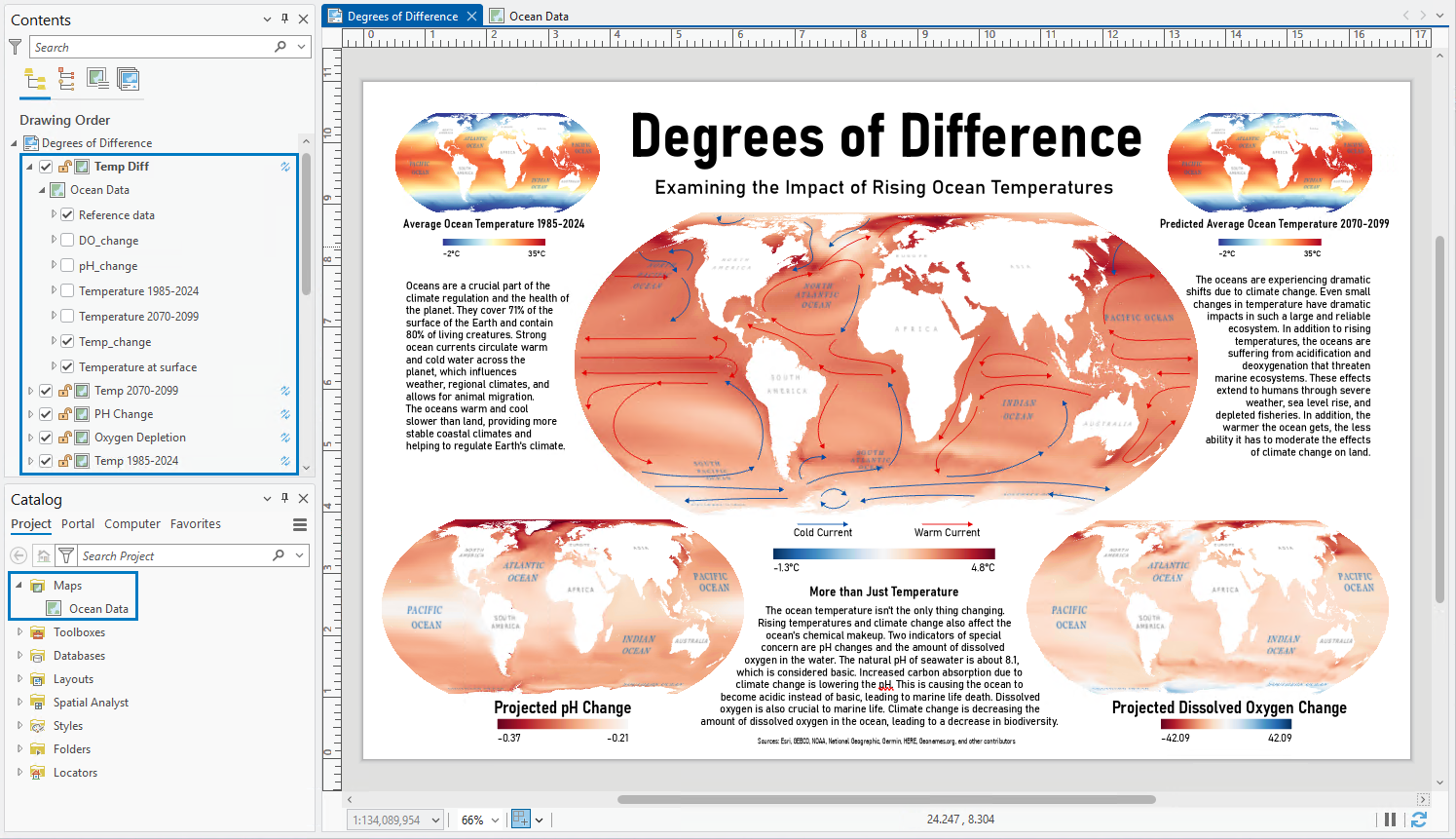
Control layer visibility by map frame
You can turn layers on and off in a map frame in a layout without impacting other map frames or the map view. Map frames with layer visibility overrides can display layers independently of the map view. This eliminates the need to create a new map each time you need to display a different layer or set of layers in a layout. Instead multiple layouts, or multiple map frames in a single layout, can point to the same map while showing different layers.
Layer visibility overrides apply only to the visibility check box in the Contents pane of the layout. Other ways to filter or limit visibility of features, such as definition queries or symbol class visibility, cannot be set individually for map frames.
To enable this behavior, select a map frame. On the Map Frame ribbon tab, click the Layer Visibility button  . Layer visibility overrides are enabled per map frame. This allows you to have some map frames that match the map view's layer visibility and others that do not. Map frames with layer visibility overrides display an icon in the Contents pane.
Analyze map performance and drawing metrics
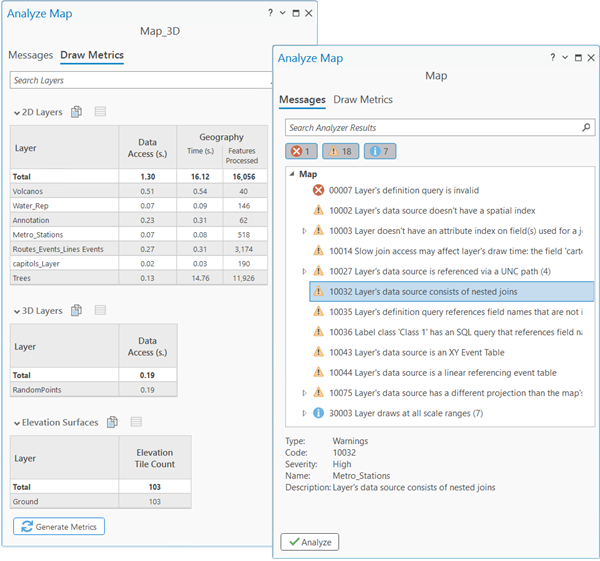
You can use the Analyze Map pane to identify potential issues with drawing performance in maps and scenes. Drawing metrics provide layer-by-layer data processing and feature complexity measurements to find performance bottlenecks that are otherwise difficult to identify. These analytics demonstrate how map content impacts performance and quality in a variety of areas, including:
Advanced symbology and label rendering
Unconverted, unindexed, or inaccessible data
Custom query expressions
Create and manage file knowledge graphs
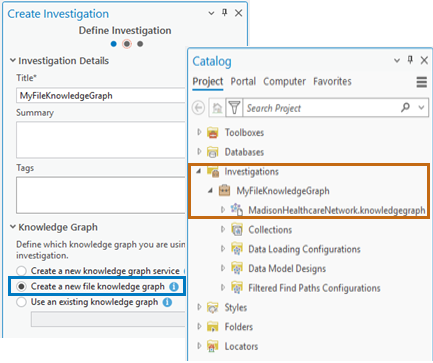
You can now create and manage a file knowledge graph stored in a local folder. This allows you to build and analyze knowledge graphs without the ArcGIS Enterprise deployment that is required to create a knowledge graph service. A file knowledge graph supports most advanced visualization, analytics, and data management capabilities that are available with a knowledge graph service.
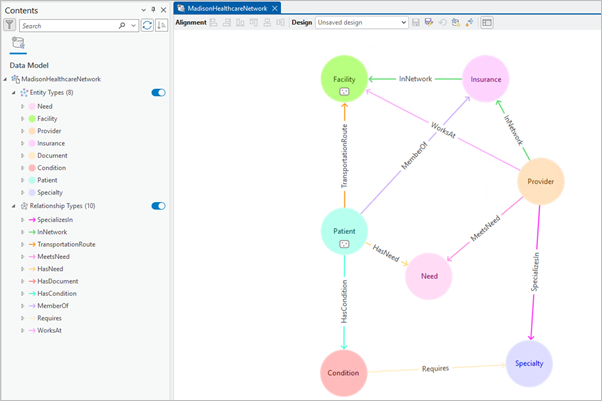
With an investigation created from a file knowledge graph, you can create a data model that represents real world systems in ArcGIS Pro. You can analyze how entities are connected using graph queries, visualize relationships in link charts, and explore graph data on a map. Investigate relationships between your spatial and nonspatial data to uncover patterns, find trends, and reveal insights.
Extract scanned lines and polygons
You can extract lines and polygons from scanned map images with the new Extract Scanned Lines and Extract Scanned Polygons tools. These geoprocessing tools, located in the Conversion toolbox, use raster datasets classified as binary images as the input source.
Extract Scanned Lines generates polyline features at the centerlines of raster cells. It has options to control the handling of intersections and how much compression and smoothing are applied to the output feature geometry. Additional parameters allow you to control the treatment of corners, gaps, and holes.
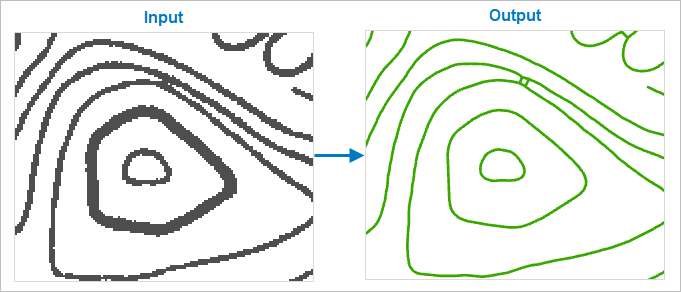
Extract Scanned Polygons generates polygon features along the outlines of raster cells. It has similar options for controlling the compression and smoothing of the output feature geometry.

By automatically generating vector features from raster cells, these tools reduce the amount of heads-up digitizing needed to extract features from imagery. The tool parameters can be adjusted to suit different types of scanned maps, ranging from representations of natural features to the built environment. For example, you can use Extract Scanned Lines to extract elevation contours, rivers, or soil boundaries. You can use Extract Scanned Polygons to extract building footprints or land use areas.
Embeddings-based analysis
Embeddings enable semantic analysis of geospatial data using AI-generated vector representations. They transform imagery, geographic features, and text into high-dimensional numerical vectors that capture patterns, context, and relationships. Analysis is performed in an embedding space where similar features are closer together and dissimilar ones are farther apart. Because the processes run on precomputed vectors, they are scalable, efficient, and run on standard CPUs.
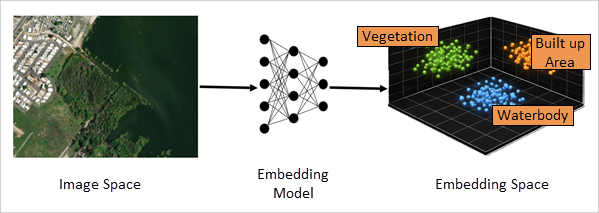
The Embeddings Based Analysis toolset in the GeoAI toolbox supports working with embeddings.
Generate Embeddings Using AI Models converts spatial data into semantic vector representations using pretrained foundation models. You can generate embeddings from imagery, geographic features, and text attributes.
Find Similar Features Using Embeddings performs large-scale similarity search across geospatial datasets. One or more query features are combined into a representative embedding vector. The query is then compared to all features in the dataset to identify the most similar features.
In addition to the geoprocessing tool, a new Find Similar pane is available for interactive exploration.
Merge Embeddings aggregates embeddings from one spatial level to another. For example, embeddings generated at the ZIP code level can be merged into counties or states. The tool uses methods such as averaging and area-weighted calculations to ensure that the aggregated embeddings preserve underlying patterns.
Embeddings are stored as binary (BLOB) fields, but many ArcGIS Pro tools require numeric inputs. Extract Embeddings To Fields converts embeddings into numeric fields, making them usable with existing workflows such as clustering, regression, and spatial statistics.
Telecom domain networks
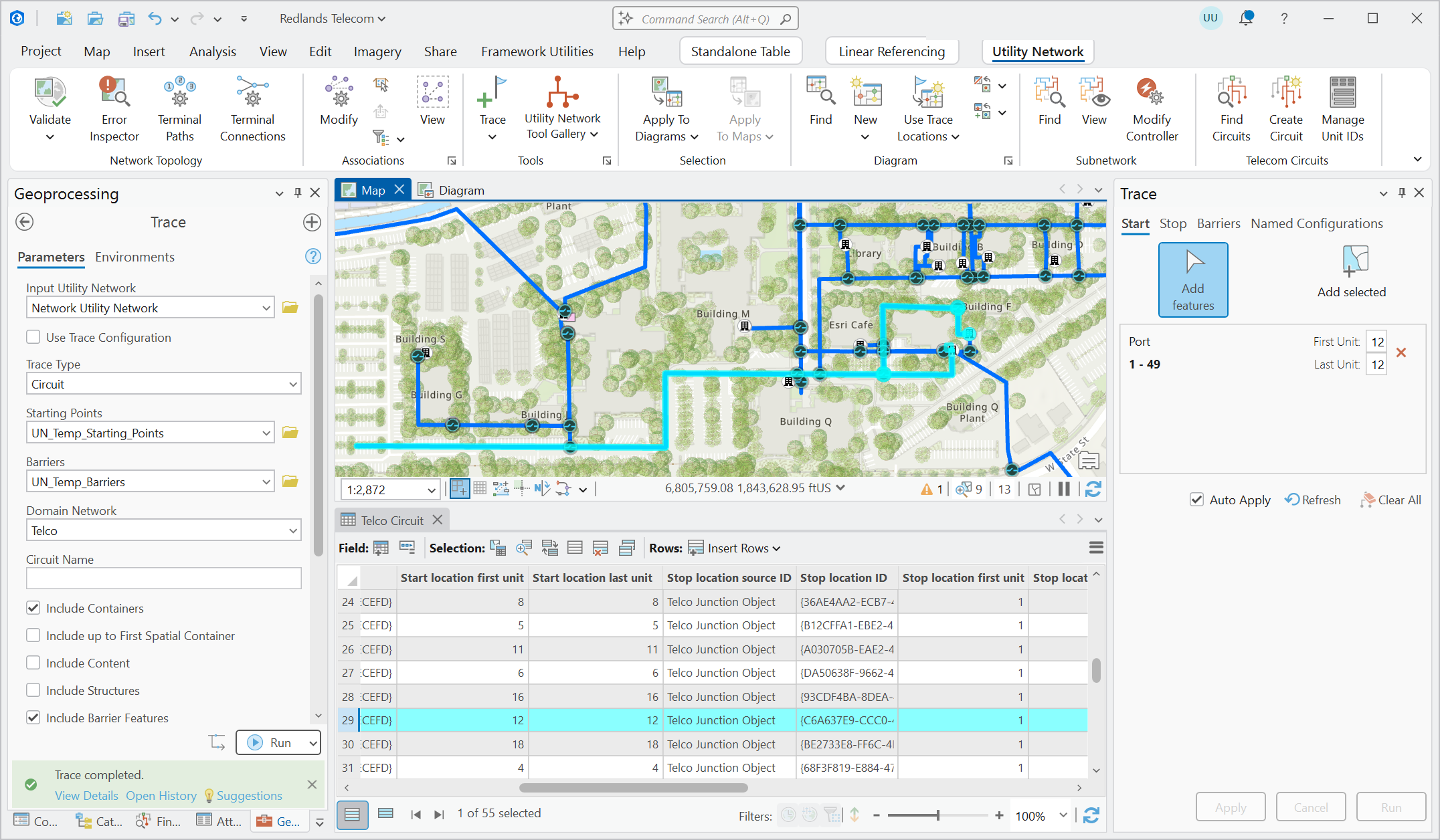
The telecom domain network is a configuration option for the utility network available with Utility Network Version 8, designed for organizations that manage telecommunications infrastructure. Unlike traditional domain networks, a telecom domain network introduces a distinct schema built around circuit management, with an extended information model that supports grouping of junction objects, edge objects, and associations.
Grouping allows a single record to represent many objects with shared attribution and topology, such as fiber strands within a cable or ports within a piece of equipment. A circuit defines a dedicated path between start and stop locations, and can include sections and subcircuits, allowing complex circuits to be modeled accurately.
Two trace types support circuit analysis: the path trace finds valid paths between start and stop locations, and the circuit trace returns information about a circuit using the network topology and circuit management tables.
Color schemes identify individual fiber strands within cables based on standard or custom coloring conventions, and a dirty objects table tracks the status of nonspatial objects and associations in the domain network. The association model supports foreign key-based associations, which store connectivity inline on the row itself rather than as separate records in the Associations table. Combined with grouping, this significantly reduces record counts across the network.
Together, these capabilities address the scale and complexity of real-world telecom networks, where datasets may contain billions of nonspatial objects.
New offline and online help systems
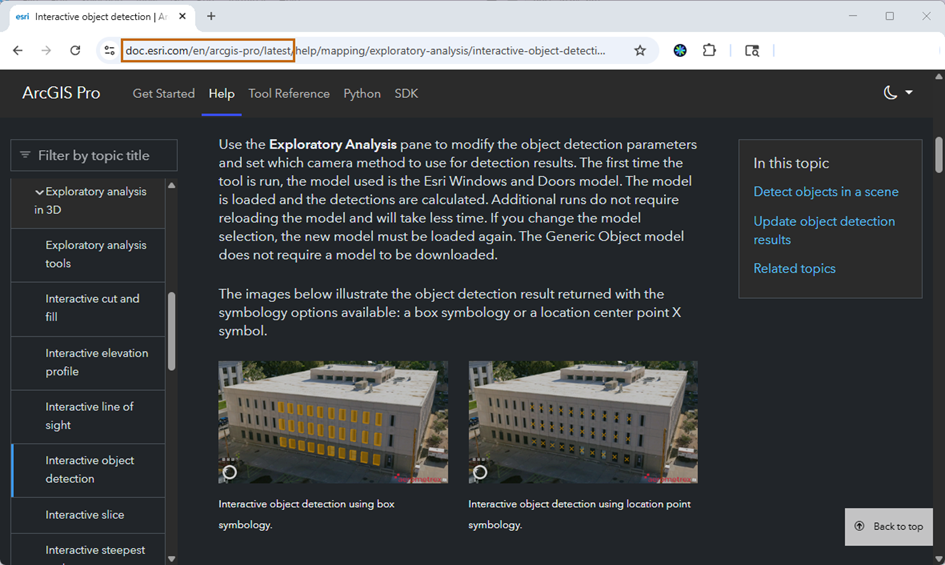
Offline help for ArcGIS Pro is now delivered through ArcGIS Documentation Center, an application in My Esri.
After installing ArcGIS Documentation Center, you can download the help for ArcGIS Pro in any of the languages and versions available. Doc Center serves the offline help locally and opens help pages in your default browser. Offline help both looks and behaves like online help.
Unlike previous versions of installed help, offline help can now be updated within a release cycle if important changes are made to the documentation.
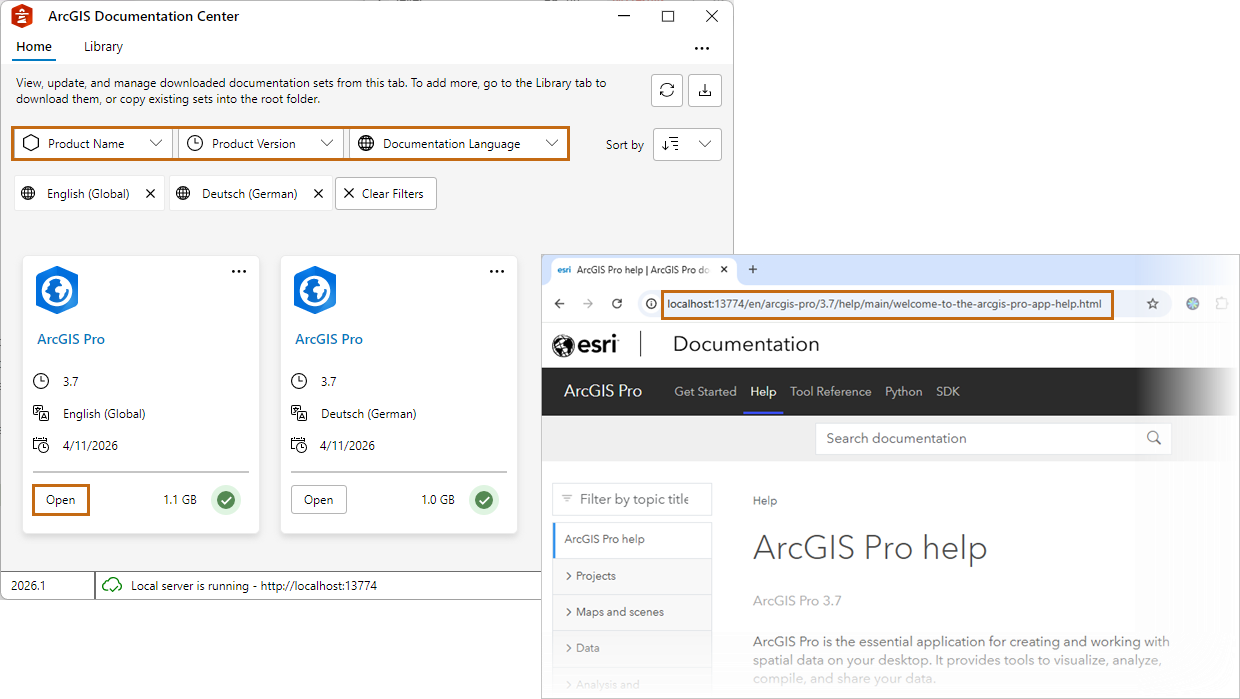
Online help has changed in more subtle ways. Help topics follow a new URL pattern. More importantly, the system has worldwide points of presence and so performs better in locations far from a single server site.
Both offline and online help can now be viewed in light or dark themes.
Performance and productivity
Many performance and productivity improvements were made in ArcGIS Pro 3.7, including those listed below.
Performance
Enterprise geodatabase feature classes registered as traditional versioned support manual feature cache operations. See what's new in the Enterprise geodatabases and databases section.
Adding enterprise geodatabase data to a map, or opening a map that contains such data, is significantly faster. See what's new in the Mapping and visualization section.
Dynamic layout elements are paused when you pause drawing. See what's new in the Layouts section.
Cloning Python environments now happens without downloading packages, which is faster and works on disconnected computers. See what's new in the Python section.
Importing map files (
.mapx) and layout files (.pagx) is faster. See what's new in the Mapping and visualization section.Performance was improved for compressed LAS files (
.laz) during decompression. A spatial index is created when statistics are calculated. See what's new in the 3D Analyst section.Google Photorealistic 3D basemap performance was improved. See what's new in the Mapping and visualization section.
Productivity
Administrators can create system favorites and distribute them to users with an application setting. See what's new in the Projects section.
You can use semantic search to find symbols and styles. See what's new in the Symbols section.
You can select map features by feature geometry or symbology. See what's new in the Mapping and visualization section.
Definition queries can be sorted and duplicated. See what's new in the Mapping and visualization section.
Geoprocessing history entries can have descriptions. See what's new in the Analysis and geoprocessing section.
Several editing tools have new options and capabilities. See what's new in the Editing section.
You can search for portal connections and give them convenient aliases. See what's new in the Sign in to your organization section.
Get started
New product documentation systems were introduced. See New offline and online help systems in the Highlights section.
You can create custom toolbars for maps and other views.
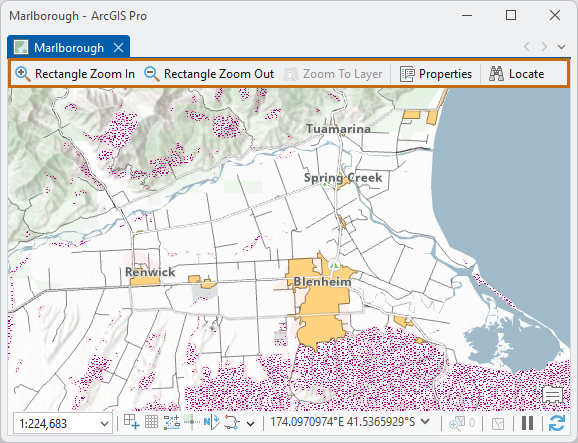
A map view with a custom toolbar. The
DISABLE_EXTERNAL_TRAFFICsilent installation command line parameter prevents ArcGIS Pro from sending requests to ArcGIS Online, making it useful in secure or offline environments where external communication is restricted.
Analysis and geoprocessing
General
You can add descriptions to geoprocessing history entries, which display below the tool name in the History pane.
Tools reopened from a geoprocessing history entry open as an additional tool on the Geoprocessing pane.
You can use the Initial browse location geoprocessing option to specify the location to which browse dialog boxes open when you click Browse
 on a tool dialog box.
System administrators who manage application settings can override the default values of geoprocessing environment settings used by tools and in ModelBuilder.
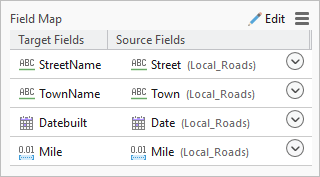
The Field Map parameter on the Append tool was enhanced for field matching between target and input datasets.
You can add new fields while making calculations using the Calculate Field Toolbar in the attribute table. The toolbar also has improved progress reporting and cancellation.
Geoprocessing tools
- See Analysis toolbox for new and enhanced geoprocessing tools.
Charts
Multiple series line charts can be displayed with the following stacked area options:
Stacked Area—Series are stacked to show how each series contributes to the total.
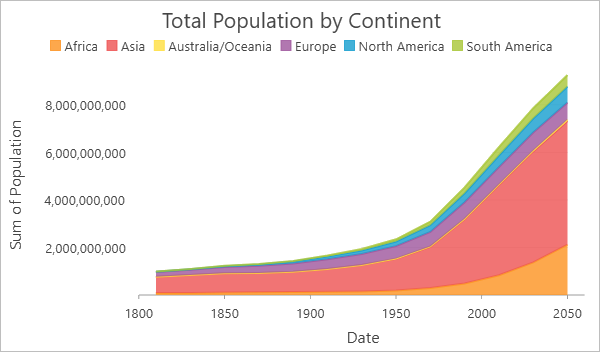
100% Stacked Area—Series are stacked so that the total at each position along the x-axis equals 100 percent, emphasizing the part-to-whole relationship between series.
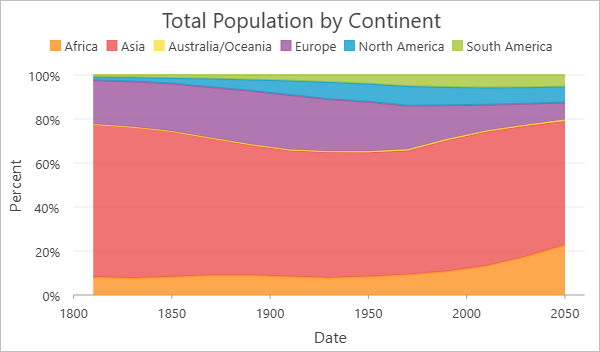
Date fields can be used to configure the x- or y-axes of scatter plots.
Temporal axis labels can be customized using the Date formatting setting on the Axes tab of the Chart Properties pane.
Geoprocessing services and web tools
Experienced publishers can share a web tool directly from a toolbox or the Share ribbon tab without first running it locally. This streamlines workflows and allows multiple related tools to be published as a single service.
New publishing consolidation options provide greater control over how data, toolboxes, scripts, and Python resources are packaged for ArcGIS Server. These options reduce unnecessary copying, avoid duplicate resources, and better align published services with specialized deployment environments.
ModelBuilder
Diagrams and layouts for all models on loading were enhanced in the following ways:
Nodes are more compact, making it easier to accommodate additional elements in the diagram.
The default zoom level was increased to 150 percent to enhance visibility when fitting content to the window.
Models open with a new uniform default font type, size, and text alignment, and also preserve custom styles.
Font colors dynamically adapt to the application's light and dark themes.
Node resizing is enabled in all directions to support longer names.
Diagram indicators were improved in the following ways:
Link‑end design offers better theme alignment and easier connection tracing between model elements.
The parameter indicator is more visible.
The run status indicator has success
 and error
  icons.
When tool parameters are exposed as model variables, icons indicate the data type of the parameter.
Raster functions
- The User Defined option in the Band Arithmetic function supports calculations based on spectral wavelength for spectral indices mapping.
3D Analyst extension
Lidar and LAS datasets
You can create custom LAS class code labels and colors.
LAZ file performance was improved with the ability to generate statistics and create a spatial index, as well as the ability to decompress LAZ files in parallel.
You can change the color of selected points in a LAS dataset.
Geoprocessing tools
- See 3D Analyst toolbox for new and enhanced geoprocessing tools.
Business Analyst extension
You can summarize customer demographics for the geographic units of your choice with the Generate Customer Demographic Profile Report tool. The tool creates an infographic that represents the average characteristics of customers in a given area.
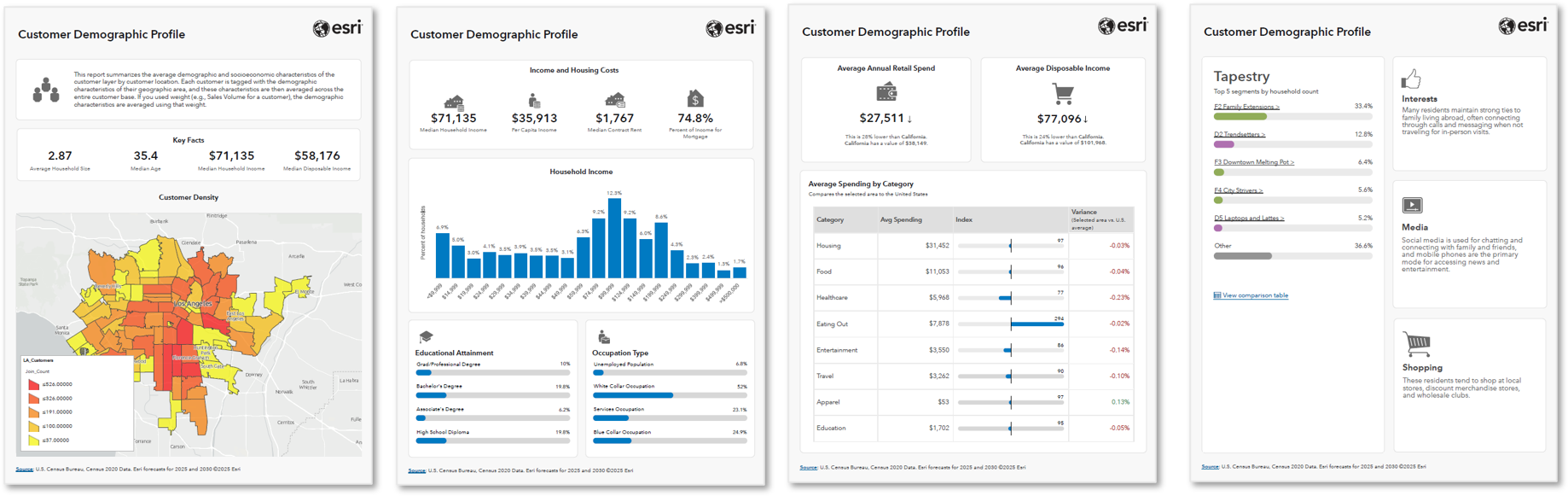
You can run infographics on local datasets using the Infographics tool
 on the Map ribbon tab. This allows you to run any template in the Infographics window, including custom templates and templates imported from Business Analyst Web App, using a local dataset.
In the Target Marketing wizard you can now view customer profiles and market area profiles within the workflow, show or hide outliers in the four-quadrant analysis, and use a survey profile as a proxy for customer data to perform the analysis.
Points of interest search was redesigned and includes the following enhancements:
Better support for category and code systems
Aggregation of points by various geographic units
Construction of advanced search queries
An Area of Interest setting to define the search extent
Geoprocessing tools
- See Business Analyst toolbox for new and enhanced geoprocessing tools.
Image Analyst extension
Spectral analysis
The Remove Continuum and Calculate Mean spectral signature preprocessing functions were added to the Spectral Signature Viewer.
The Add Hyperspectral Data dialog box now supports adding data from cloud paths.
Two new hyperspectral satellite sensors are supported: Dragonette and Tanager.
Deep Learning
The following improvements were made to labeling objects for deep learning:
You can label a video layer.
Three new tools are available to label objects: Point, Line, and Segment using AI.
You can specify multiple objects when using the Text Prompt tool.
Motion imagery
- You can configure metadata files with the Convert Video Metadata tool.
Stereo mapping
Softmouse 3D input device system buttons are now configurable, allowing you to map them to your preferred mouse button location.
A new elevation drop-down list is exposed in the status bar of the map, allowing you to change elevation units.
Synthetic aperture radar
RADARSAT-2 now supports the Extra Fine processing template.
Geoprocessing tools
- See Image Analyst toolbox for new and enhanced geoprocessing tools.
Network Analyst extension
The following new tools on the Waste Collection Layer ribbon tab support editing and updating results without solving the full analysis.
Select By Streets—Expands the stop selection set to all stops on the collection edges represented by the original selection of stops.
Update Assignments—Changes the route assignment of selected stops and recalculates results.
Update Results—Adjusts the sequencing of the stops using their current route assignments instead of performing a complete solve.
You can set a default network data source and configure symbology for the Explore Locations
 tool. Your settings are preserved across sessions.
New Network Analyst editing options for network datasets allow you to do the following:
Enable or disable automatic updates that ensure edge and junction connectivity when snapping
Enable or disable automatic attribute updates when creating or editing turn features
Geoprocessing tools
See Network Analyst toolbox for new and enhanced geoprocessing tools.
See Network Analyst module in the Python section for Network Analyst module enhancements.
Spatial Analyst extension
- The Interactive Contour tool
 generates contour lines for locations you click on a surface raster. The contour lines are added to a graphics layer.
ArcGIS Suitability Modeler
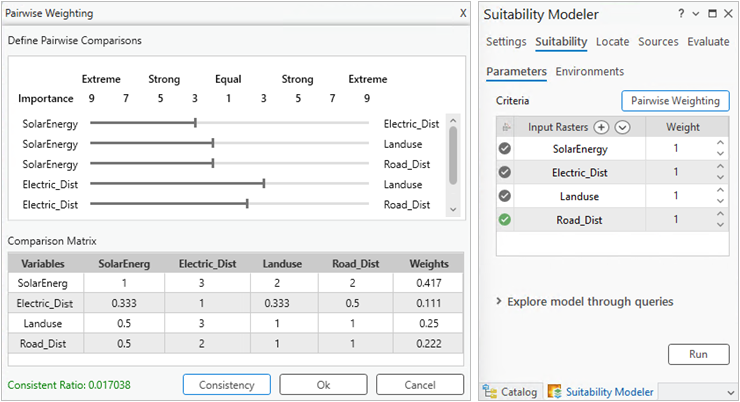
Pairwise weighting allows you to weight the criteria more objectively, resulting in more accurate models. Criteria pairs are created automatically from the input model criteria and can be dynamically adjusted.
Geoprocessing tools
- See Spatial Analyst toolbox for new and enhanced geoprocessing tools.
Geoprocessing tools
3D Analyst toolbox
New tools
Create Terrain From BIM—Creates a terrain surface in an ArcGIS terrain dataset from a TIN surface in an AutoCAD Civil 3D file, or a surface in an Industry Foundation Classes (
.ifc) file.TIN To Multipatch—Converts a TIN dataset to a multipatch feature class.
Enhanced tools
Contour List—The new Contour Type parameter allows you to represent the output contours as either lines or polygons.
Stack Profile—The output table supports the creation of a line chart that depicts the profile.
Extract LOD2 Buildings—Tool performance was improved due to parallel processing.
Interpolate Shape—M-values are preserved if they are present in the input data.
Point File Information—The default output spatial reference is set from LAZ input.
Surface Parameters—The Neighborhood distance parameter value defaults to the average value of the width and length if the input surface raster has rectangular cells.
The Z unit parameter for the following tools supports a new US Foot option: Aspect, Slope, and Surface Parameters.
Analysis toolbox
Enhanced tools
- Pairwise Dissolve—When the Create multipart features parameter is unchecked, you can use the Output Lineage Table parameter to generate a table of each dissolved input feature FID and its corresponding output FID.
Aviation toolbox
Enhanced tools
ICAO Annex 14 OFS OES—The tool is now available with updated parameters in the Obstruction Identification Surfaces toolset.
Import AIXM 5.1 Message—The Set Fields To Null On Update and Custom Configuration File parameters were added.
Bathymetry toolbox
Enhanced tools
BIS To Mosaic Dataset—Two new parameters were added:
Area of Interest—Allows you to define a geographic area for selecting datasets that intersect a polygon feature layer.
Honor BIS_Dataset_Status Field—Specifies whether the export honors the
BIS_Dataset_Statusfield in the input BIS workspace.
Business Analyst toolbox
New tools
- Generate Customer Demographic Profile Report—Creates a report summarizing customer demographics based on an input point dataset.
Enhanced tools
- Color Coded Layer—The Area of Interest parameter accepts point layers.
Conversion toolbox
From Raster toolset
New tools:
See Extract scanned lines and polygons in the Highlights section.
Extract Scanned Lines—Generates polyline features from scanned images.
Extract Scanned Polygons—Generates polygon features from scanned images.
To CAD toolset
Enhanced tools:
- Export To CAD—Generates multi-leader entities from annotation features with leader lines when exporting to DWG or DXF files.
To Geodatabase toolset
New tools:
- Convert Personal Geodatabase—Converts a legacy personal geodatabase (
.mdb) or a Microsoft Access database (.mdb,.accdb) to a mobile geodatabase, file geodatabase, or XML workspace document.
Enhanced tools:
- BIM File To Geodatabase—Supports building layers and their filtered content as input.
To Parquet toolset
To Parquet is a new toolset.
New tools:
- Export To Parquet—Exports simple data (points, lines, polygons, and nonspatial tables) from a shapefile, file geodatabase, mobile geodatabase, enterprise geodatabase, or database to an Apache Parquet file.
Data Management toolbox
Attachments toolset
Enhanced tools:
Upgrade Attachments—The Upgrade level parameter determines which fields are added to the attachment table.
Downgrade Attachments—The Downgrade level parameter determines which fields are removed from the attachment table.
Attribute Rules toolset
Enhanced tools:
- Evaluate Rules—The tool is now available when using branch versioning for named users with an ArcGIS Pro Basic license (included with the Creator user type) and the ArcGIS Advanced Editing user type extension. This applies only to Named User licenses in an ArcGIS Enterprise organization.
Distributed Geodatabase toolset
Enhanced tools:
Create Replica—Two parameters were added:
Geometry Filter Type—Allows you to define the spatial relationship between the Replica Datasets and Replica Geometry Features parameter values.
Replicate—Allows you to include all features or schema only in the output replica for checkout replicas.
Domains toolset
New tools:
- Alter Coded Value Description—Updates the description value for an individual, existing coded value pair.
Features toolset
Enhanced tools:
- Feature To Polygon—The Polygon Construction Source parameter supports constructing polygons from areas enclosed by input line or polygon features or from individual enclosed lines. When polygons are constructed from enclosed input lines, the input attributes will transfer to the output feature class.
Fields toolset
New tools:
- Alter Geometry Index Preference—Allows the owner of a feature class in SAP HANA to alter the setting on the spatial column that controls what type of spatial index is used for most spatial queries.
General toolset
Enhanced tools:
Append—When the Matching Fields for Update parameter is specified, you can do the following:
Perform geometry-only updates.
Specify fields in the Candidate Fields parameter to update or insert a subset of fields in the target dataset.
Use the Skip Options parameter to choose whether the tool only updates existing records, only inserts new records, or updates and inserts new records in the target dataset.
Indexes toolset
Enhanced tools:
- Add Full-Text Index—The Synchronize On Commit parameter specifies whether a full-text index is updated automatically when edits are saved or an ArcGIS sync operation is performed. This parameter applies only to Oracle databases.
Layout toolset
New tools:
- Export Layouts—Exports multiple layouts to a specified export format.
Photos toolset
Enhanced tools:
- GeoTagged Photos To Points—Supports geotagged photo files with a High Efficiency Image Container (HEIC) format.
Subtypes toolset
New tools:
- Alter Subtype—Alters the subtype name of an existing subtype code.
Topology toolset
Enhanced tools:
- Validate Topology—The tool is now available when using branch versioning for named users with an ArcGIS Pro Basic license (included with the Creator user type) and the ArcGIS Advanced Editing user type extension. This applies only to Named User licenses in an ArcGIS Enterprise organization.
Versions toolset
Enhanced tools:
When using branch versioning, the following tools are now available to named users with an ArcGIS Pro Basic license (included with the Creator user type). This applies only to Named User licenses in ArcGIS Online and ArcGIS Enterprise organizations.
Reconcile Versions—The tool is now available when using branch versioning for named users with an ArcGIS Pro Basic license (included with the Creator user type) and the ArcGIS Advanced Editing user type extension. This applies only to Named User licenses in an ArcGIS Enterprise organization.
Prune Branch History—Supports parcel fabric datasets as input.
Workspace toolset
Enhanced tools:
The following geodatabase schema reporting tools support the utility network's telecom domain network as an input:
Editing toolbox
Enhanced tools
- Simplify By Tangent Segments—The Anchor Points parameter specifies the feature class that contains anchor points. Anchor points overlay vertices on the input features and indicate that they should not be deleted in the simplify process.
GeoAI toolbox
New tools
See Embeddings-based analysis in the Highlights section.
Extract Embedding To Fields—Extracts vector embeddings stored as binary large object (BLOB) fields into individual numeric fields in a new output feature class.
Find Similar Features Using Embeddings—Performs large-scale similarity search on location and image data by comparing their embedding representations.
Generate Embeddings Using AI Models—Generates semantic embeddings for geospatial data using foundation models.
Merge Embeddings—Merges embeddings from an input embeddings feature class into target polygons based on the area of overlap.
Predict Missing Values Using AI Model—Replaces missing values (nulls) with estimated feature values.
Geocoding toolbox
New tools
- Split Match Narrative Into Fields—Splits match narrative results into multiple fields and appends them to a geocoded feature class.
Enhanced tools
Assign Streets To Points—The Country or Region parameter supports Argentina (ARG) and Guatemala (GTM).
-
The new Match Narrative parameter specifies whether the match narrative is returned in the geocoded feature class.
The tool can use locators published to ArcGIS Enterprise 12.1 on Windows or Linux with the Batch Geocode capability enabled.
-
Locators for Argentina can be created. The Country or Region parameter supports Argentina (ARG).
Locators for Guatemala can be created. The Country or Region parameter supports Guatemala (GTM).
Geocode Addresses—The new Match Narrative parameter specifies whether the match narrative is returned in the geocoded feature class.
Image Analyst toolbox
New tools
Convert Video Metadata—Prepares a video metadata file for further processing in geospatial video workflows by field matching and converting unit types.
Extract Ocean Winds—Estimates wind direction and magnitude on the ocean surface.
Extract Spectra From Image—Extracts spectral signatures from input feature data using imagery to create an Esri Spectral Library (
.esl) file.Generate Video Metadata (Stationary)—Creates a geospatially enabled video file from a pre-recorded video without metadata.
Reduce Spectral Bands—Reduces the number of spectral bands in multiband imagery using Minimum Noise Fraction and Principal Components Analysis analytical methods.
Translate Pixels Using Deep Learning—Translates pixels in an image using deep learning model information. Examples of translations include increasing the pixel resolution and converting a grayscale image to a color image.
Enhanced tools
- Train Deep Learning Model—New backbones are available, which include DOFA base, DOFA large, Clay large, ResNeXt50_32x4d, TerraMind Base, TerraMind Large, and Wide ResNet-50-2. A new
wavelengthsmodel argument is available for these backbones.
Indoor Positioning toolbox
New tools
- Generate Beacon Placement Plan—Creates an optimized plan of IPS beacon features to provide indoor BLE coverage with the fewest required beacons.
Indoors toolbox
Enhanced tools
360 Video To Oriented Imagery:
The Level parameter can be used to choose the specific level within the Input Level Features parameter value.
The Floor Field parameter can be used to create or specify a field in the target oriented imagery layer to store level ID values.
The Video Capture Type parameter can be used to specify if the 360-degree video is time-compressed. If the 360-degree video is time-compressed, users can set the Video Capture Rate parameter to specify the amount of time compression.
The Mask Lower Portion parameter can be used to mask out the camera operator in extracted images.
Extract Floor Plan Features From PDF:
The Output Text Point Features parameter can be used to extract text from PDFs to a point feature class. This feature class can then be used as input to the Import Features To Indoor Dataset tool to populate attributes in the Units feature class.
The tool now supports extracting polylines from vector PDFs without rasterizing them.
The tool now creates polylines at the pixel centerline for raster PDFs rather than at the outline of pixels.
Import Features To Indoor Dataset:
The Point Features for Unit Attribution parameter maps text stored in a point layer to fields in the Units layer in an Indoors workspace.
The Text Point Mapping parameter can be used to define which text is mapped to which fields in the Units layer.
Knowledge Graph toolbox
New tools
Create File Knowledge Graph—Creates a file knowledge graph in a folder and configures its parameters.
Copy Knowledge Graph Types—Copies the data model and data from one knowledge graph to another.
Export Knowledge Graph—Creates a service definition file of a knowledge graph.
Location Referencing toolbox
New tools
- Configure Utility Network Feature Classes—Configures the ArcGIS Utility Network Pipeline Line, Pipeline Device, and Pipeline Junction feature classes for use with a linear referencing system (LRS).
Enhanced tools
Generate Events—The Bypass events with null route ID and measure fields parameter was added to support the modeling of both linear‑referenced and non‑linear‑referenced pipe characteristics within a single event feature class.
Generate Linear Referenced Route Log—An LRS intersection feature class can be used as an input to the Referent Field parameter.
-
The Pipeline Device and Pipeline Junction feature classes can be used as inputs to the Event Layers parameter for dynamic segmentation.
The Parallel Processing Factor environment was added.
Performance was improved when running the tool with a combined LRS and Address Data Management dataset.
Maritime toolbox
Enhanced tools
Export S-101 Cell has two new optional parameters:
Sample Export—Allows you to specify if a cell is exported as a sample.
Suppress Exchange Set—Allows you to suppress the generation of an exchange set with the exported cell.
Import S-100 Cell—The optional Create S-57 Product parameter allows you to create an S-57 product when importing to a co-production geodatabase.
Multidimension toolbox
New tools
- Export Voxel Isosurface—Exports one or more isosurfaces from a voxel layer, scene layer package, or netCDF file.
Network Analyst toolbox
New tools
Update Fleet Routing Assignments—Updates the route assignments of all stops on the collection edges for the current selection to the indicated route.
Update Fleet Routing Results—Updates the route result metrics based on the current route name designations for stops. This operation can resequence stops within their route assignment.
Export Network Travel Modes—Exports a network dataset's travel modes to a JSON file.
Replace Network Travel Modes—Replaces a network dataset's travel modes with travel modes defined in a JSON file.
Enhanced tools
- New Analysis Geodatabase and Analysis Feature Dataset Name parameters were added to geoprocessing tools that make network analysis layers. You can set the analysis geodatabase and feature dataset name of the output layer.
Network Diagram toolbox
Enhanced tools
Add Trace Rule—Supports two new trace types: circuit and path. The circuit trace can be performed on a telecom domain network. The path trace can be performed on both the telecom and traditional domains.
Alter Diagram Template—Includes the following optional new parameters:
Persist aggregations allows the network owner decide whether to persist aggregated diagram features in the dataset.
Associate template to telecom domain and Telecom Domain Name can be used to associate the diagram template to a particular telecom domain.
Oriented Imagery toolbox
Enhanced tools
- Add Images To Oriented Imagery dataset—Additional parameters support video‑enabled oriented imagery authoring.
Parcel toolbox
Enhanced tools
Append Parcels—The Replace Point Method parameter specifies how coincident points between the input and target parcel fabric are handled.
Select Parcel Features—If historic parcel polygons are selected, the tool selects related historic lines and points.
Reality Mapping toolbox
Enhanced tools
Reconstruct Surface—Three options were added to parameters:
The
tiePointTablePathandslnPointTablePathoptions were added to the Reconstruction Options parameter.The Rapid option was added to the Quality parameter.
Server toolbox
Enhanced tools
- Tools in the Caching toolset support offline workflows by accessing cache folders for Kubernetes.
Spatial Analyst toolbox
New tools
Adjust Raster to Stream—Modifies the cell values of an input surface raster at specified locations.
Generate Breach Lines—Creates a line that breaches the local impediment of water flow.
Generate Weighted Voronoi—Creates spatial influence zones from point features by assigning locations to sites based on distance along or distance modified by the site-specific weights.
Geodesic Flow Direction—Calculates geodesic flow direction from each cell to its downslope neighbors.
Multicriteria Overlay—Combines multiple rasters using a chosen overlay method with applied weights.
Raster to Weighted Points—Generates representative, value-proportional points from continuous surfaces, preserving spatial patterns and total magnitudes.
Surface Area Ratio—Calculates a surface area to planar area ratio for each cell of a raster surface.
Top Hat Transform—Detects spatial structures on a raster surface by calculating the top hat transforms.
Validate Flow Direction—Finds cells or a group of cells that flow into each other, creating a loop in a flow direction raster.
Enhanced tools
Band Collection Statistics—Performance was improved.
Basin and Sink—Tool performance on the CPU was improved. Support for the GPU ID and Processor Type environments was added, making GPU computation available. The IDs now start from the upper left corner of the raster.
Contour List—The new Contour Type parameter allows you to represent the output contours as either lines or polygons.
Distance Accumulation and Distance Allocation—When the source input is a feature layer and no other input raster is specified, the cell size of the output rasters is determined by the longer of the width or height of the input source extent, in the input spatial reference, divided by 1,000.
Flow Direction—The new Method parameter allows you to base calculations on a planar (flat earth) or a geodesic (ellipsoid) method.
Interpolate Shape—M-values are preserved if they are present in the input data.
Least Cost Corridor—Performance was significantly improved for certain data and parameter settings.
Optimal Region Connections—Processing defaults to use the spatial reference of the Input Cost Raster parameter value, if one is specified.
Principal Components—The tool was reengineered to improve performance.
Space Time Kernel Density—The Elevation Field Unit and Elevation Unit parameters support a new US Foot option.
Surface Parameters—The Neighborhood distance parameter value defaults to the average value of the width and length if the input surface raster has rectangular cells.
Value Percentile Contours and Volume Percentile Contours—With the new Smooth Outputs parameter, you can choose between having the output polygons be smoothed into a simpler shape or having them conform to the input raster's cells.
Zonal Geometry—The tool was reengineered to improve performance, scalability, and accuracy, with optimizations to support parallel processing for the Area, Centroid, and Perimeter geometry type options.
The Z unit parameter for the following tools supports a new US Foot option: Aspect, Feature Preserving Smoothing, Geomorphon Landforms, Locate Depressions, Slope, Storage Capacity, and Surface Parameters.
Spatial Statistics toolbox
New tools
- Evaluate Variable Influence for Predictions—Evaluates how variables influence predictions from a spatial statistics model file (
.ssm).
Enhanced tools
Evaluate Bin Sizes for Point Aggregation—The following new parameters allow you to average the values of a numeric field within the bins and to aggregate across space and time: Analysis Field, Time Field, Time Interval, and Combine Coincident Points.
Build Balanced Zones—Creates the exact number of zones requested and includes the new Custom Seed Locations and Output Polygon Zones parameters.
The following tools include a Scale Data parameter that allows you to choose whether to scale the analysis fields to have mean equal to zero and variance equal to one. Previously, analysis field values were always scaled.
Trace Network toolbox
Enhanced tools
- Trace and Add Trace Configuration—The Functions parameter was updated with an optional Function Name property. This can be used to provide an alias to describe and provide context for the function output in the trace.
Utility Network toolbox
New tools
Add Color Scheme—Adds a color scheme definition for features in a utility network's telecom domain network to identify fiber strands, cables, and connectors in telecommunication systems.
Add Color Set—Adds a color set to provide a standardized color library that can be consumed by color schemes in your network using the Add Color Scheme tool.
Add Telecom Domain Network—Adds a telecom domain network to a utility network.
Add Wavelength Scheme—Adds a wavelength scheme to a utility network's telecom domain network to support wavelength propagation.
Delete Color Scheme—Deletes a color scheme from a telecom domain network. Each color scheme includes a hierarchical definition with multiple levels. Each level has its own labels, capacities, and delimiters.
Export Circuits—Exports feature and connectivity information about the features and objects that compose circuits in a telecom domain network.
Export Circuit Definitions—Exports the contents of the circuit management tables from a telecom domain network for the specified component type.
Import Circuit Definitions—Imports circuit information from a series of
.csvfiles into the circuit management tables of a telecom domain network.Set Circuit Properties—Sets the properties for circuits in a telecom domain network when they are imported, traced, or exported.
Set Telecom Object Combine Policy—Sets the combine policy for grouped junction and edge objects in a telecom domain network to determine how attribute values will be handled during a combine operation.
Set Telecom Object Divide Policy—Sets the divide policy for grouped junction and edge objects in a telecom domain network to determine how attribute values will be handled during a divide operation.
Verify Circuits—Checks the validity of circuits in a telecom domain network after features associated with a circuit are modified.
Enhanced tools
Trace—The following parameters were added:
Stopping Points—Defines the features which serve as stop locations for a path when running a path trace.
Include flow directions—Specifies whether the flow direction of lines is included in the output
.jsonfile.Include propagated values—Provides the ability to return propagated values for traversed features in the output
.jsonfile when you perform a subnetwork-based trace using the Features result type option.
Trace and Add Trace Configuration —The following settings and parameters were added:
The new Path setting for the Trace Type parameter discovers the valid paths that exist between one or more start and stop locations.
The new Circuit setting for the Trace Type parameter returns information about circuits using the network topology and circuit management tables.
The Num Paths parameter specifies the maximum number of paths returned between a set of start and stop locations when running a path trace.
The Max Hops parameter specifies the maximum number of hops allowed between edges in a path, excluding the starting point, when running a path or circuit trace to constrain results.
The Functions parameter has an optional new Function Name property. You can use this property to provide an alias that describes the function output in the trace.
Upgrade Dataset—The Utility Network Version parameter specifies the version of the utility network created during the upgrade.
Update Subnetwork—The All subnetworks in tier parameter is now unchecked by default. This prevents all subnetworks in a tier from being updated unless explicitly specified.
ArcGIS Reality for ArcGIS Pro
The ArcGIS Reality for ArcGIS Pro extension is no longer available with the Single Use license type. To license the ArcGIS Reality for ArcGIS Pro extension, you need the Named User license type with the Reality extension license.
Lidar point cloud and trajectory information can now be integrated with drone imagery processing to enhance Reality mapping product quality.
Support was added for drone sensor attitude information captured as pitch, roll and yaw, for both Reality mapping and Ortho mapping. This allows you to integrate and process drone imagery with this type of data without the need to first convert the angles to omega, phi, and kappa.
A new Challenging block adjustment option was added to the Adjustment Mode parameter to support processing of drone imagery considered to be photogrammetrically challenging. This was done for both Reality mapping and Ortho mapping.
Automatic detection and tagging of signalized ground control points (GCPs) is supported for both Reality mapping and Ortho mapping.
Tools for editing anomalies in 2D and 3D meshes were added.
Support for Cartosat-2 and Cartosat-3 sensor data allows you to integrate, process and generate derived satellite products.
Data management and workflows
BIM
The method of reading Revit element parameters as feature attributes was improved. More attributes include Revit user-defined parameters.
The BIM file workspace includes new OST feature classes:
Architectural—Hardscape, Signage, and TempStructure
Electrical—MedicalEquipment and AudioVisualDevices
Mechanical—FoodServEquipment
Piping—FireProtection
Structural—Coupler, StructConnections and StructuralStiffener
Certain Revit categories now support linear representations of features as separate line feature layers in addition to their 3D multipatch representations. These linear feature classes are not included when adding an entire file to the map or scene, but can be added individually.
See To Geodatabase toolset in the Conversion toolbox for new and enhanced geoprocessing tools.
CAD
Multi-leader entities in DWG or DXF files are now supported as annotation features. The text and a single line segment feature are included in the Annotation feature layer from these entities.
Support for AutoDesk Civil 3D files includes two new feature classes: ProfileVerticalIntersect, and StationEquation.
See To CAD toolset in the Conversion toolbox for new and enhanced geoprocessing tools.
Data Reviewer
The Duplicate Row check is supported in the validation attribute rule and the Run Data Checks workflows. This check identifies rows in the attribute rule table of a feature class or table that have identical attribute values.
Advanced filtering capabilities are available in the Error Inspector pane allowing you to filter error results by feature class and rule name.
A subtype filter parameter is available for all Run Data Checks.
A Select All check box and search capability is available for the Attributes to Ignore, Attributes to Compare, and Additional Features to Compare parameters in the following checks:
An updated workflow is available to convert batch jobs to attribute rules.
Geocoding
Locators created in ArcGIS Pro 3.7 have the following new properties, which are supported when the locator is published to ArcGIS Enterprise 12.1:
Exclude intersection type is a Match Options property that allows you to exclude certain intersection types from geocoded results with locators that support the StreetAddress role.
Distance is a Reverse Options property that allows you to define a custom search distance for returning reverse geocoding results.
The following match narrative enhancements were made:
A
MatchNarrativefield is added to geocoded results.The Match Narrative parameter appears in the Geocode Table guided workflow.
Match narrative details for address candidates can be accessed from the Show Details button
 on the Rematch Addresses pane.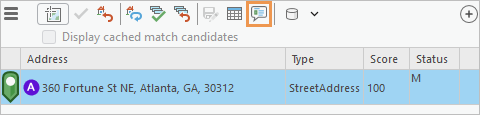
The button opens a pop-up with the match narrative details for the selected candidate. The locator geocoding options must be configured to allow this.
Search results in the Locate pane can be collapsed or expanded.
Geoprocessing tools
See Geocoding toolbox for new and enhanced geoprocessing tools.
See Geocoding module in the Python section for geocoding module enhancements.
Geodatabases and databases
General
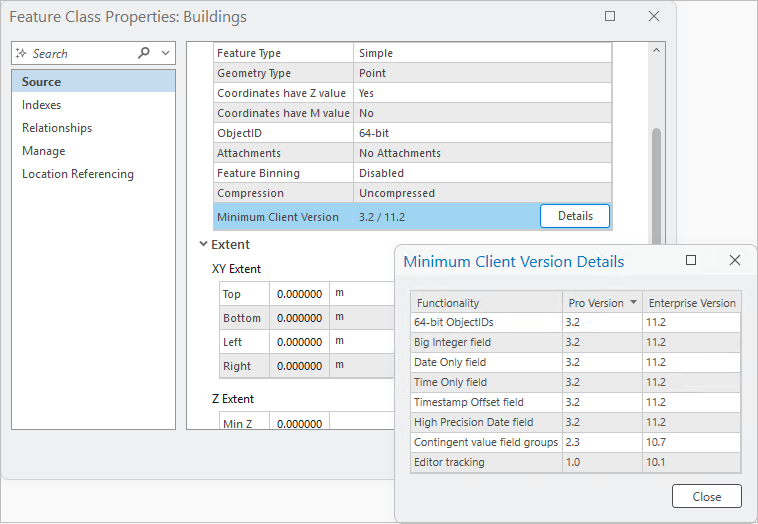
Dataset properties now explain minimum ArcGIS Pro version requirements.
Performance was improved in the following areas:
Modifying subtype code and name values
Modifying coded value domain code and description values
You can convert a personal geodatabase or Microsoft Access database file to a mobile geodatabase, file geodatabase, or XML workspace document.
You can validate a topology when accessing its properties page from the Catalog pane.
See To Geodatabase toolset in the Conversion toolbox for new and enhanced geoprocessing tools.
Attachments
When you upgrade attachments, new attachments add metadata to the
EXIFINFOcolumn and optional new alt text fields if applicable.See Attachments toolset in the Data Management toolbox for new and enhanced geoprocessing tools.
Attribute rules
You can now restore a deleted row prior to saving edits when creating and managing attribute rules.
The Attribute Rules view supports multiselection for operations such as Cut, Copy, Paste, Enable Rule, and Disable Rule.
Constraint attribute rules now support the ability to change the evaluation order.
See Attribute Rules toolset in the Data Management toolbox for new and enhanced geoprocessing tools.
Enterprise geodatabases and databases
In an enterprise geodatabase, you can define precision and scale for the Float and Double field types in the Create Feature Class and Create Table wizards.
PostgreSQL 18.1 and Microsoft SQL Server 2025 are now supported with ArcGIS.
Manual feature cache management is now supported for feature layers based on traditional versioned data.
See Indexes toolset in the Data Management toolbox for new and enhanced geoprocessing tools.
Topology
- See Topology toolset in the Data Management toolbox for new and enhanced geoprocessing tools.
Versioning
- See Versions toolset in the Data Management toolbox for new and enhanced geoprocessing tools.
Indoor positioning
You can create a beacon placement plan with the Generate Beacon Placement Plan geoprocessing tool.
The IPS_Beacons_Inventory table decreases manual data entry during beacon configuration and deployment.
See Indoor Positioning toolbox for new and enhanced geoprocessing tools.
Indoors
- See Indoors toolbox for new and enhanced geoprocessing tools.
ArcGIS Knowledge
You can create a file knowledge graph in a local folder to create and analyze a knowledge graph. See Create and manage file knowledge graphs in the Highlights section.
See Knowledge Graph toolbox for new and enhanced geoprocessing tools.
Parquet
You can control the location and duration of persistent Parquet caches in the Map and Scene application options.
To copy a spatial or nonspatial table from an Apache Parquet file to a geodatabase, use the Export Features or Export Table geoprocessing tools.
ArcGIS Pro supports the Parquet geospatial types for files you add to a map. You can also publish these files as hosted web layers.
See To Parquet toolset in the Conversion toolbox for new geoprocessing tools.
Tasks
After a task is completed, map contents can be set back to the states they were in before the task was run. Choose Restore map views and contents to their initial states on the Task Designer pane for the task.
Ground to grid corrections can be turned on or off for a task step on the Contents tab of the Task Designer pane.
Workflow Manager
You can view the location of a job in the Workflow pane.
Job details include a property for the name of the person that closes the job.
You can access your Workflow Manager items in ArcGIS Enterprise deployments configured with Identity-Aware Proxies.
Editing
General
The Annotation tool
 contains separate toggle buttons for the Rotate and Resize cursor commands that allow you to customize the tool for specific workflows. These settings are also available as application options and administrator settings.
The Change Line Length tool
 is a COGO-aware tool that lengthens or shortens selected line features by a specified length. It is available in the Modify Features pane.
The Split tool
 is now available on the context menu when a feature is selected and you right-click the map.
Working with attachments in the Attributes pane supports the following:
The Remove attachment command
 requires confirmation when the Show dialog to confirm deleting data application editing option is enabled.
You can view, add, or modify attachment properties including keywords and alternative text on the Attachment Properties page of the pane.
The Clip tool
 includes the option to preserve the geometry of features that share coincident boundaries when the Discard (Remainder) clip method
  is used.
The Streaming tool
 includes the option to stream vertices at fixed intervals defined by the stream tolerance.
The Rotate tool
 rotates marker symbol layers and updates symbol angle properties. This requires that the point symbol is enabled to allow symbol property connections and that the rotation angle property is connected to a numeric attribute field.
The Distance method
 of the Divide tool
  allows you to select and divide multiple line features.
The Reverse Direction command
 is available on the context menu for the Streaming and Trace
  construction tools.
Vertices and Nodes settings include an Apply button that applies the current settings to the graphic overlay while the settings dialog box remains open.
Geoprocessing tools
See Editing toolbox for new and enhanced geoprocessing tools.
Parcel fabric
The Parcel Features command
 now selects related historic lines and points if historic parcel polygons are selected.
The Copy Lines To
 tool supports copying individually selected lines as connection lines to the active record.
Geoprocessing tools
- See Parcel toolbox for new and enhanced geoprocessing tools.
Imagery and remote sensing
General
- You can copy and paste properties between raster layers. This allows you to copy all or some raster layer properties from one layer and paste them to another raster layer, within a project.
Oriented imagery
Two new filters were added to the Explore Images tool. Use 3D
 to provide vertical‑distance filtering when working with a scene. Use Display Image
  to display a single image for the selected camera point with no additional filtering.
You can use time filters defined in a map or scene to retrieve images based on temporal constraints, improving context‑aware search and time‑specific analysis.
Geoprocessing tools
- See Oriented Imagery toolbox for new and enhanced geoprocessing tools.
Raster data types and sensors
RADARSAT-2 now supports the Extra Fine processing template.
Cartosat-2 and Cartosat-3 satellite sensor data was added.
Two new hyperspectral satellite sensors are supported: Dragonette and Tanager.
SpatioTemporal Asset Catalog (STAC)
The Explore STAC pane dialog box has three new capabilities: you can save search results, save selected items, and save all items that can be added as a static STAC connection.
You can point to a folder containing cloud storage connection (
.acs) files in the Create STAC Connection dialog box.You can select variables when adding multidimensional data when you select STAC assets.
You can view all the items in a static catalog collection in the Explore STAC pane.
Mapping and visualization
General
You can resolve issues with map drawing performance, display, or usability in the Analyze Map pane. See Analyze map performance and drawing metrics in the Highlights section.
Optionally, you can select map features by geometry instead of by symbology.
The Add Data From Path command supports WFS and OGC API feature services.
Bookmarks can be placed in an existing bookmark folder when they are created.
Inactive maps and scenes are now sorted alphabetically when viewing bookmarks.
Vulkan is a new rendering engine option.
A drawing alert is raised when the current rendering engine is not supported by hardware.
A profile view can be reversed while viewing, or viewing can start at the end of the line if the mode is enabled during creation.
The location units and elevation units of a map file (
.mapx) are preserved when the map file is added to another project.When building definition queries, you can sort the order of the queries and duplicate an existing query.
Queries on enterprise geodatabase feature classes can be modified to apply the clause in the client after the database filters the features.
The location units and elevation units of a map file (
.mapx) are preserved when the map file is added to another project.Performance was improved when opening a map that references enterprise geodatabase data, or when adding that data to a map.
Imported map files (
.mapx) and layout files (.pagx) have increased drawing speed and responsiveness.
3D scenes and layers
Replace mesh modifications are supported with the Google Photorealistic 3D basemap.
3D tiles layers support
EXT_texture_webpandEXT_meshopt_compressionextensions.
Annotation and labeling
- In scenes, labels are drawn in 3D space rather than a front-facing plane of the view.
ArcGIS Arcade
- ArcGIS Arcade 1.35 is supported. For a summary of new features, see the Arcade release notes for version 1.35.
Coordinate systems and transformations
Available coordinate systems and transformations were updated to EPSG v12.049. ETRS89 revisions are not included in this release.
New projected coordinate systems were added for Montana RMTCRS, Hall County in Nebraska, several Ohio counties, Indonesia, and other regions.
The coordinate system folders were reorganized by continents and other geographic regions.
The ArcGIS Coordinate Systems Data supplementary files include new geographic transformation grids for Bhutan, Greece, and the United Kingdom, as well as new vertical transformation models for the Baltic Sea, French Antilles, Greenland, and Mayotte (France).
WMS services and their sublayers can support a limited set of coordinate systems, depending on how the service was published.
ENC layers
- S-101 Edition 2.0.0 ENC cells are symbolized using the S-101 Portrayal Catalogue version 2.0.0.
Exploratory analysis tools
- The Elevation Profile tool supports a choice of ground surface when calculating elevation.
Layouts
You can control layer visibility independently for multiple map frames that reference the same map. See Control layer visibility by map frame in the Highlights section.
All dynamic layout elements are paused when you pause drawing.
Page queries are now available for all map series types, including bookmark and thematic map series.
Table frame sorting uses natural sorting instead of alphanumeric sorting for text fields.
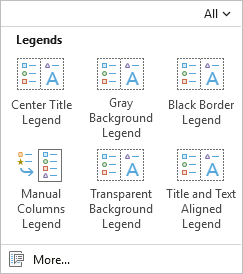
Legend style items in the ArcGIS 2D system style have descriptive names.
Pop-ups
An Associations element displays information about utility network association types.
You can refresh the identification in a pop-up for layers that change frequently.
Attachment elements support the display of High Efficiency Image Container (HEIC) images.
Field elements reflect the table font defined in the application options for tables.
Arcade expressions with the Imagery popup and Imagery popup element profiles are supported for raster layers, mosaic layers, and image service layers.
Presentations
Pages hidden from the presentation are easier to distinguish in the Contents pane.
Hidden pages and speaker notes can be included when exporting a presentation to PDF.
You can save speaker notes to a text file.
Image pages have a page property to fit or fill the background image.
The Contents pane has filter and search capabilities.
A linear fly transition was added for map pages.
Print and export maps and layouts
Local scenes can be exported to a
.stlor.gltf3D export format.You can set the element reading order for accessible PDF layout exports.
You can choose how to export maps and layouts with export run modes.
Adaptive and JPEG compression options are available for EPS map and layout exports.
See Layout toolset in the Data Management toolbox for new and enhanced geoprocessing tools.
Reports
You can highlight features in a map that are being reported in the Group Header, Group Footer, or Details subsections.
Group Header, Group Footer, and Report Footer subsections can be kept together to prevent a page break from occurring within the subsection.
Attachment elements support the following:
You can repeat the row configuration until all image attachments are displayed when using a dynamic grid configuration.
You can filter by an expression or predefined filters.
You can force large image attachments to display one per page.
Simulation
Water can be moved between a water source and a sink area by connecting the two.
Channel and barrier elements can be created from a line feature.
A barrier can optionally be densified during creation to follow the terrain more closely.
A timestamp from a multidimensional cloud raster format file (
.crf) can define the starting water level of a simulation.
Styles
Colors and color schemes are supported when sharing web styles to ArcGIS Online or ArcGIS Enterprise 12.1 and later.
Five new MGRS grid style items were added to the ArcGIS 2D system style.
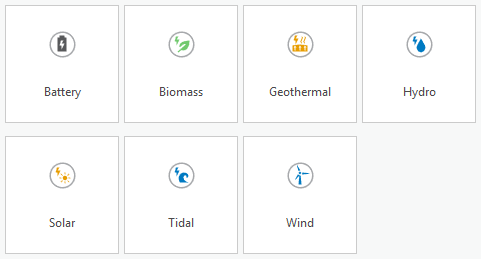
Twenty-one new point symbols representing types of renewable energy were added to each of the ArcGIS 2D, Pushpins, and Primitives styles.
Symbols
You can use semantic search to search for symbols and style items in system styles.
Mesh symbols and 3D polygons support stroke symbol layers that draw wider than one pixel (1px) to emphasize edges and outlines.
Military dictionaries support air corridors with variable width.
Time
- The time extent property for feature service layers can be adjusted or disabled.
Production
Airports
The product data files were updated for ArcGIS Pro 3.7.
The following templates were added or updated in the ArcGIS Aviation Airports product data files:
Airport Landuse template
Airport Overview template
Runway Environment template
AOC Type A Chart layout
AOC Type B Chart layout
Geoprocessing tools
- See Aviation toolbox for new and enhanced geoprocessing tools.
Aviation Charting
You can resize airport annotation in ArcGIS Pro with the Aviation Resize command
 .
.The ICAO Instrument (SID and STAR) template was added to the Aviation Charting product data files.
The product data files were updated for ArcGIS Pro 3.7.
Geoprocessing tools
- See Aviation toolbox for new and enhanced geoprocessing tools.
Bathymetry
Support for S-111 regular grid production is available using the Export To S-111 and Add NetCDF To S-111 Workspace tools in the Bathymetry S-100 Tools toolbox, included in the ArcGIS Bathymetry product data files.
The
BIS_Dataset_Statusfield can be added to an existing BIS using the Add BIS_Dataset_Status Field tool, in the Bathymetry Supplemental Tools toolbox, included in the ArcGIS Bathymetry product data files. This field allows you to mark datasets as active (0), inactive (1), or locked (2).You can deactivate covered data to exclude it from exports using the Deactivate Covered Data tool in the Bathymetry Supplemental Tools toolbox, included in the ArcGIS Bathymetry product data files. This tool works with the Add BIS_Dataset_Status Field tool by updating the
BIS_Dataset_Statusfield value to1 - Inactivewhen datasets are covered by other datasets.
Geoprocessing tools
- See Bathymetry toolbox for new and enhanced geoprocessing tools.
Maritime
The tools in the S-100 Set Scale Band group can be used to filter data in the map based on desired scale ranges.
The following S-101 schema features changed from multipoint to point, to enable labeling by depth and automatic grouping on export:
Soundings
DepthNoBottomFound
The Color-Filled ZOC tool and corresponding layer file are available in the ArcGIS Maritime product data files to automate workflows and reduce cartographic editing.
The IENC 2.6 schema and associated files were updated.
Geoprocessing tools
- See Maritime toolbox for new and enhanced geoprocessing tools.
Pipeline Referencing
The integration between ArcGIS Pipeline Referencing and ArcGIS Utility Network was enhanced in the following ways:
You can verify which fields from the Pipeline Device and Pipeline Junction feature classes are configured with a utility network in the utility network feature class properties.
In the LRS Hierarchy pane, the Utility Network node contains the Pipeline Line, Pipeline Device, and Pipeline Junction feature classes.
The Merge Centerlines tool
 reduces segmentation by merging centerlines that belong to a common route.
When designing an LRS route log data template, an LRS intersection feature class can be used as a referent layer.
-
You can set the default method for adding point and line events, as well as for event replacement.
You can check the Do not run Generate Intersections tool check box to prevent intersections from being created or updated when running the Process Edits tool
 .
.
Geoprocessing tools
- See Location Referencing toolbox for new and enhanced geoprocessing tools.
Roads and Highways
The Merge Centerlines tool
reduces segmentation by merging centerlines that belong to a common route.When designing an LRS route log data template, an LRS intersection feature class can be used as a referent layer.
-
You can set the default method for adding point and line events, as well as for event replacement.
You can check the Do not run Generate Intersections tool check box to prevent intersections from being created or updated when running the Process Edits tool
.
Geoprocessing tools
- See Location Referencing toolbox for new and enhanced geoprocessing tools.
Topographic Mapping
Multiple accessibility enhancements include improved screen reader narration and keyboard accessibility for multiple panes and layout elements.
The Map Production System and Topographic Production Manager web apps—available with an ArcGIS Enterprise deployment—include multiple accessibility fixes to meet Web Content Accessibility Guidelines (WCAG) standards.
Projects
General
Project favorites have been updated in the following ways:
Your favorite items are now organized under the My Favorites heading in the user interface.
You can export favorites as a file to share with others.
You can customize the location of your favorites file and its associated favorites folder.
Administrators can create system favorites and distribute them to users through an application setting.

System favorites exist in addition to a user's personal favorites. In the Catalog pane, a catalog view, or browse dialog box, you can use the Right arrow key to select container items, such as folders or geodatabases, and expand their contents.
Metadata
- You can now edit metadata using the Dublin Core+ metadata style. This style is also available in ArcGIS Online and in ArcGIS Enterprise 12.0 and later versions.
Sign in to your organization
The Portals page in the ArcGIS Pro settings includes the following enhancements:
You can search for portal connections by name, URL, and signed-in account.
You can edit a portal connection to replace the default display name with a custom alias.
System administrators who manage application settings can set default portal connections for an ArcGIS Pro deployment.
Share your work
You can share Gaussian splat layers to ArcGIS Enterprise 12.1 or later.
Raster or mosaic layers in a map can be shared as web imagery layers that reference registered data or copy all data to ArcGIS Enterprise.
The Enable management of shared templates option is available when sharing a web feature layer that copies all data to ArcGIS Enterprise 12.1 or later.
If a map only contains stand-alone tables, the tables are published when the web map is shared.
The database data store registration user interface in the Manage Registered Data Stores pane was redesigned to include the following changes:
The NoSQL button in the Add drop-down menu was removed. Data store creation for knowledge graphs is now available under the Database option.
When registering a database, if a knowledge server is available, the Data store will be used for a knowledge graph toggle button appears. Use this option to continue registering Neo4j and ArangoDB databases.
You can register data stores to ArcGIS Data Pipelines Server sites federated to ArcGIS Enterprise 12.1 or later.
Network diagrams
In a utility network composed of telecom domain networks with defined circuits, the network owner can add and configure a custom template to generate circuit diagrams.
When performing network traces along a telecom network domain with the new Path and Circuit trace types, the diagram builder can retrieve connectivity information such as that inferred by containment or connectivity, or unit identifiers through which the trace passes.
Network owners can more easily control and optimize how diagram layer definitions are shared between diagram templates.
See Network Diagram toolbox for new and enhanced geoprocessing tools.
Trace network
- See Trace Network toolbox for enhanced geoprocessing tools.
Utility network
A telecom domain network is available for use with Utility Network Version 8. See Telecom domain networks in the Highlights section.
An updated version of the utility network dataset supports schema changes to the information model. Upgrading to Utility Network Version 8 is necessary only if you want to use the following functionality:
Telecom domain networks
Propagation Resetters
The Find Subnetworks pane has an updated design that provides more control over working with subnetworks. You can select subnetwork controllers, review SubnetLine feature details, and explore subnetworks through an enhanced interface.
A new Propagator Resetter network category is available with Utility Network Version 8 to designate features in the network that reset the propagated attribute value when discovered as part of a trace.
You can add or modify subtypes and domains on utility network classes without disabling the network topology. This includes changing coded value descriptions on domains assigned to the asset type field, renaming subtypes on the asset group field, and adding subtypes or coded value descriptions while the topology is enabled.
Geoprocessing tools
- See Utility Network toolbox for new and enhanced geoprocessing tools.
Python
General
The default Python environment includes the following updates and additions. See the full list of Python libraries in the default ArcGIS Pro Python environment.
Python was upgraded from version 3.13.7 to 3.13.13.
Pandas was upgraded from version 2.3.0 to 3.0.0. See the Pandas release notes for details.
NumPy was upgraded from version 2.2.0 to 2.3.5.
Matplotlib was upgraded from version 3.9.4 to 3.10.8.
pypdf was upgraded from version 4.3.1 to 6.5.0.
CUDA and cuDNN builds were updated to support deep learning workflows on NVIDIA Blackwell GPUs.
Cloning Python environments is faster and supports cloning on disconnected computers, enabling offline creation of Python environments.
The ArcGIS Pro Debugger extension for Visual Studio Code now includes the following:
Built‑in and custom ArcPy code snippets for quickly inserting common Python patterns.
A toolbox explorer that provides a tree view of toolboxes in the workspace.
ArcPy
Geoprocessing tools and ArcPy functionality support Python pathlib.Path objects, allowing paths to be passed directly without being converted to strings.
Learn more about using pathlib.Path with geoprocessing tools
ArcPy cursors now include a
SHAPE@GEOJSONtoken, supporting the read and write of geometry GeoJSON representations.
Geocoding module
The
Locatorclass supports two new properties:excludeIntersectionType—Specifies whetherVirtualtype intersections are excluded from geocoding results.distance—Defines a custom search distance for returning reverse geocoding results.
The new
excludeIntersectionTypeparameter is supported by the following methods of theLocatorobject:geocodegeocodeWithSuggestsuggest
Mapping module
There is a new
arcpy.mp.CreateArcGISProjectfunction.An
altTextproperty was added to theMapFrameandPictureElementclasses.The
currentPageNameandtypeproperties were added to theMapSeriesclass.The
PDFDocumentclass has a newattachFilemethod. TheupdateDocPropertiesmethod has a newpdf_language_codeparameter.The
author,languageCode,keywords,subject, andtitleproperties were added to thePDFFormatclass.A
wildcardparameter was added to thecloseViewsmethod on theArcGISProjectclass.A
keyparameter was added to thelistStyleItemsmethod on theArcGISProjectclass. This parameter was also added as a property to theStyleItemclass.A
basemap_typeparameter was added to theaddBaseMapsmethod on theMapclass and to thelistBaseMapsmethod on theArcGISProjectclass.
Network Analyst module
- The
updateNetworkDatasetSchemamethod on theNetworkDatasetclass has a new travel_modes parameter for replacing a dataset's travel modes.
ArcGIS Pro SDK
The ArcGIS Pro SDK for .NET allows you to extend ArcGIS Pro with your own unique tools and workflows using SDK add-ins and configurations. See What's New for Developers at 3.7.
Roadmap
To learn more about near-term, mid-term, and long-term development goals, refer to the latest ArcGIS Pro roadmap.
Deprecated functionality
See Release notes for ArcGIS Pro 3.7 for information about functionality that has been removed at ArcGIS Pro 3.7 or will be removed in a future release.